The standard database supplied with the programm contains characteristics of the most commonly used materials, lubricants and drives and is constantly expanding. If the simulation requires characteristics of any material, lubricants or equipment that are not in the standard database, the user can specify them independently or contact technical support.
The database window is opened from the main menu of the applications:
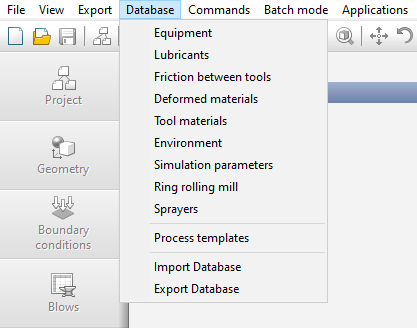
Database
In QForm UK following database are used:
Database |
Brief comment |
contains a list of drives describing the kinematics and dynamics of tools |
|
contains a list of friction and heat transfer conditions between contacting objects |
|
contains a list of friction and heat transfer conditions between tools |
|
contains a list of deformed materials for which plasticity curves, thermophysical properties, chemical composition, elastic properties, phases properties and phase transformations for multiphase materials can be specified |
|
contains a list of tool materials for which elastic-plastic characteristics and thermophysical properties can be specified |
|
contains a list of conditions for heat transfer from free surfaces of objects |
|
contains a list of templates for the initial data tab Simulation parameters |
|
contains a list of ring rolling mills that are used when simulation in the module Ring rolling |
|
contains a list of sprayers that can be specified for spray cooling |
|
contains a set of templates for various standard operation with specified process initial data |
Using the commands Import database and Import database QForm 5 you can quickly transfer all data from a file specified in explorer *.qdb or from the active database of the installed QForm 5.
Database tree
Different database are provided for models of different objects. The window for each of these databases is slightly different, but they all have a similar structure:
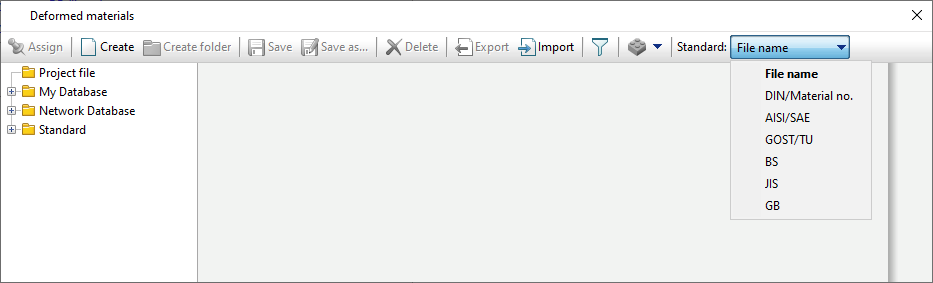
•Project file – elements of the open project database are displayed here, that is, those elements that are saved directly in qform-file. The elements in this section can be edit.
•Missed in My Database – elements assigned in the project from Database, but for some reason are missing from the current user Database. This is possible, for example, if a project was created on one computer and opened on another computer, the database of which is different from the database of the first computer. This data cannot be edited, but can be saved in another section and edited later.
•Database – database elements created by the user or imported from other databases, for example from QForm 5. The elements in this section can be edited.
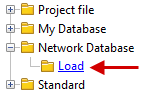
•Network Database – elements of some database on the network are located here, the path to which is indicated in program settings. All users of the local network who have access to the computer on which it is located can work with the network database. The elements in this section can be edited. If in program settings feature Network database autoload is deactivated, then in the corresponding branch it will be possible to connect to the network database manually:
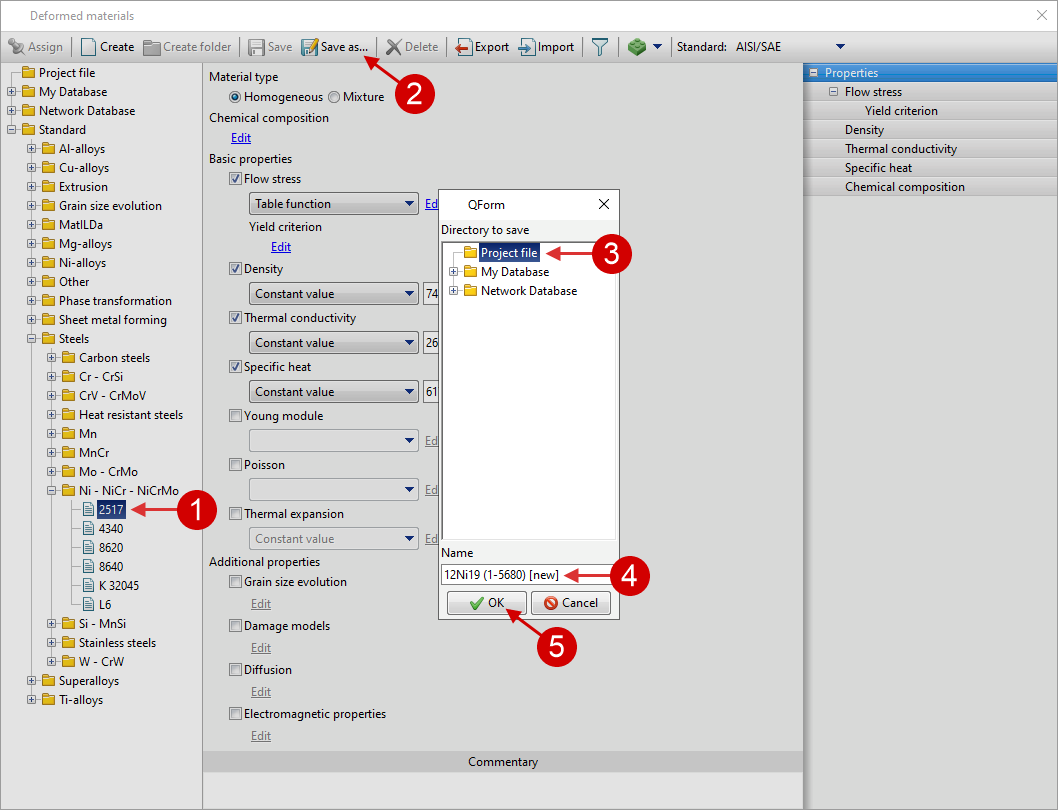
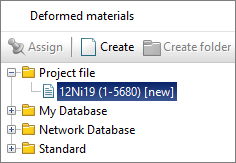
•Standard – here is the database supplied with the programm. This data cannot be edited. If you need to change the parameters of any element from the standard database, you need to select it and save it in the user database using the command Save as.... After this, you will be able to edit the selected element. An example of saving material from a section Standard to Project file is shown in the picture below:
|
|
|
Database toolbar
The following commands are available on the toolbar in the database window:
•Assign – used when specifying initial data: selected element will be assigned to the corresponding section. An alternative way to assign the selected model is by double-clicking the left mouse button on the model in the database tree.
•Create – used to create a new database element.
•Create folder – used to create a new directory in the user Database.
•Save – used to save changes to a database element.
•Save as... – used to save the selected element in the selected database directory with the ability to change the name.
•Delete – used to remove the selected element or directory from the database. You cannot delete elements from a directory Standard.
•Export – used to export the selected model to file. Depending on the model object, export to a binary file is possible *.qdat-bin, or to a text file *.qdat.
•Import – used to import a model from file.
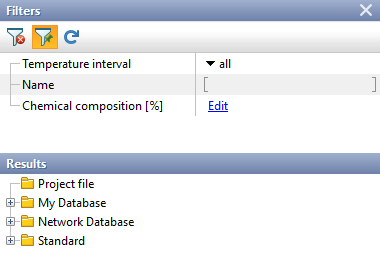
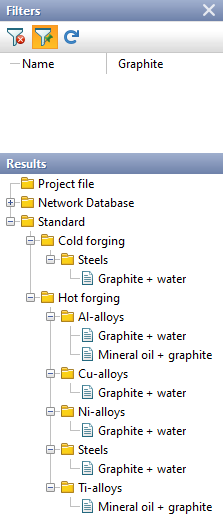
•Database search – used to filter database objects in order to quickly find the required model.
|
|
|
|
|
Search in the deformed materials database |
|
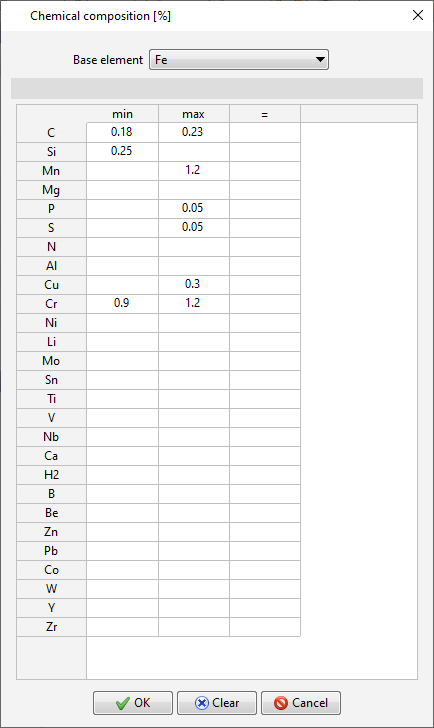
Search criteria for chem. composition of the workpiece material or tool material |
|
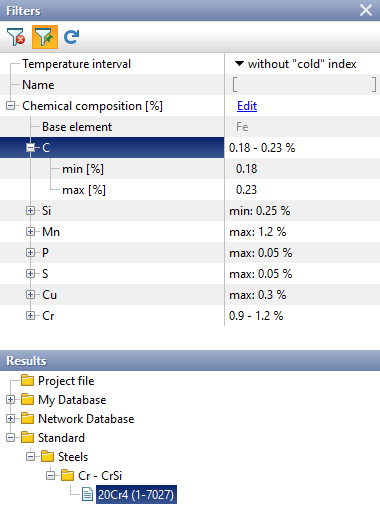
The result of a search in a database of deformed materials with a user defined chemical. composition and temperature interval |
|
|
|
Search in the deformed materials database |
|
Search in other databases |
|
Information |
Search for material models based on chemistry. composition is available only in databases Deformed materials and Tool materials. |
|

Development Tools – used to add relevant commands API in Application Wizard.
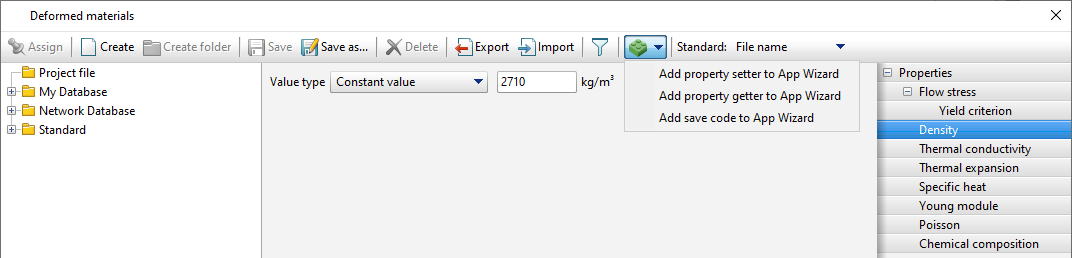
Standard – used to switch the name of models of deformed materials in accordance with the selected standard.
Managing model parameters in the database
Model properties and parameters are indicated in the central panel of the database window.
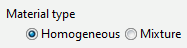
Parameters can be qualitative and quantitative. Some quality parameters can be toggled, some model quality parameters need to be activated, and advanced parameters may appear.
|
|
|
Switching sprayer type |
|
Switching the type of deformed material |

Quantitative parameters require specification of values. Most of these parameters can be activated with a check mark.
|
Important |
During the simulation, only activated model parameters can be used, that is, those parameters that have a check mark next to them. |
|

There are several ways to specify numerical parameters - Constant value, Table function, Subroutine And Formula:
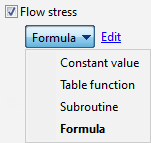
Most numeric parameters support specifying values as a constant value or as a table. Specifying numerical parameters as a formula or using a subroutines is supported only by some parameters.
1. When specifying a parameter as a constant value, the specified value will not change and depend on other parameters.
2. When specifying data in the view of a table function, by default a table of the function dependence on any parameter is created. In some cases, a function may depend on several parameters. If you click on Select parameters, a window will appear indicating the arguments on which the function will depend:
|
|
|
|
|
The function depends on one parameter |
|
Specifying an additional parameter |
|
The function depends on two parameters |
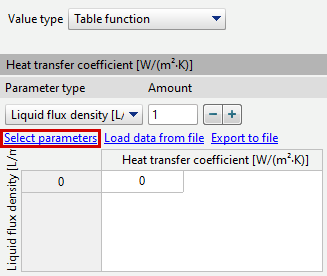
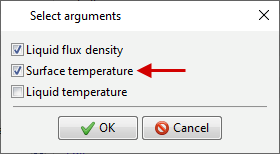
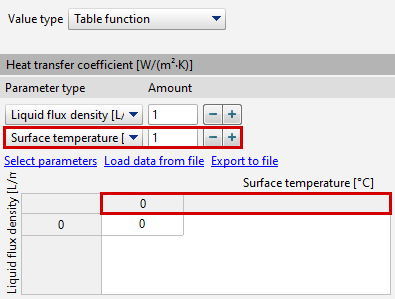
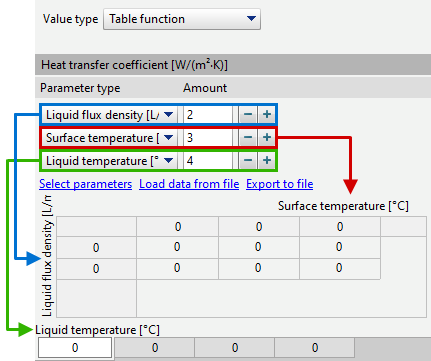
You can select up to three parameters. Thus, the table can be two-dimensional: two columns (if the function depends on one parameter), several columns (if the function depends on two parameters) or three-dimensional (if the function depends on three parameters). At the same time, the order in which these parameters are presented also value. The first parameter corresponds to the row headers, the second parameter corresponds to the column headers, and the third parameter corresponds to the headers of the tabs under the table. It is possible to switch the sequence of parameters. To do this, you need to click on the drop-down list and select a different option.
|
Information |
When you switch the parameters sequence, the table will be rebuilt according to the specified sequence. In this case, the table will contain the same value as before the rebuild. |
|
|
|
|
2 lines Liquid flux density 3 columns Surface temperature 4 tabs Liquid temperature |
|
3 lines Surface temperature 4 columns Liquid temperature 2 tabs Liquid flux density |
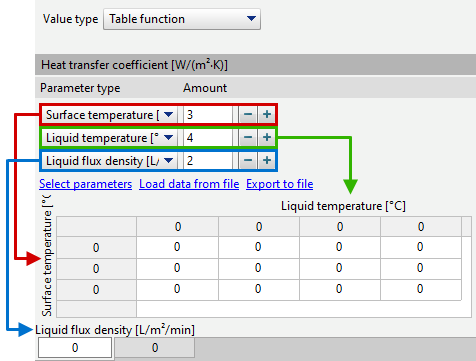
Data preparation is possible in third-party applications. For this purpose, feature for import and export tables are provided.
Load data from file – import a table function from file with the extension*.csv, *.xlsx, *.xls.
Export to file – export a table function to a file with the extension*.csv, *.xlsx, *.xls.
|
Information |
To avoid errors when preparing data for import, it is recommended to first use the command Export to file to create an import file template . |
|
All features of data import and export are described in more detail in the section Flow Stress
You can also fill in table data by pasting values from the clipboard. In this case, you can insert data into all columns and rows of the table at once. In this case, the table header and values are inserted separately from each other.
When specifying data in table view, linear interpolation is carried out between the specified values in a linear coordinate system. Below the minimum user defined value and above the maximum user defined value, no extrapolation argument. Thus, when the set value limits are exceeded, the last known value will be used.
|
X - argument; Xmin -minimum value of a given argument; Xmax - maximum value of a given argument; Y - function. |
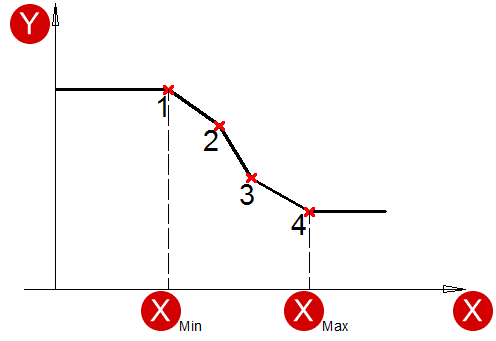
3. When specifying a parameter using user processor subroutines It is possible to specify arbitrary dependencies.
4. When specifying data is in the view of a formula, you have to select one of the proposed formulas, set parameters value , and specify restrictions.
|
|
|
Formulaic type of setting |
|
Formula selection |
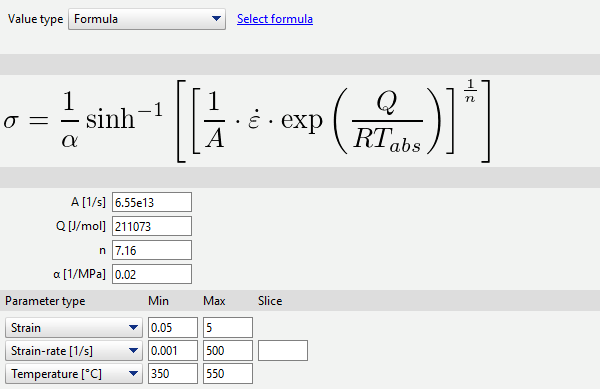
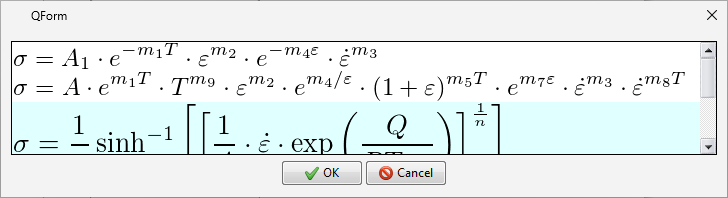
The selection is made with the command Select formula. In the window that opens, you have to select the appropriate formula, then click OK to assign her.
Below the formula there are the parameters that need to be specified. Even lower in the columns Min and Max you need to specify parameters restrictions. Thus, when exit beyond the boundaries of the specified values, the bound value will be substituted into the formula.