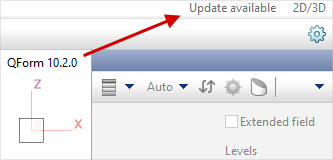
In the software QForm UK it is possible to select the system of units, interface language as well as to change some interface options.
Click in the main menu Settings - Program settings. Also window Program settings can be reached by clicking a button  in the upper right angle.

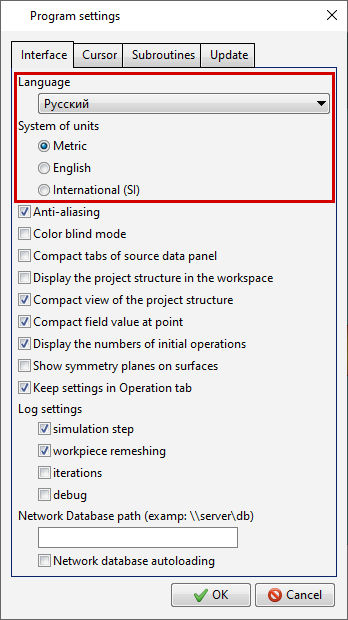
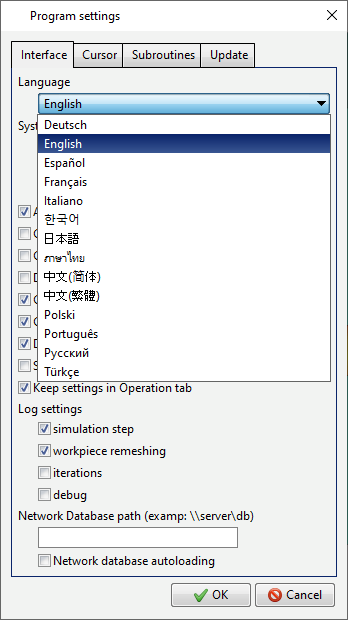
In the new window, you can select the system of units (Metric, English or International (SI)) and interface language (Russian, English, German, Italian, French, Chinese Traditional, Chinese Simplified, Spanish, Japanese, Portuguese, Turkish).
|
|
|
Program settings window |
List of available languages of the applications interface |
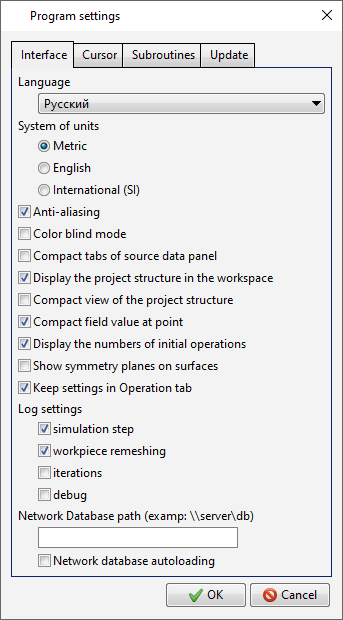
The following options are also available:
|
|
|
|
|
|
|
Interface tab |
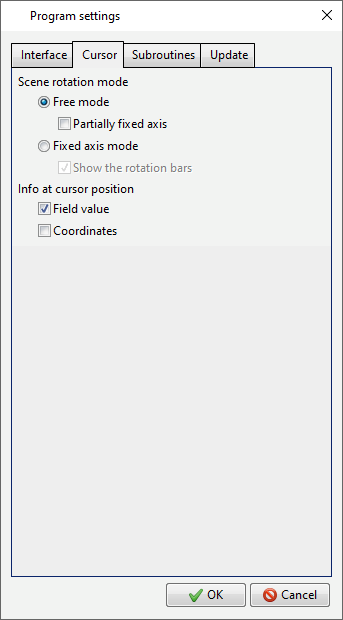
Tab Cursor |
|
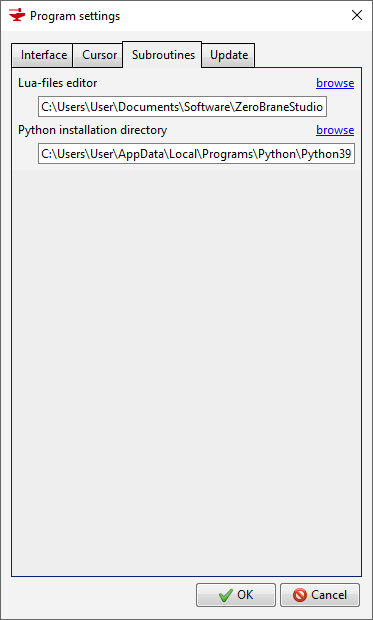
Subroutines tab |
|
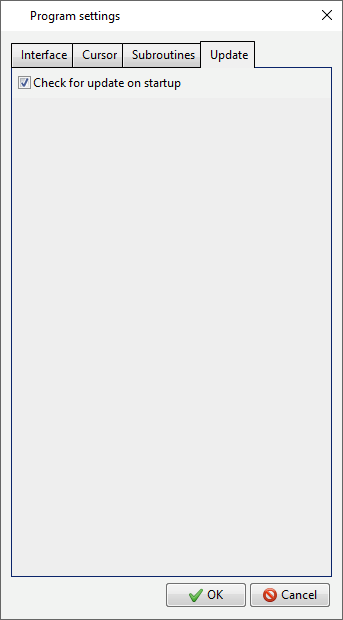
Update tab |
|
Information |
Some options may require restart of the program. QForm UK |
|


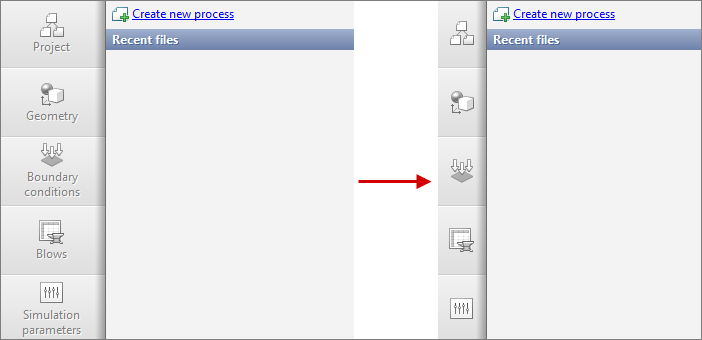
•Anti-aliasing - an feature to render an image in high resolution using filters, which allows you to smooth out the edges of objects, making them less blurry and blending color, giving the image a natural view. •Color blind mode - special color program settings. •Compact tabs of source data panel- if the feature is active, the sidebar of the initial data panel is displayed without text, the width of the buttons is reduced:
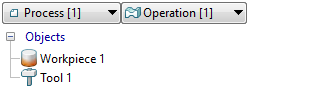
•Display the project structure in the workspace - if the feature is active, over Object tree drop-down collections for selecting the process and operation appear:
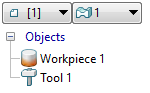
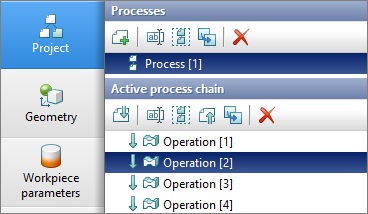
•Compact tabs of source data panel - if the feature is active, the view of the structure in the domain and window Project structure becomes compact:
•Display the numbers of initial operations - if the feature is active, then in list of processes and operationnumbers [N] of parent processes and operation are shown, for those processes and operation that were created by copying
•Show symmetry planes on surfaces - paints the faces of objects belonging to the symmetry planes color in yellow color. •Keep settings in Operation tab - if the feature is active, then in the tab Operation the previous selections are remembered Operation type and Problem type. •Log settings - selection of info that will be included in the simulation log. •Network catalog database - specifying the path to the user database located in the local network. The feature allows you to use a single database on all computers:
•Network database autoloading - enabling this feature allows you to auto load the network database when you start any database window. Disabling this feature reduces the time it takes to start any database window, as it does not require initialization of all network database objects. If this feature is disabled, if it is necessary to connect to a network database, it is possible to connect manually from any database window. |
||||

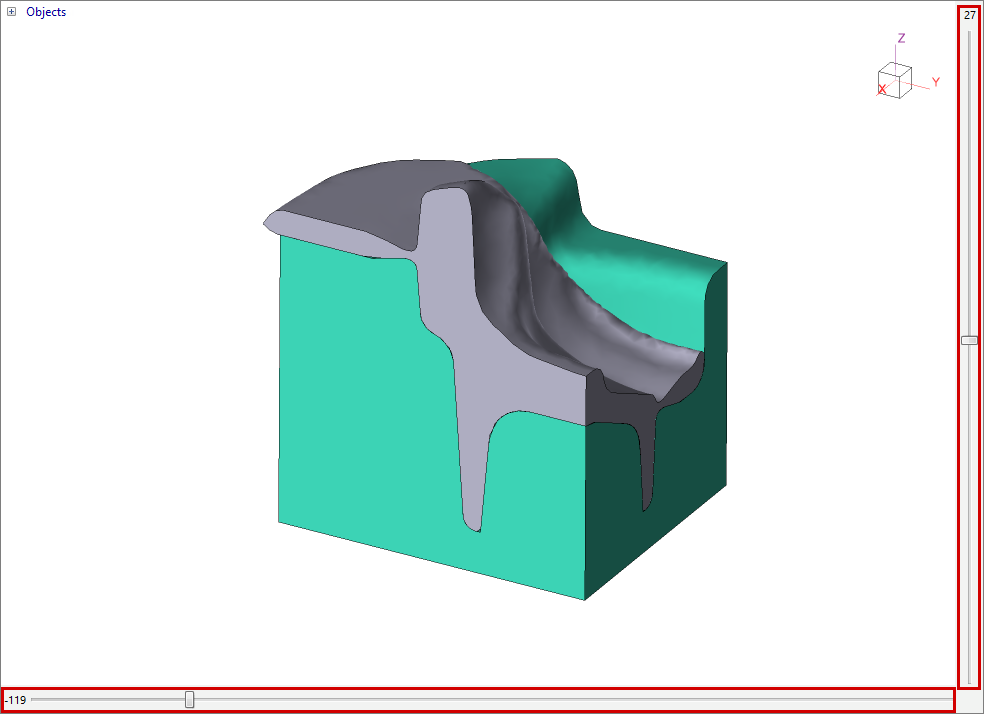
•Scene rotation mode - selection of the rotation mode of objects in the domain. •Show the rotation bars - adds vertical and horizontal sliders to control the scene:
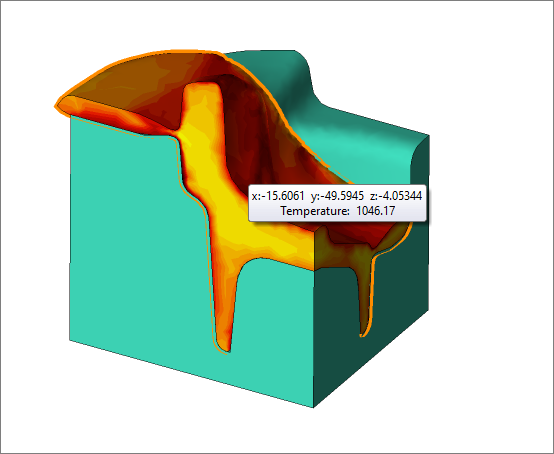
•Info at cursor position - when you hover the mouse cursor over an object, a rectangle appears with the coordinates of the point and the value of the active fields at this point:
|
•Lua-files editor - path to the software with which debugging is carried out user subroutines. •Python installation directory - path to the directory where it is installed Python. Used to run user's subroutines with .py extension when work with API. |
•Check for update on startup - check for a new version
|