Application Wizard API (application programming interface) allows the user to work in QForm UKat the program level. The basic goals of the interface are simulation optimization, scripting and debugging.
Work with API carried out in the tab ApplicationsMain menu.
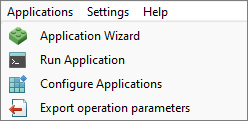
Application Wizard – opens a window App Wizard.
Run Application – launches an existing software.
Configure Applications – opens the applications database.
Export operation parameters - exports all project data to a *.scm file.
The main window of Application Wizard is shown in the below picture:
|
A - control panel; B - categorized list of the functions; C - design window; D - function description; E - log; F - command number; G - initial data panel; H - results viewing window; I - control commands. |
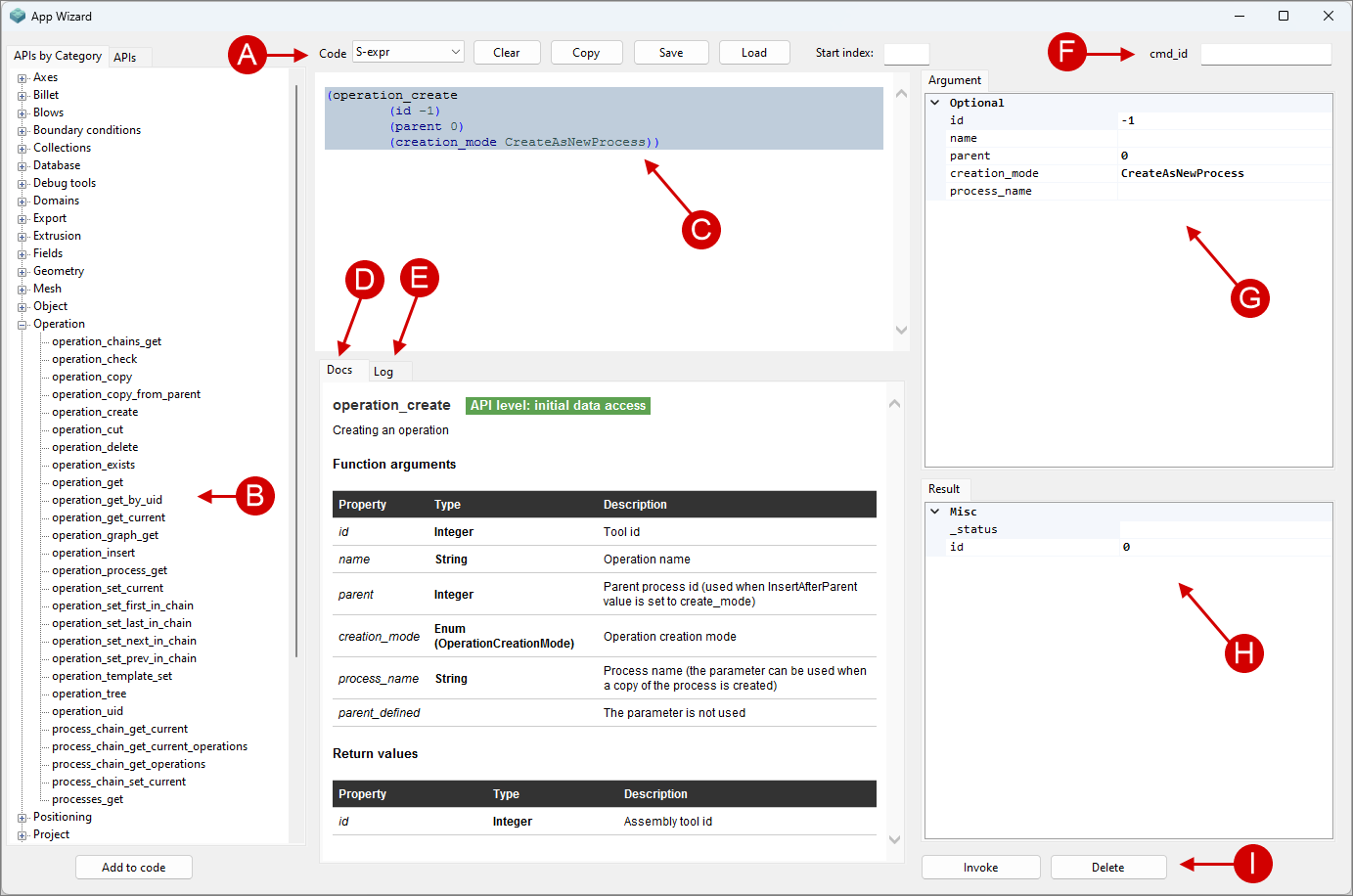
There are buttons on the control panel that are used to interact with the code:
Code – select a programming language from the drop-down list.
Clear – delete all code from the workspace.
Copy code – copy the code to the clipboard.
Save – save the code to a file with the extension *.scm.
Load - loading data from *.scm file.
Start index - allows you to set initial indexes for function parameters .
Categorized list of functions |
functions, sorted by category |
Design window |
window in which added functions are displayed |
Function description (Docs) |
text description of the function |
Log |
output of function start information messages |
Command number (cmd_id) |
set of identification function number necessary for debugging |
Initial data panel |
window in which function arguments are specified |
Results window |
window in which the result of the function is displayed |
Control commands |
use the buttons in this pane to Invoke and Delete the function. |
|
Information |
Add commands from the list using the button Add to code or double-click with the left mouse button. |
|
