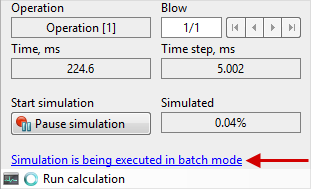
To save time and automate the execution of simulations, the program’s built-in Task Scheduler (Batch Mode) is used. Pre-created projects, processes and transaction chains can be scheduled for sequential automatic simulation.
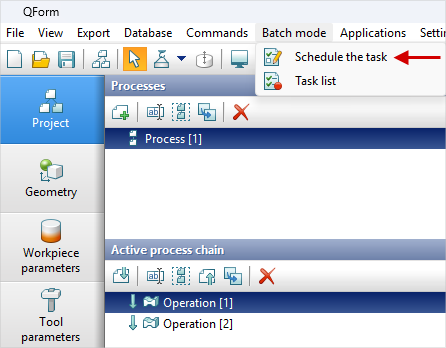
To schedule a simulation, select a process or operation chain on the Project tab, then choose Batch Mode - Schedule the task.
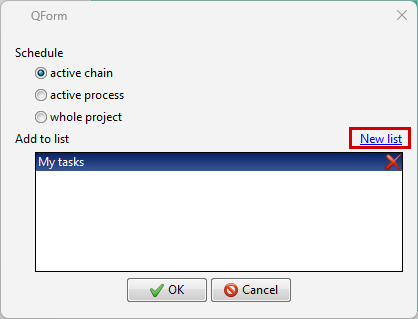
Then the program will prompt you to schedule the active operation chain, the active process, or the entire project.
By default, scheduled simulation are added to the list of simulations under the heading My tasks. Using the New list command, you can create a list with any name. Created lists can be deleted when needed by clicking the red cross next to the list you wish to remove.
When all selected tasks all selected tasks have been scheduled for simulation, open the Task Scheduler by choosing Batch Mode - Task List from the main menu.
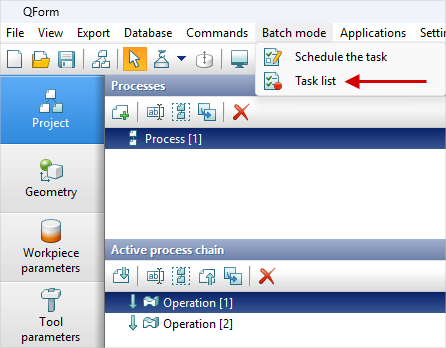
After clicking Task List, the user interface will open:
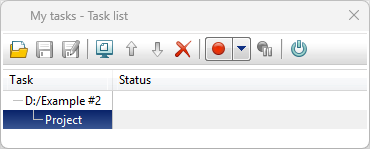
The following features are available:
|
Open task list |
|
Save task list |
|
Save as... |
|
Open task |
|
Increase priority of the task |
|
Reduce priority of the task |
|
Delete task |
|
Simulation (recalculate) |
|
Stop simulation |
|
Turn off the computer after simulation of all tasks |


When a simulation is started, the main interface for interacting with tasks becomes inactive. The status column displays the status of all simulations; if it’s empty, the simulation has not started yet.
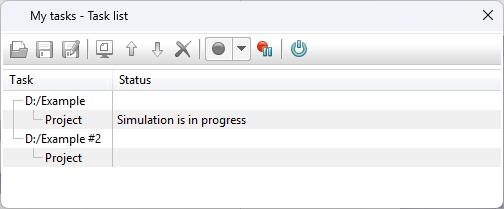
After running the task list for simulation, you can close the Task list window. In the simulation control panel, the message Simulation is being executed in batch mode will appear. The Task list window will reopen if you click on this line.