Objects tree is located in the upper left corner of the Results overview window. It contains all the objects that were added during the preparation of the initial data (workpieces, tools, various domains), as well as tracking objects and section planes. It is intended for quick access to the desired object and changing the display of one or more objects, as well as for managing parameters of Section planes.
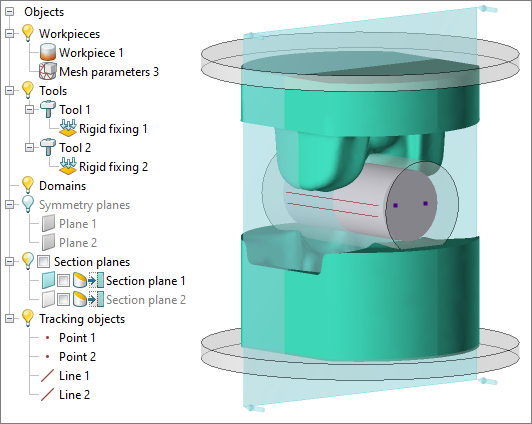
Objects tree structure
All objects are located in unfolding lists that can be folded or unfolded with the help of buttons - and +:
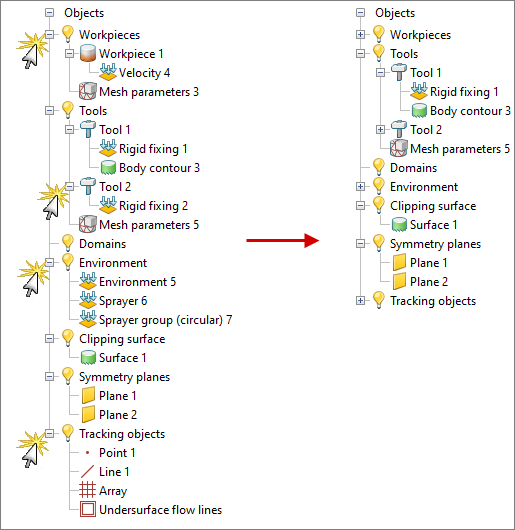
Objects are grouped by categories depending on the type of object. Additional domains of boundary conditions, adaptation boxes, and body contours are located below the objects to which they are assigned. The objects tree starts with workpieces, then tools, environment, clipping surface, symmetry planes and tracking objects.
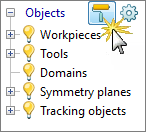
Two commands are appeared when you put the mouse cursor over the top area of the object tree: Objects view synchronization within the project and Objects tree settings.
With the help of Objects view synchronization within the project settings for displaying objects in the current window apply to all operations and processes in the project.
Parameters for displaying objects names are available in the Objects tree settings. Three options for displaying names are available: standard name by default, alternative name only, standard and alternative names simultaneously.
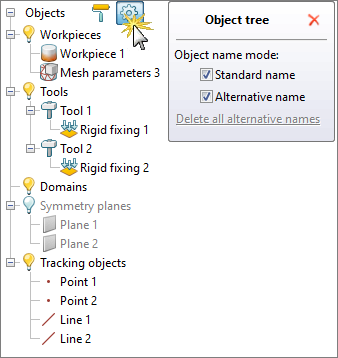
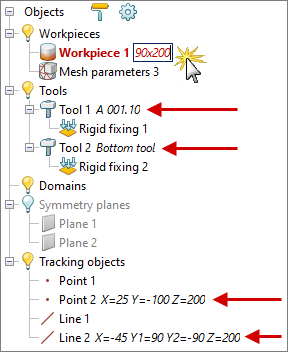
You can enter an additional name for each objects in the tree after activating an alternative name. In order to set an alternative name, it is necessary to click twice with the left mouse button on the desired object and then enter the name. Alternative name is also available to set in tabs of Source control data panel. In the figure below we see alternative names for workpiece, tools, tracking point 2, and tracking line 2.
Interaction with objects
When you click on an object in the tree with the left mouse button, it becomes selected in the results overview window, and its name is highlighted red. You can activate the Positioning mode or apply all available commands from the Toolbar for selected objects from the tree as with selecting objects from Results overview window. When you activate the Color blind mode in the Program settings the names of selected objects will be highlighted in bold.
|
|
|
Color blind mode is enabled |
|
Color blind mode is disabled |
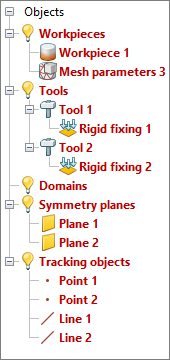
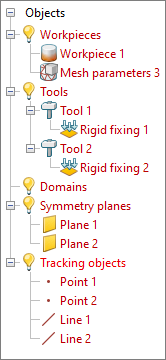
To select several objects one by one, select one object, then hold down the Ctrl key and select the other objects. Workpiece 1, Tool 1, Rigid fixing for Tool 2 and Tracking point 2 are selected in the figure below.
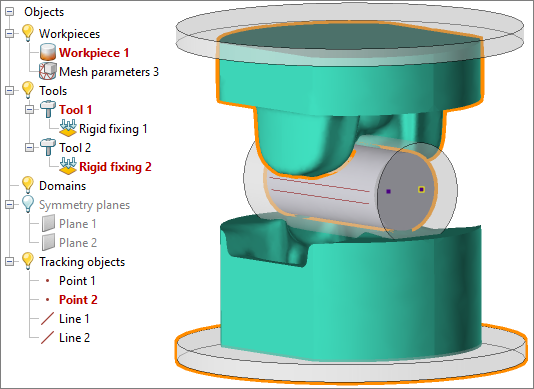
To select several objects in a range, select one object, hold down the Shift key and then select the second object. Objects from Tool 1 to Tracking point 2 are selected in the figure below.
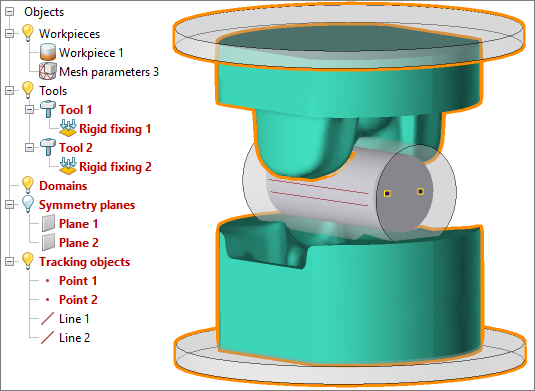
Several objects can also be selected by clicking on the name of an object group, so, if you click on Tools, all tools will be selected, etc.
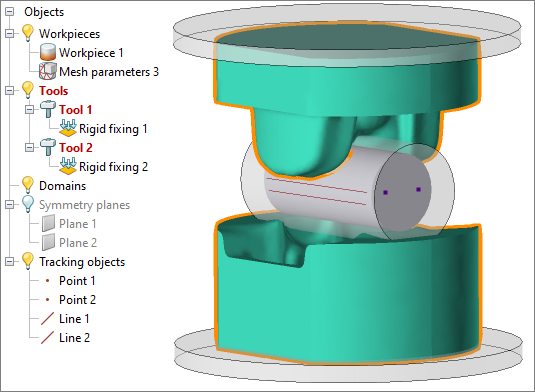
|
Information |
It is possible to select all objects at once using the key combination Ctrl + A. |
|

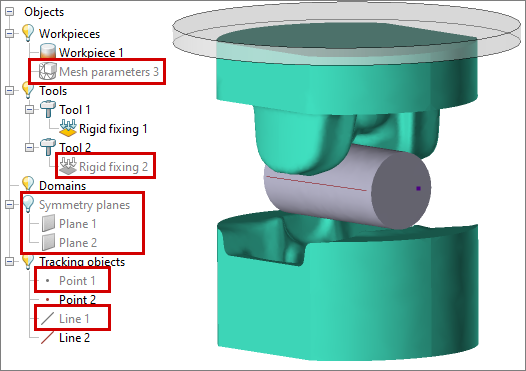
In order to hide an object or a group of objects, you need to click on the icon opposite the object or on the light bulb opposite the category.
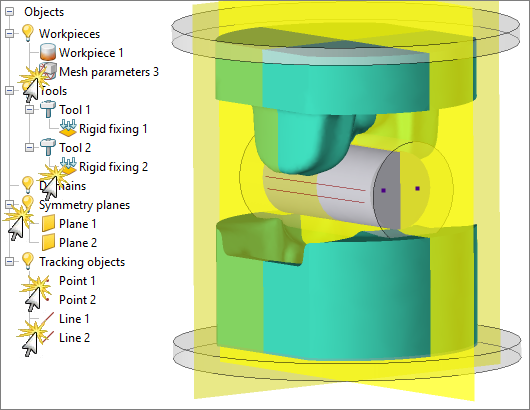
The local mesh adaptation domain for workpiece, the rigid fixing for the lower tool, the symmetry planes, as well as tracking point 1 and tracking line 1 are hidden in the figure below. After disabling the display, the icon and object name become gray. If a category is completely hidden, then the light bulb icon opposite the category will be without filling (category of symmetry planes). If a category is not completely hidden, then the light bulb icon opposite the category will be half-painted (category of workpieces, tools and tracking objects).
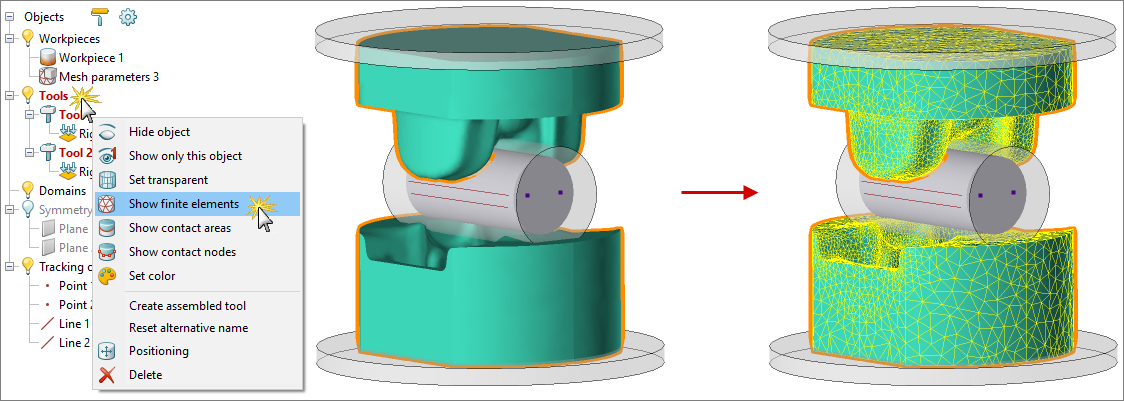
Quick commands of the context menu, which is called by right-clicking opposite the required object, are available for each object in the tree. To call the context menu for several objects at once, select the objects and then right-click opposite any of the selected objects. All the tools are selected and then a mesh is displayed for them as shown in the figure below.
|
Information |
The section plane is managed in the object tree. More information about working with section planes you can read in the section Cross sections. |
|