The results view window is used to display the simulation objects, as well as to display the results of the simulation.
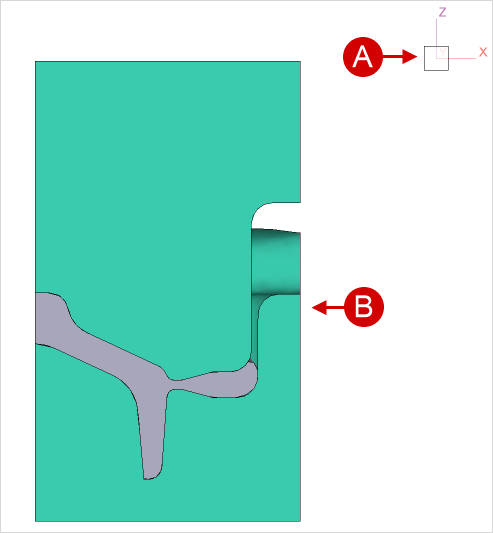
The Object tree is located in the left side of the window. In the upper right corner of the window there is a view cube for navigation control.
|
A - view cube; B - simulation objects. |
Let's look at the work with the view cube in more detail.
1) Cube faces:
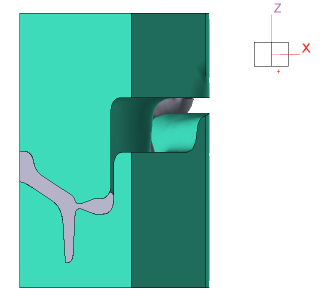
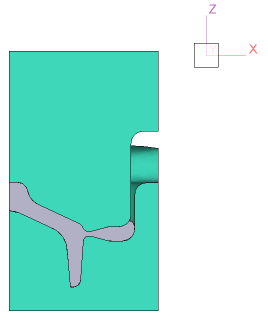
If click on a cube face, it is possible to set the view in the plane corresponding to the plane on the cube (XY, YZ, XZ).
|
|
|
Original view |
|
View after clicking on a face of the view cube |
2) Other features of the view cube:
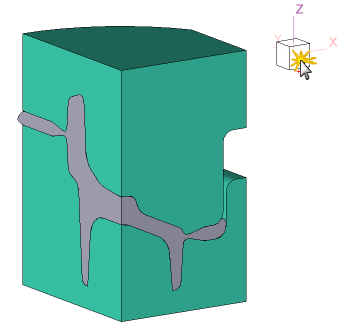
When putting the mouse cursor on the view cube, additional buttons for rotating objects are appeared.
|
Information |
When clicking on the buttons around the view cube, the view is rotated by 90° |
|

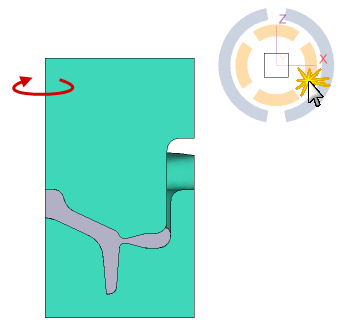
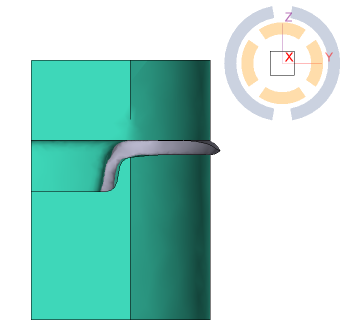
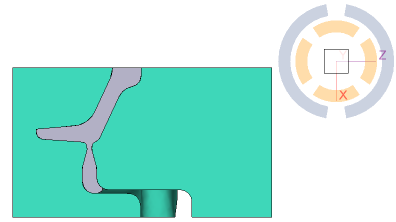
The first level of buttons - yellow color - is intended for rotation around the axes, in the plane of which the objects are located.
|
|
|
Original view |
|
View after rotation around the Z axis by clicking the yellow button |
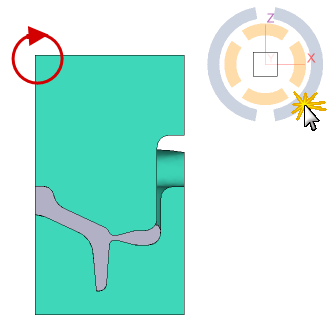
The second level of buttons - gray in color - is intended for rotation around the axis directed perpendicular to the screen plane.
|
|
|
Original view |
|
View after rotation around the Y axis by clicking the grey button |
3) Additional features:
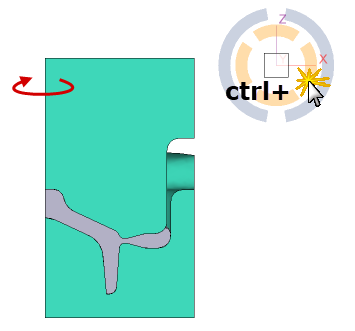
It is possible to rotate objects by an angle of 45. To do this, hold on the Ctrl key and click the left mouse button on one of the object rotation buttons.
|
|
|
Original view |
|
View after rotating around the Z axis by 45° by clicking the yellow button with the Ctrl key being held down |