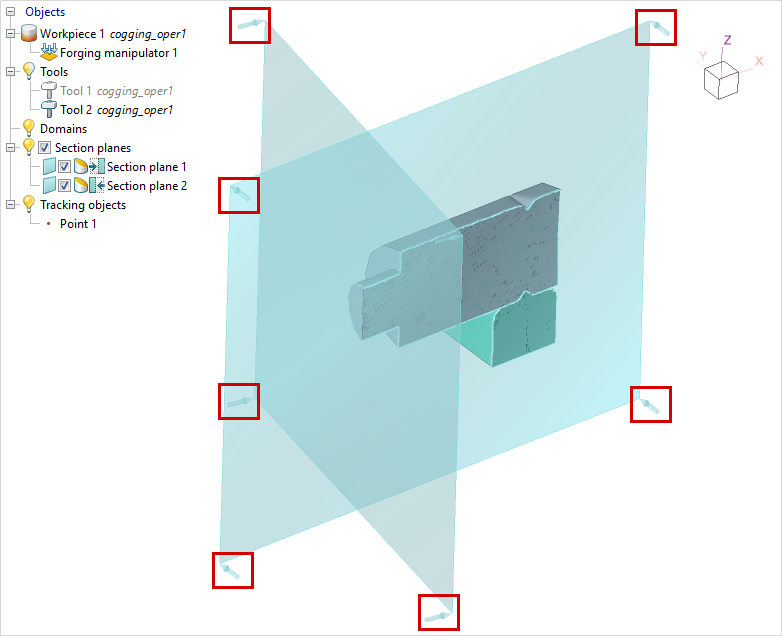
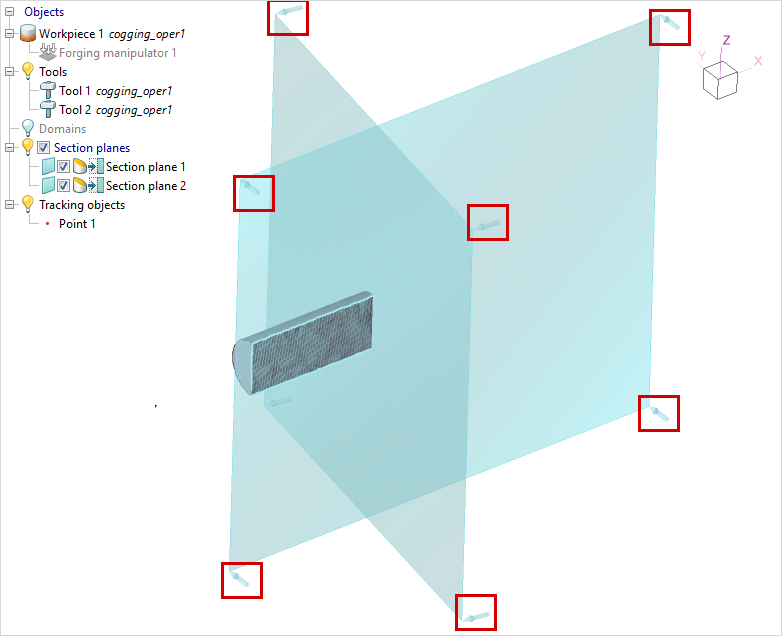
The Section plane creation tool can be used to view field values within a workpiece or tool, specify tracked points or lines within a workpiece, and perform measurements within the crosscut plane.
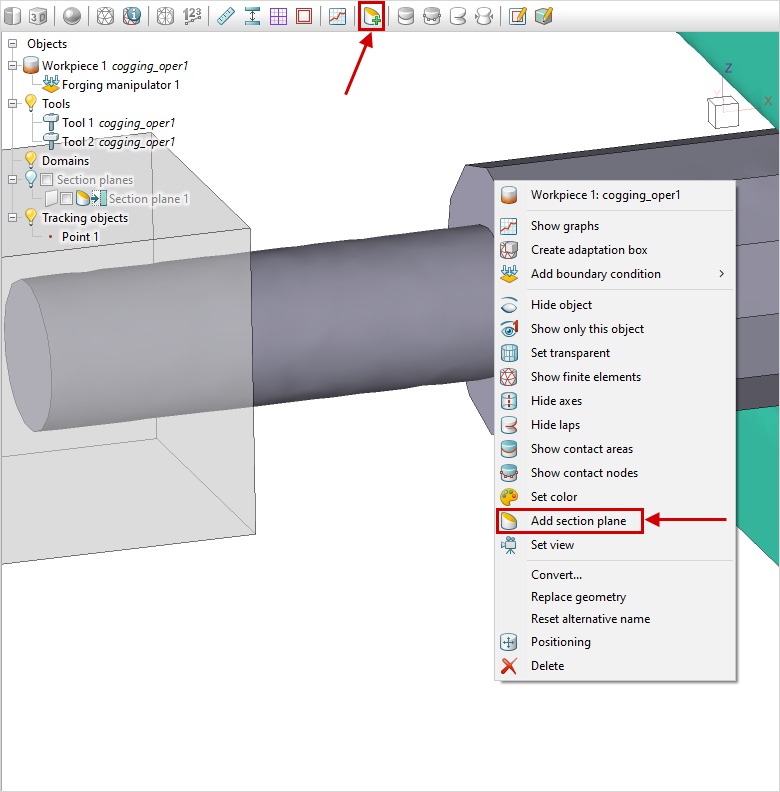
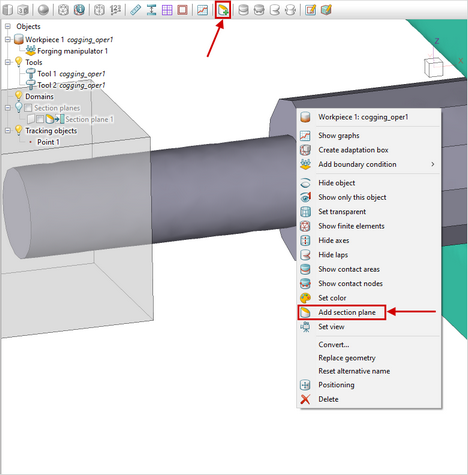
The primary method for creating sections is initiated by clicking the corresponding button  located on the Toolbar. Additionally, a section plane can be defined via the context menu for objects (such as Workpiece, Tool, etc.) using the Add section plane command.
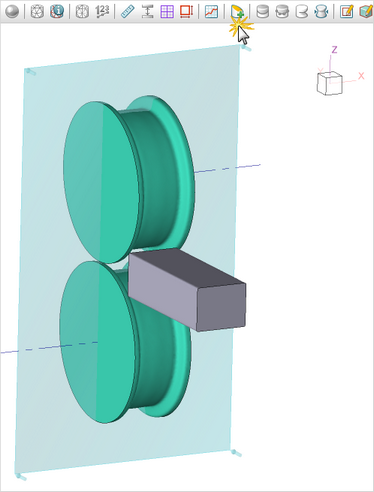
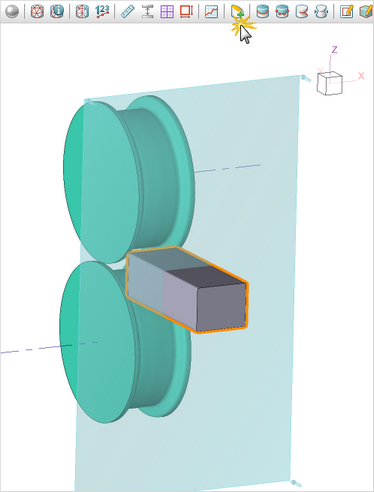
The section plane orientation corresponds to the currently set view. If one or more objects are selected before creating the section plane, it will be positioned at the center of the area encompassing the selected objects.
|
|
|
|
|
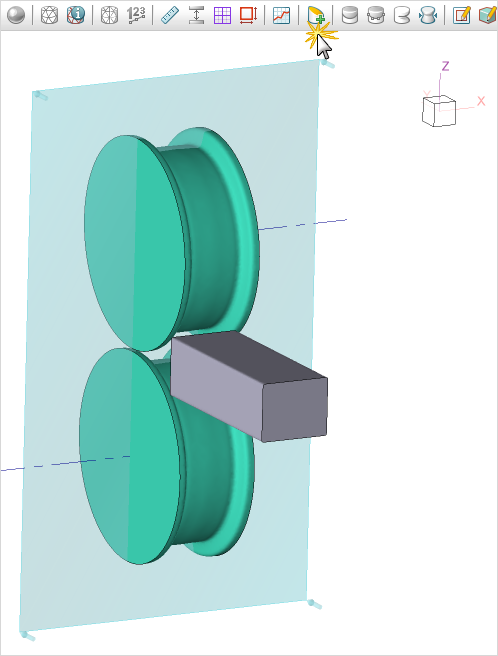
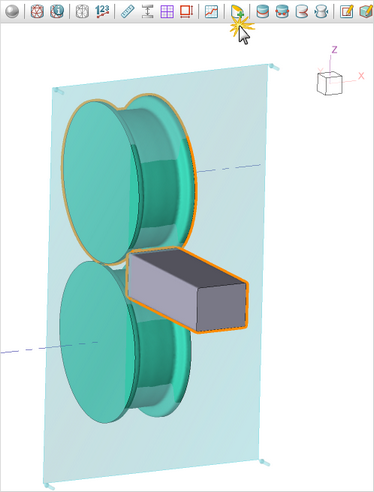
No object selected. The section plane passes through the coordinate origin.
|
|
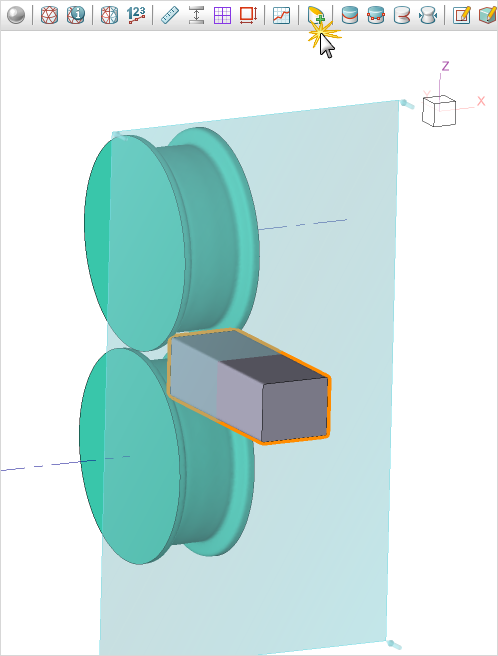
Workpiece selected. The section plane passes through the center of the area encompassing the Workpiece.
|
|
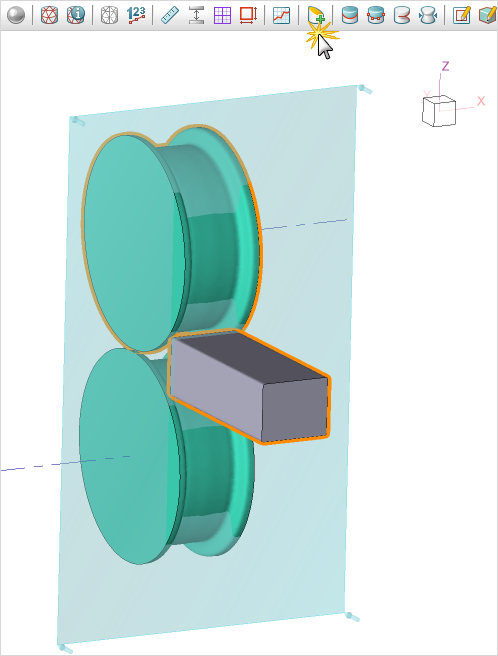
Workpiece and Tool selected. The section plane passes through the center of the area encompassing both the Workpiece and the Tool.
|
A corresponding object will appear in the object tree. The positioning mode will be activated automatically.
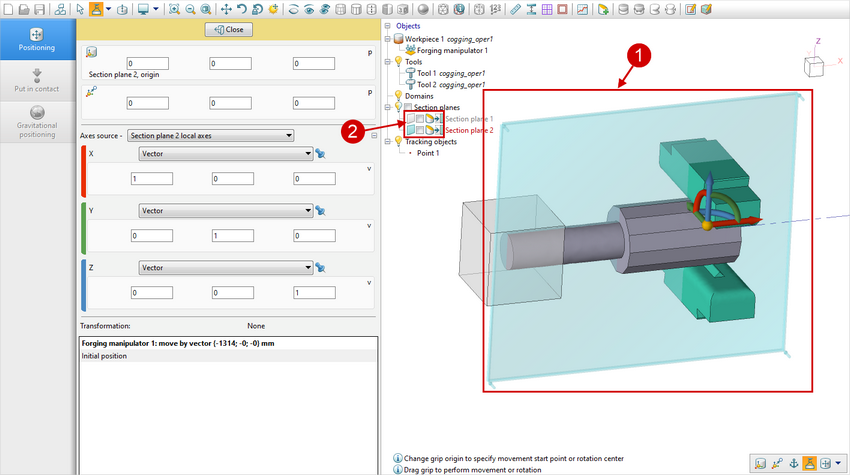
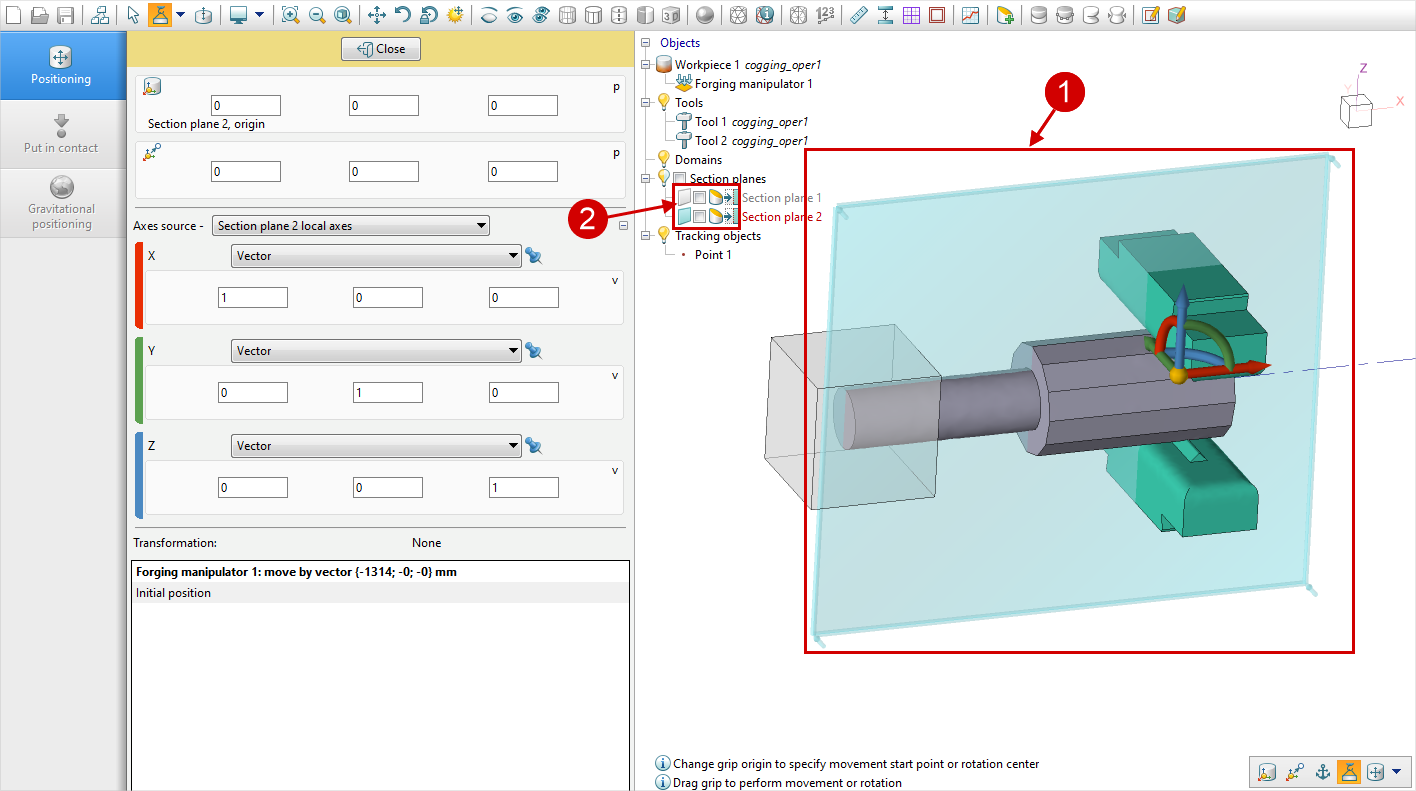
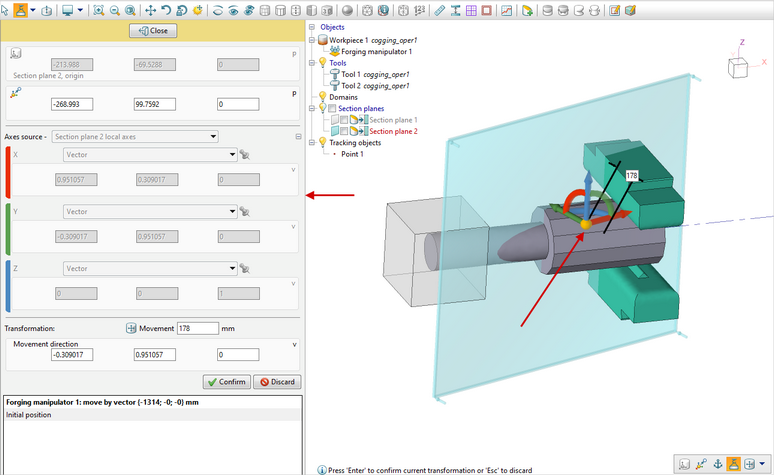
All section planes can be toggled on or off using  , just like the main objects via the Object Tree. Section planes can be moved and rotated in Positioning mode using arrows in the main program window or by setting parameters in the left panel. Positioning mode for a section plane can also be activated via the context menu of the section plane in either the main window or the object tree. , just like the main objects via the Object Tree. Section planes can be moved and rotated in Positioning mode using arrows in the main program window or by setting parameters in the left panel. Positioning mode for a section plane can also be activated via the context menu of the section plane in either the main window or the object tree.
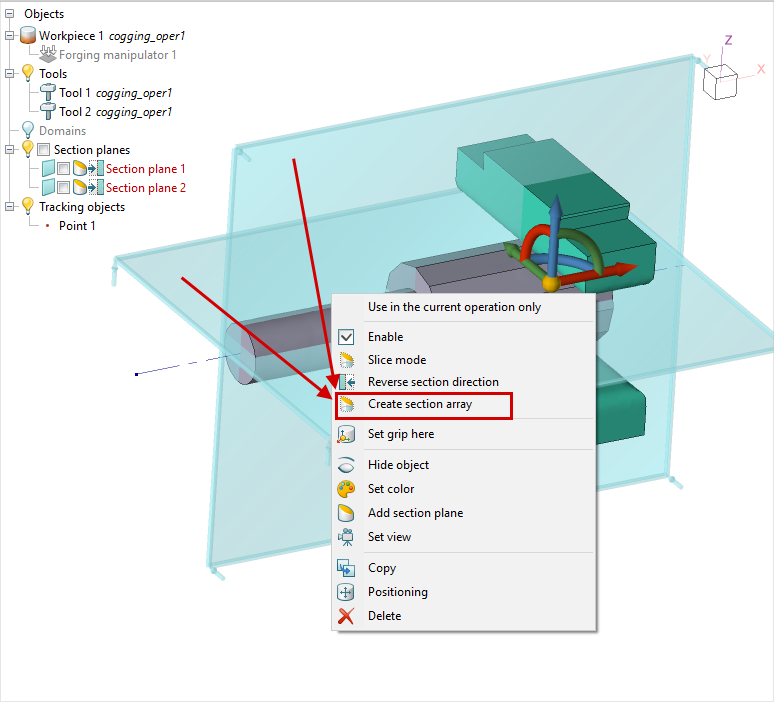
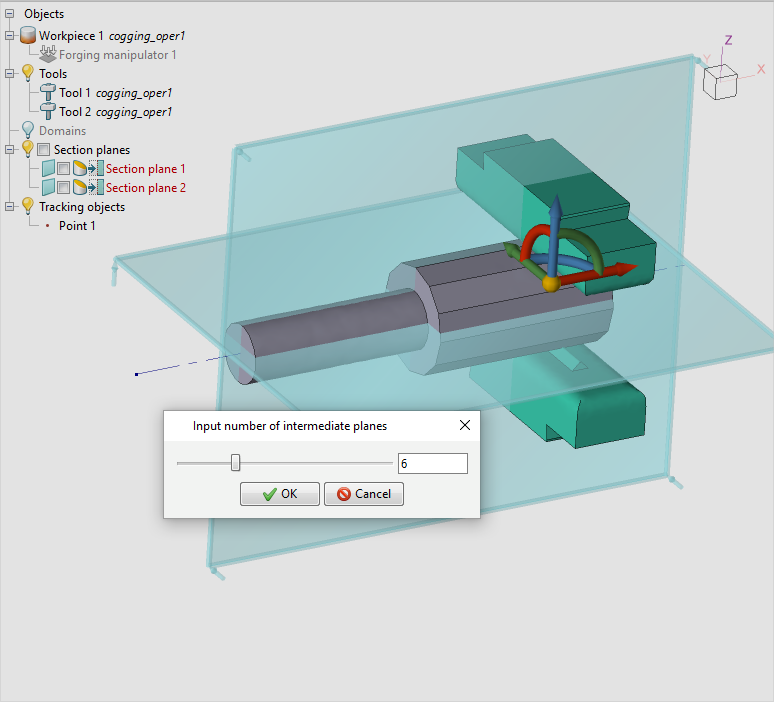
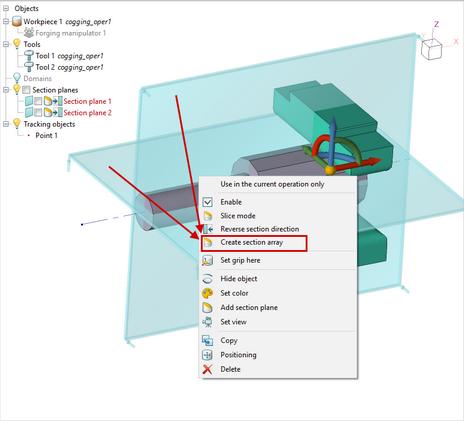
A copy of any section plane can be created using the Copy function in the context menu. Creating a section array allows generating multiple section planes with a specified step. The array is created based on two selected section planes while holding the Ctrl key, which enables a special function in the context menu. Creating a section array allows generating multiple section planes with a specified step. The array is created based on two selected section planes while holding the Ctrl key, which enables a special  Create section array command in the context menu. Create section array command in the context menu.
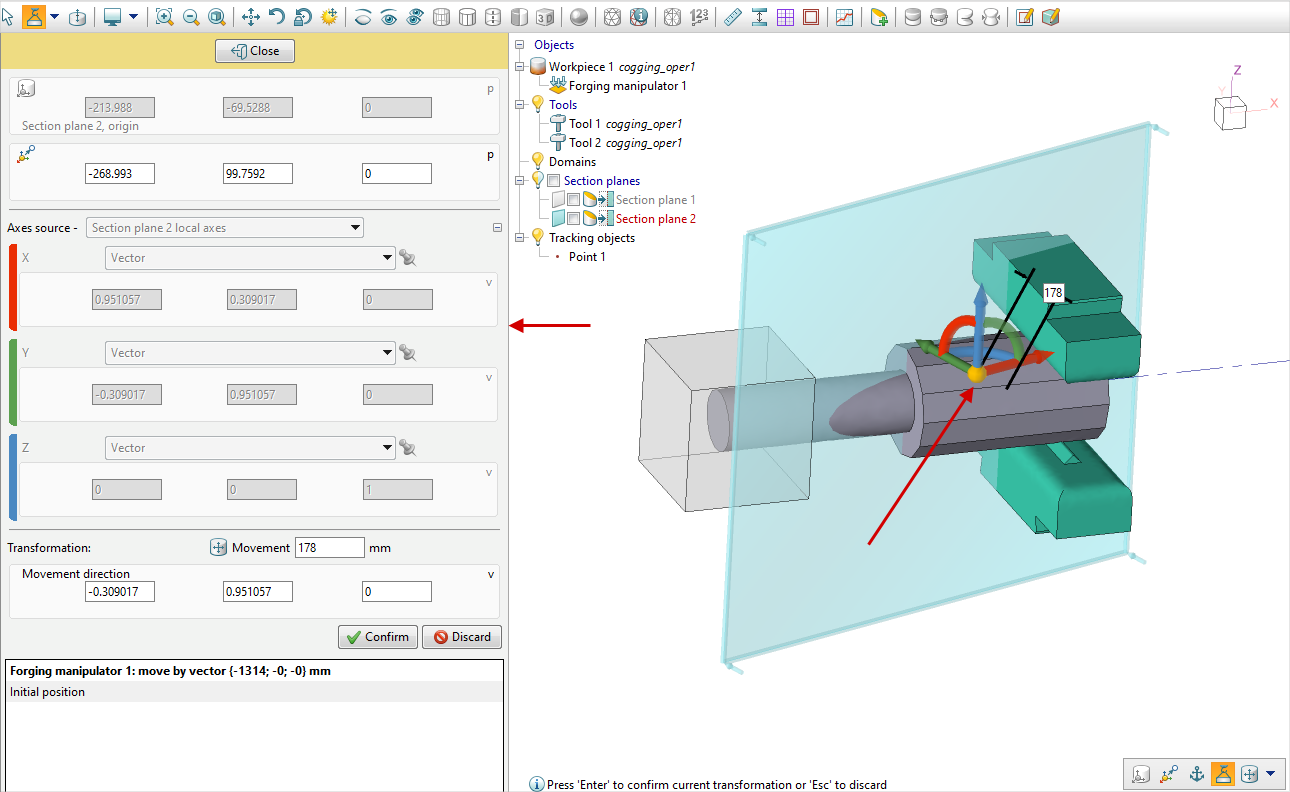
There are two ways to create an array of section planes:
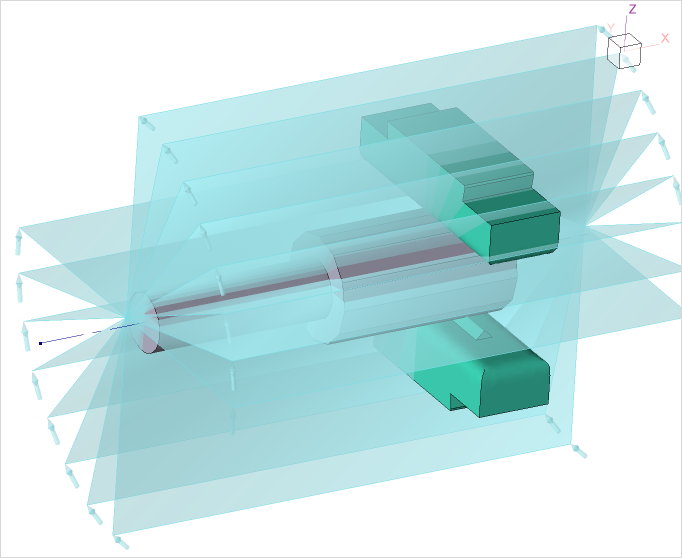
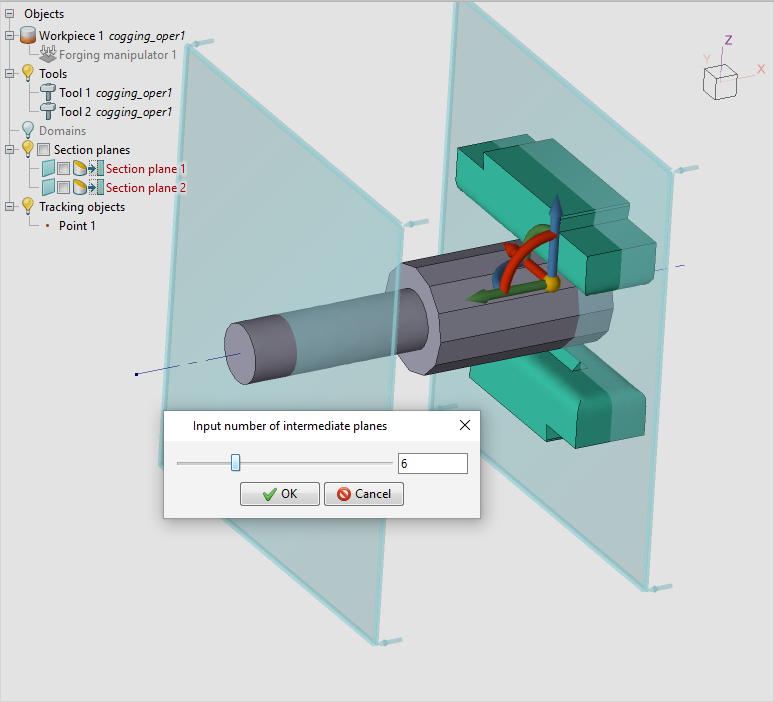
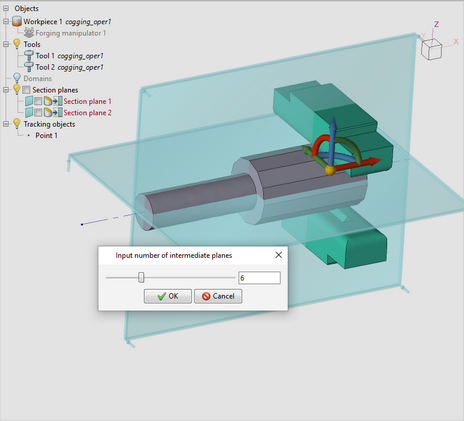
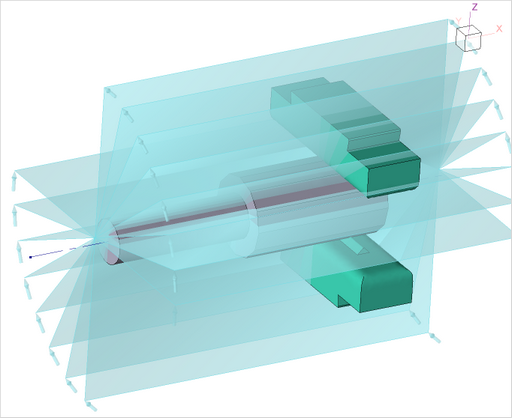
•Circular array – created when two section planes at an angle are selected. A specified number of additional section planes are created between the two selected planes in the plane direction at equal angular intervals.
|
|
|
Creating a circular array.
|
|
Result
|
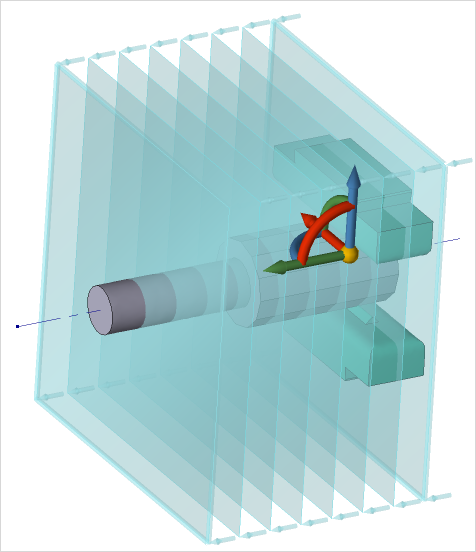
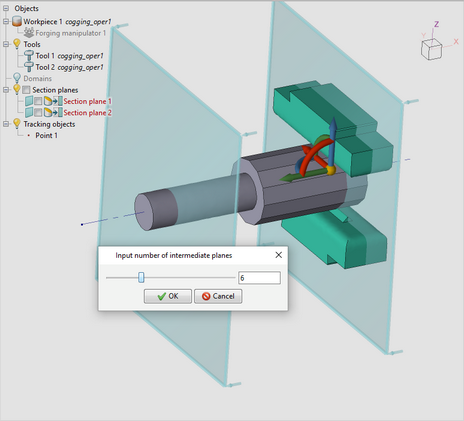
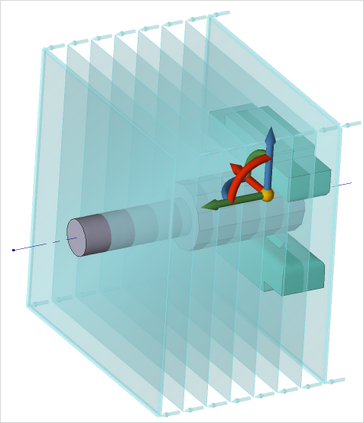
•Linear array – when two section planes are selected at a set distance. A specified number of additional section planes are created between the two selected planes at equal linear intervals.
|
|
|
Creating a linear array
|
|
Result
|
|

|
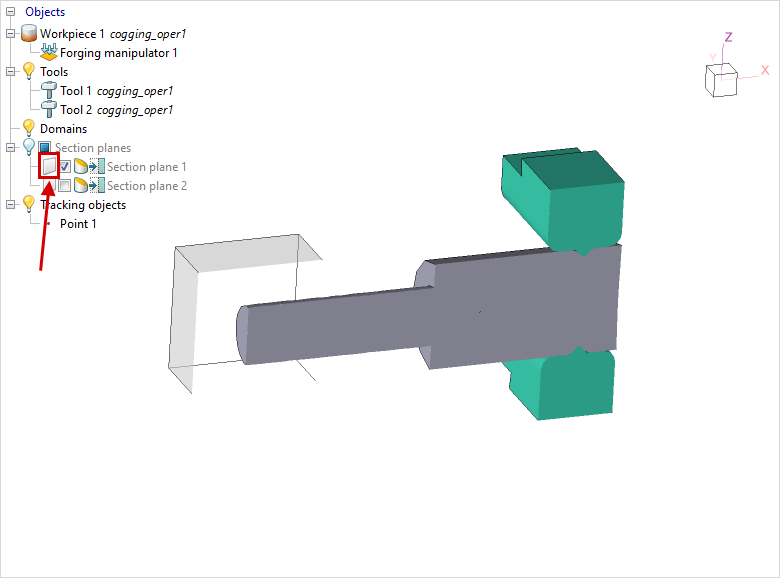
Enable or disable the visibility of the section plane. Context menu: Show only section plane objects.
|

|
Enable or disable the display of a single section plane or all section planes. Context menu: Disable.
|

|
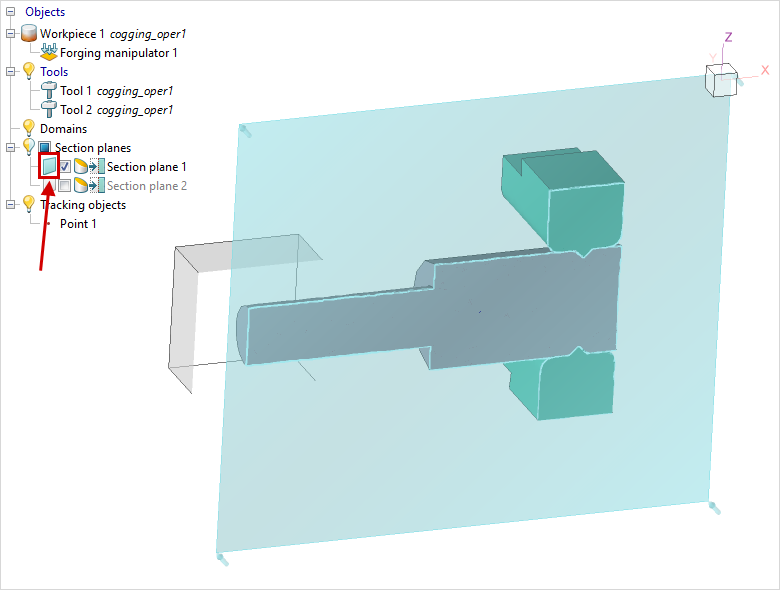
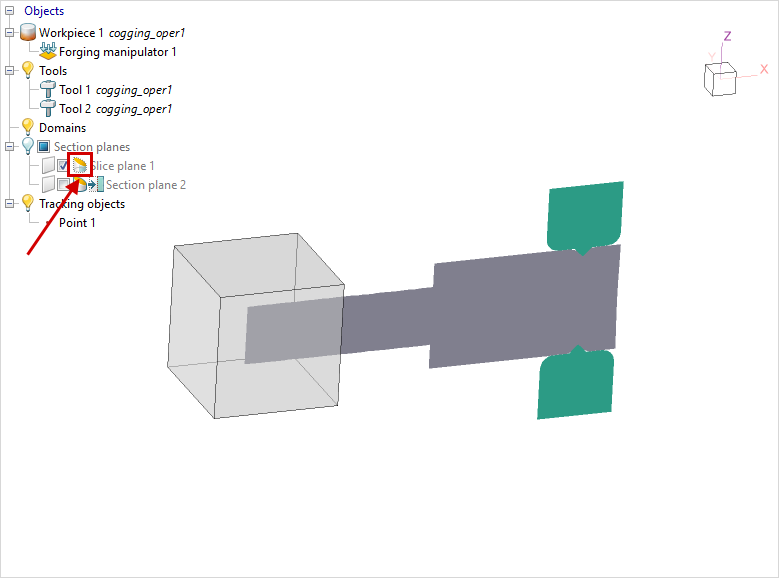
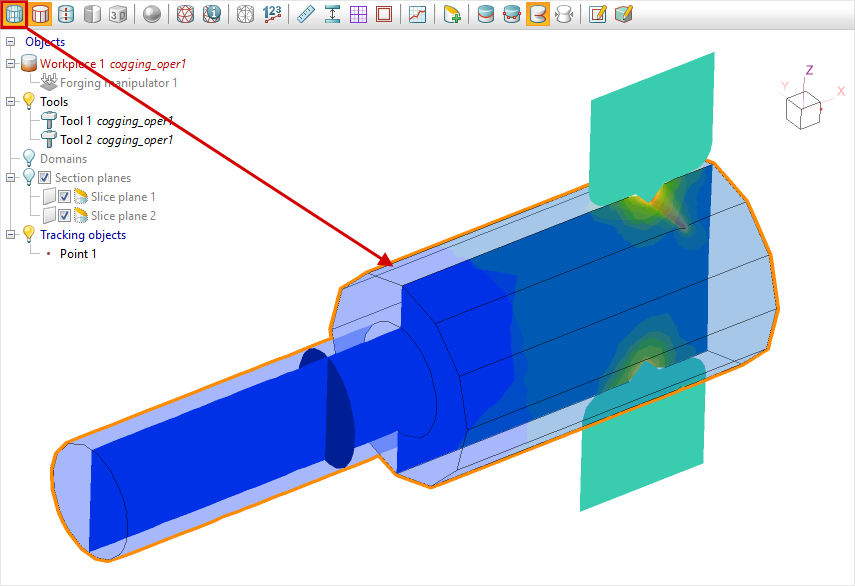
Switch between Section mode and Slice mode .
|

|
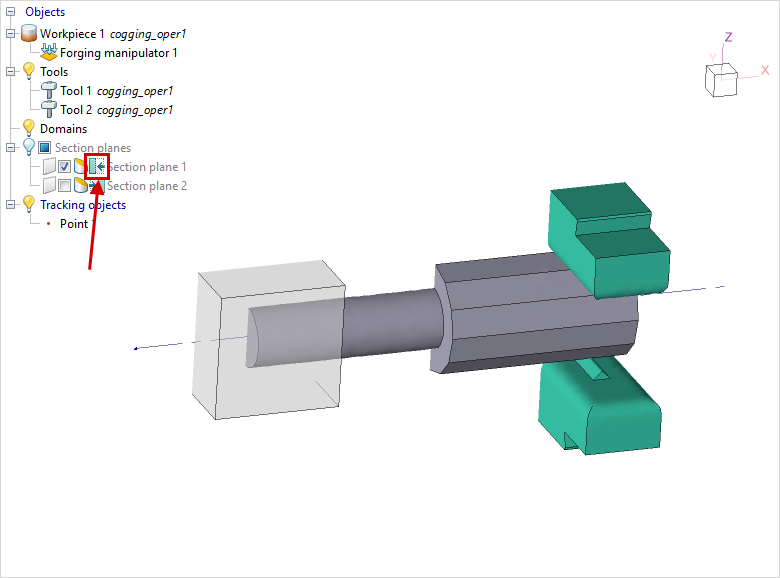
Switch the direction in section mode. Context menu: Reverse section direction.
|

|
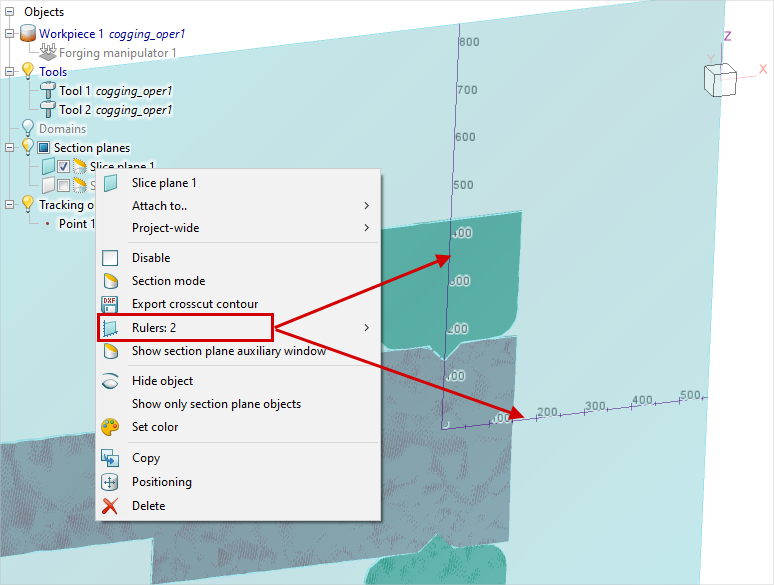
Enable boundary rulers for easier measurements.
|
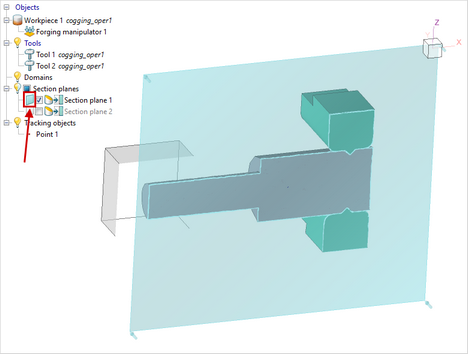
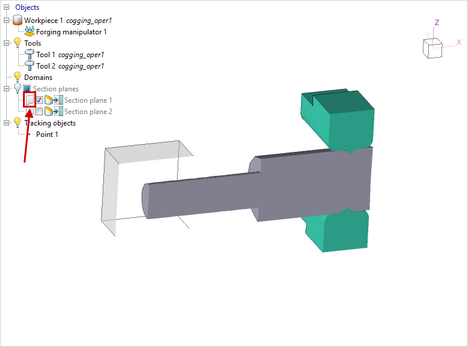
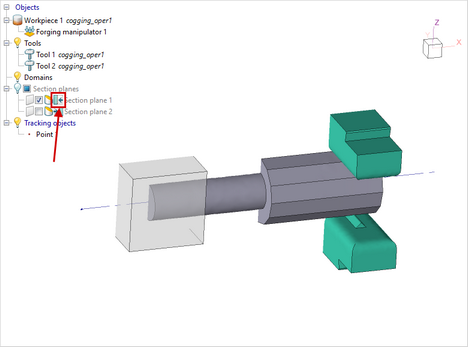
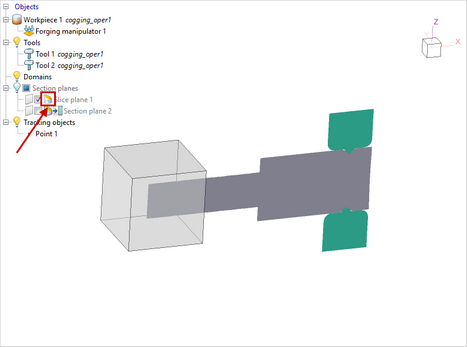
Display modes can be switched in the object tree by clicking the corresponding icon or in the context menu when a section plane is selected.
|
|
|
|
The section plane display is enabled.
|
|
The section plane display is disabled.
|
|
|
|
|
Switching direction in section mode.
|
|
Activate slice mode.
|
In section mode, the cut direction is also displayed with the help of arrows in the section plane. Multiple section planes can be combined by changing their directions .
|
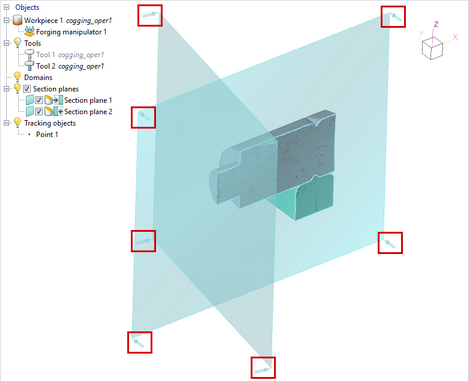
|
|
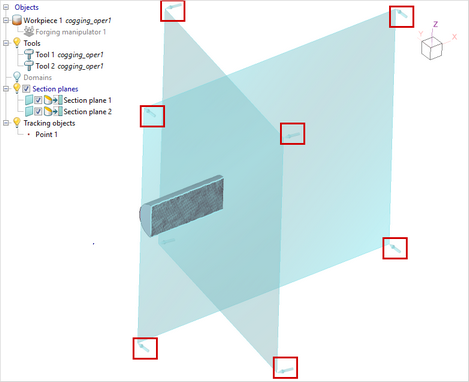
|
In section mode , the workpiece contour can be displayed when transparency is enabled.
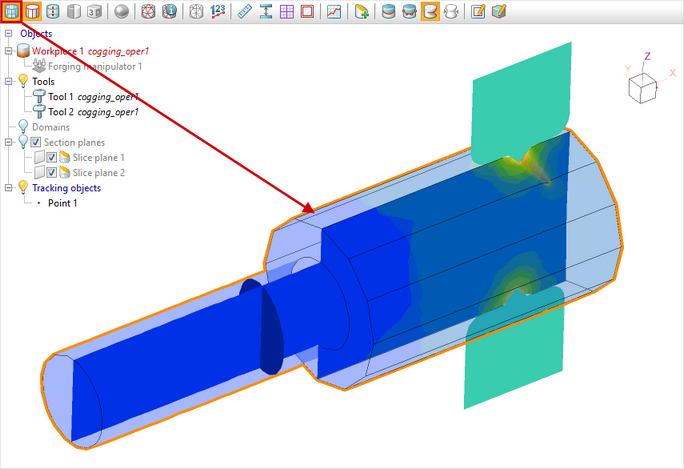
For easier measurement of a section plane or slice, boundary Rulers can be enabled.
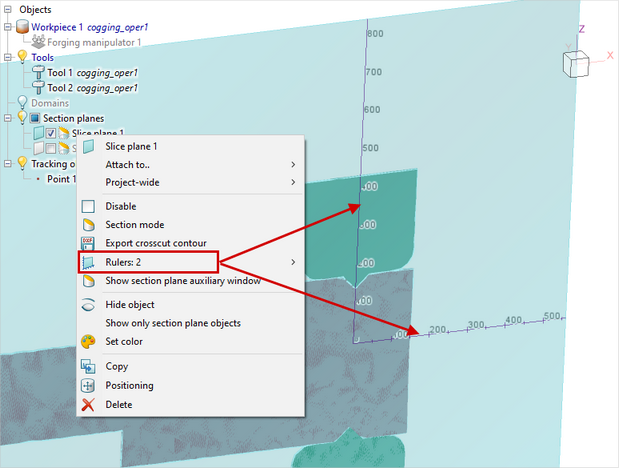
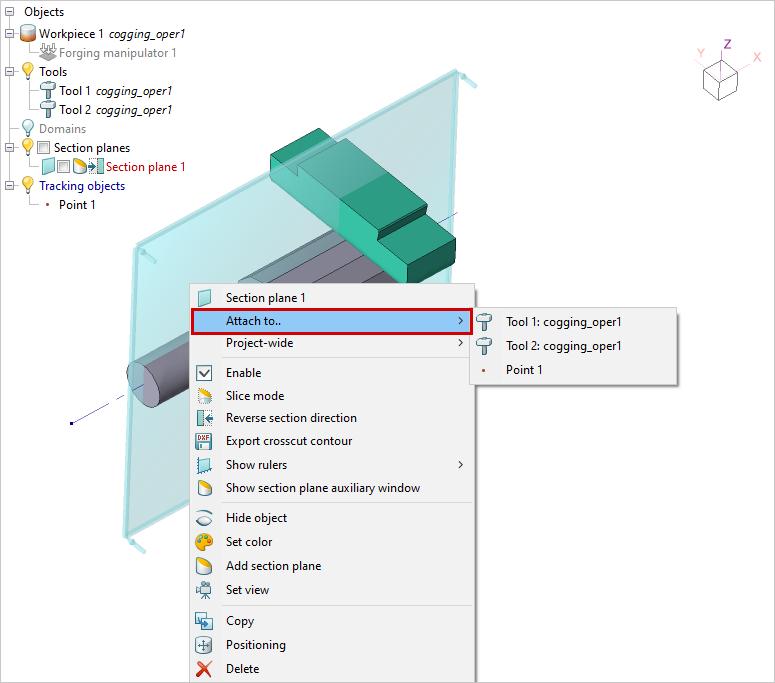
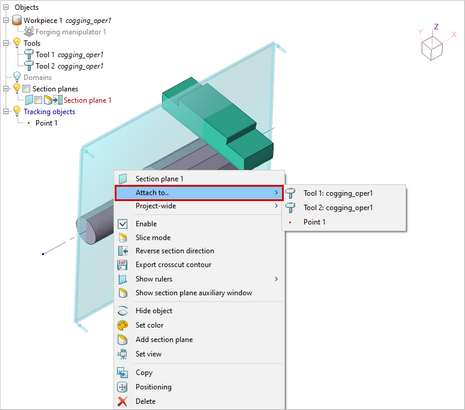
The section plane can be aligned with a tracked point or attached to a tool. In this case, the section plane will follow the movement of the point or tool. If the point or tool rotates and moves, the section plane will also rotate and move accordingly. To attach the section plane, select the desired object in the context menu (the context menu can also be accessed from the object tree).
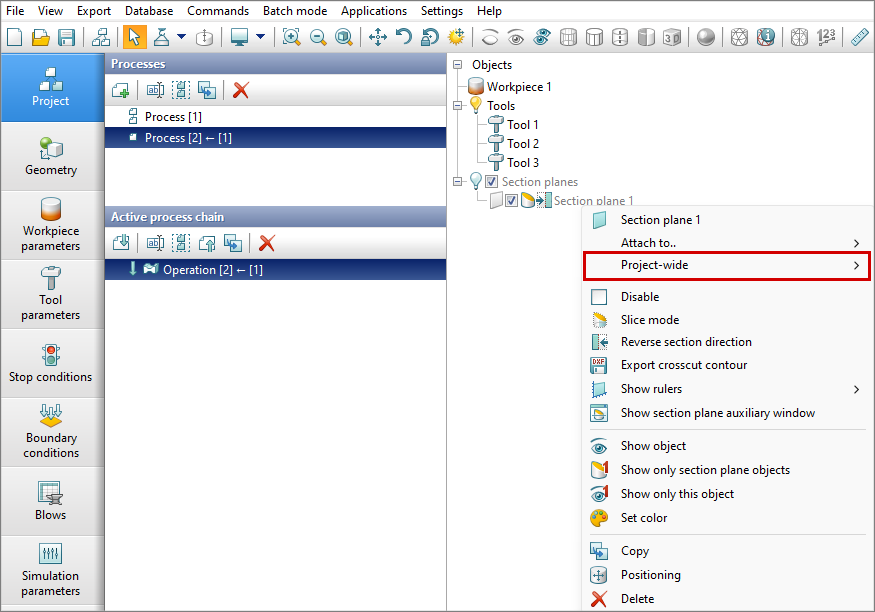
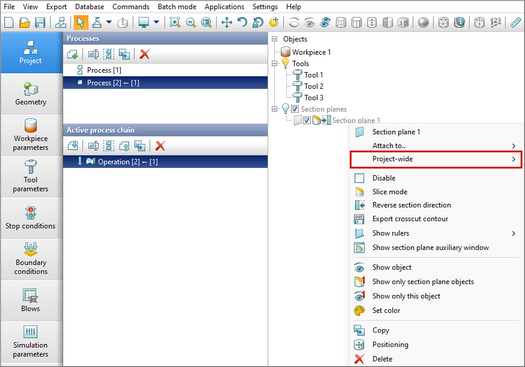
By default, the section plane is active for the entire project, meaning it will be displayed with consistent settings and positioning across all processes and operations.
|
By default, the section plane is active for the entire project
|
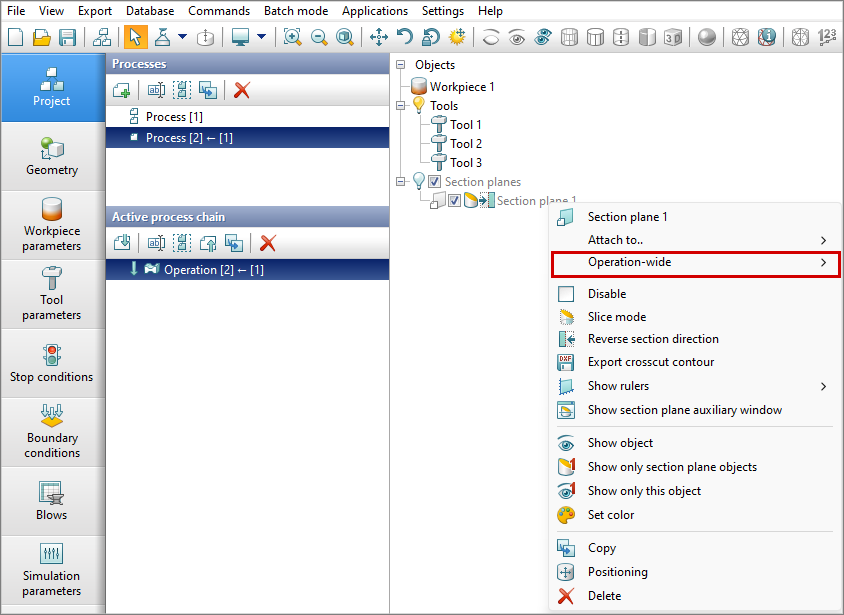
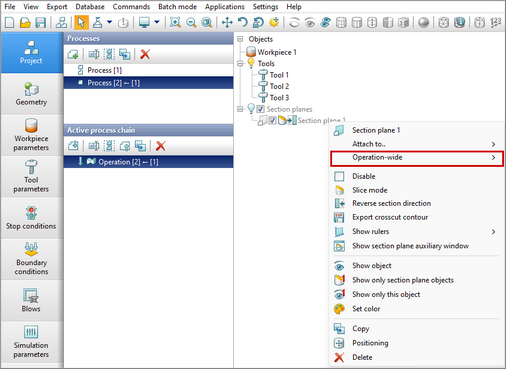
If the Operation-wide parameter is activated, the section plane is applied exclusively to the current operation:
|
The section plane is active for the current operation.
|
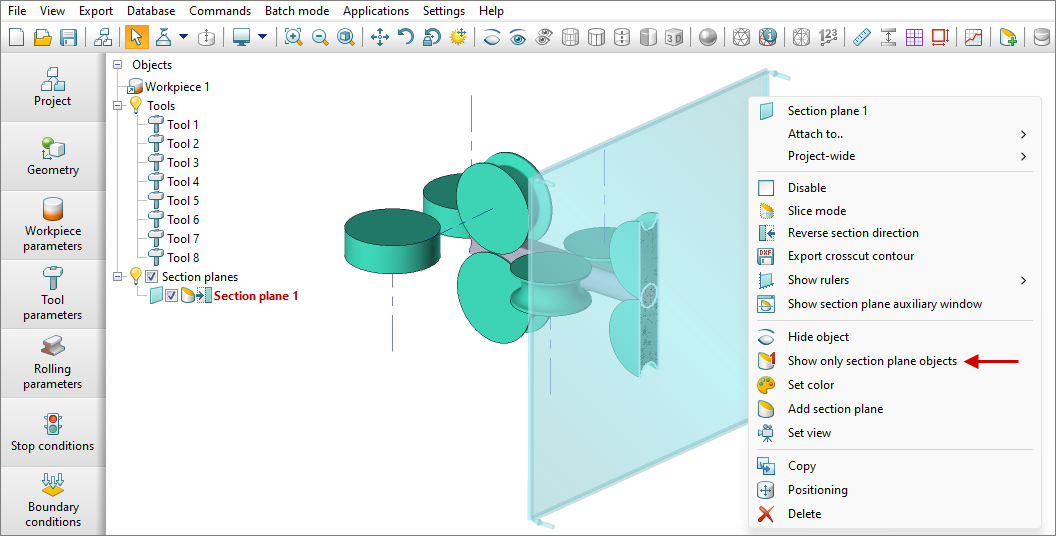
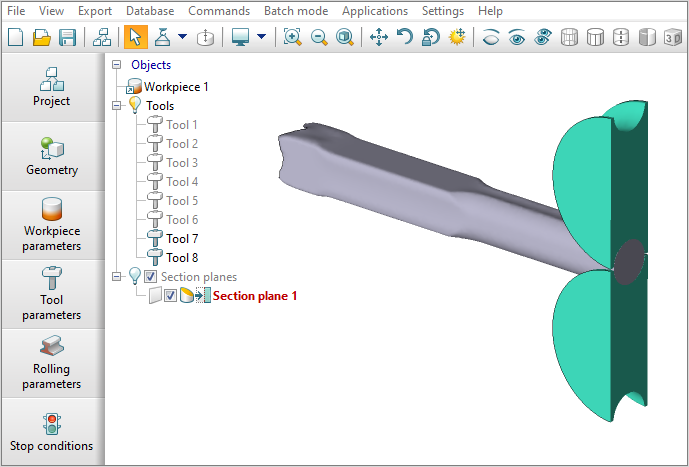
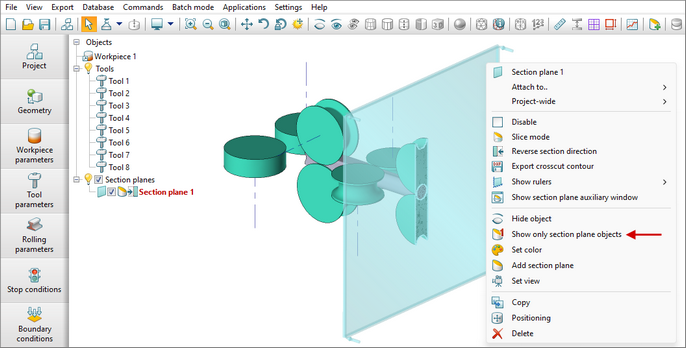
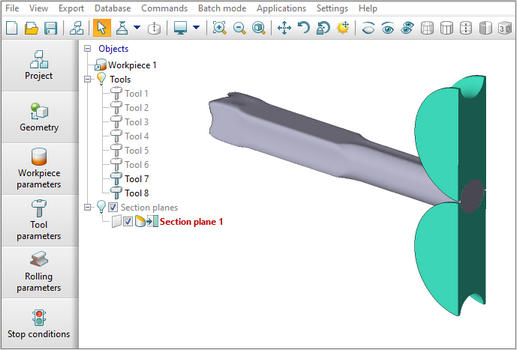
To display only the objects related to the section plane, a dedicated command Show only section plane objects is available:
|
|
|
The command is available in the context menu
|
|
Command result. Only section plane objects are displayed.
|
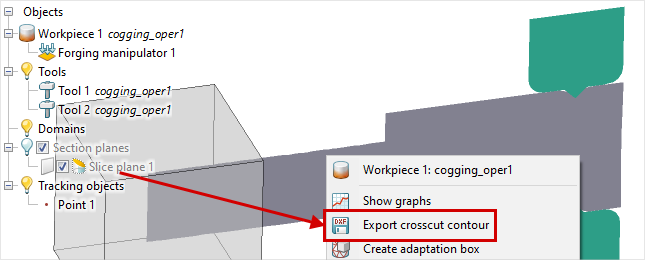
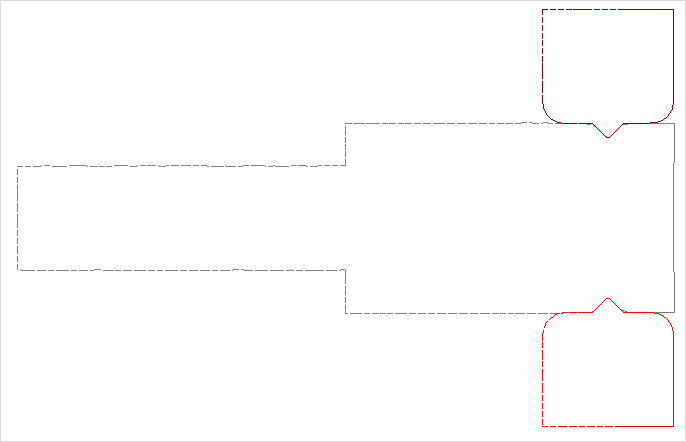
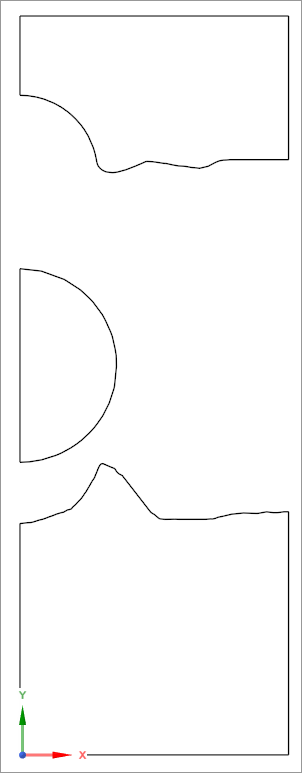
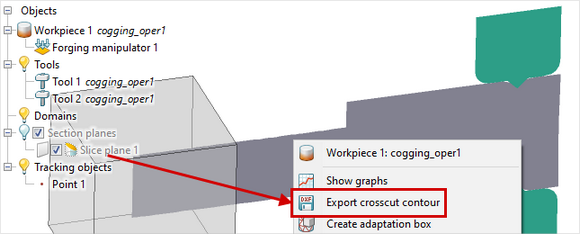
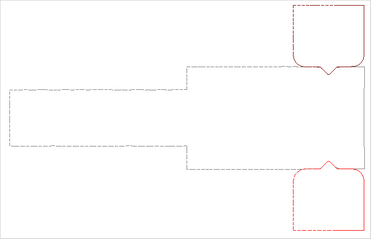
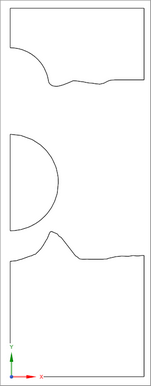
Export crosscut contour allows saving the section contour of objects as a 2D *dxf file. Contours for workpieces and tools that are enabled in the object tree are saved.
|
|
|
Cross-cut plane export
|
|
Export result in *.dxf format
|
|
|
|
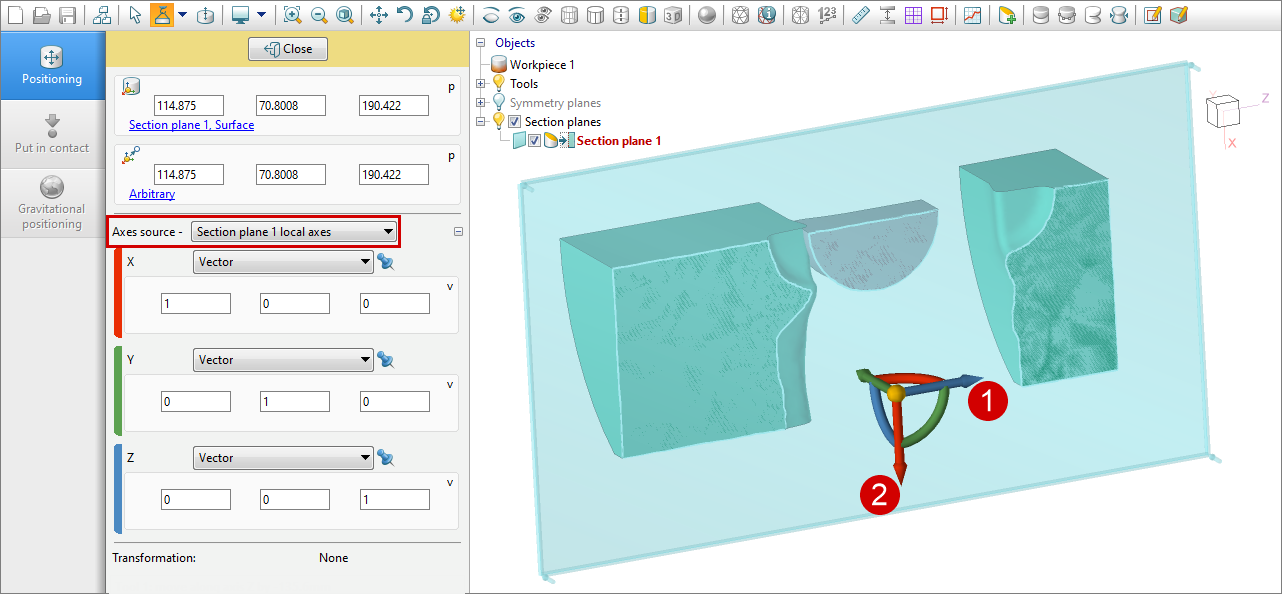
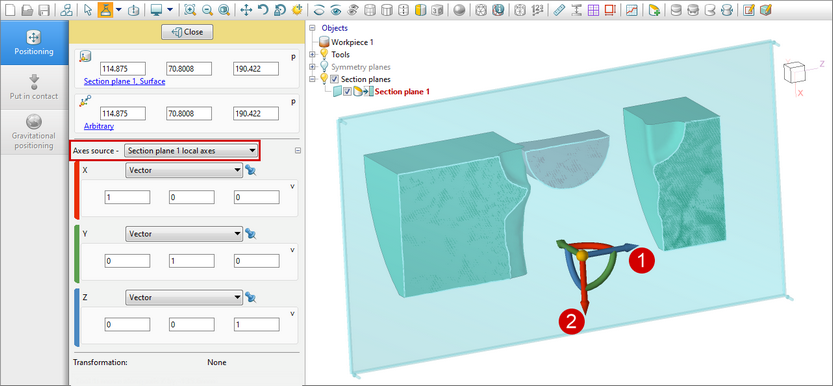
1 - Positive vertical axis direction; 2 - Positive horizontal axis direction.
|
|
Export result in *.dxf format
|
|
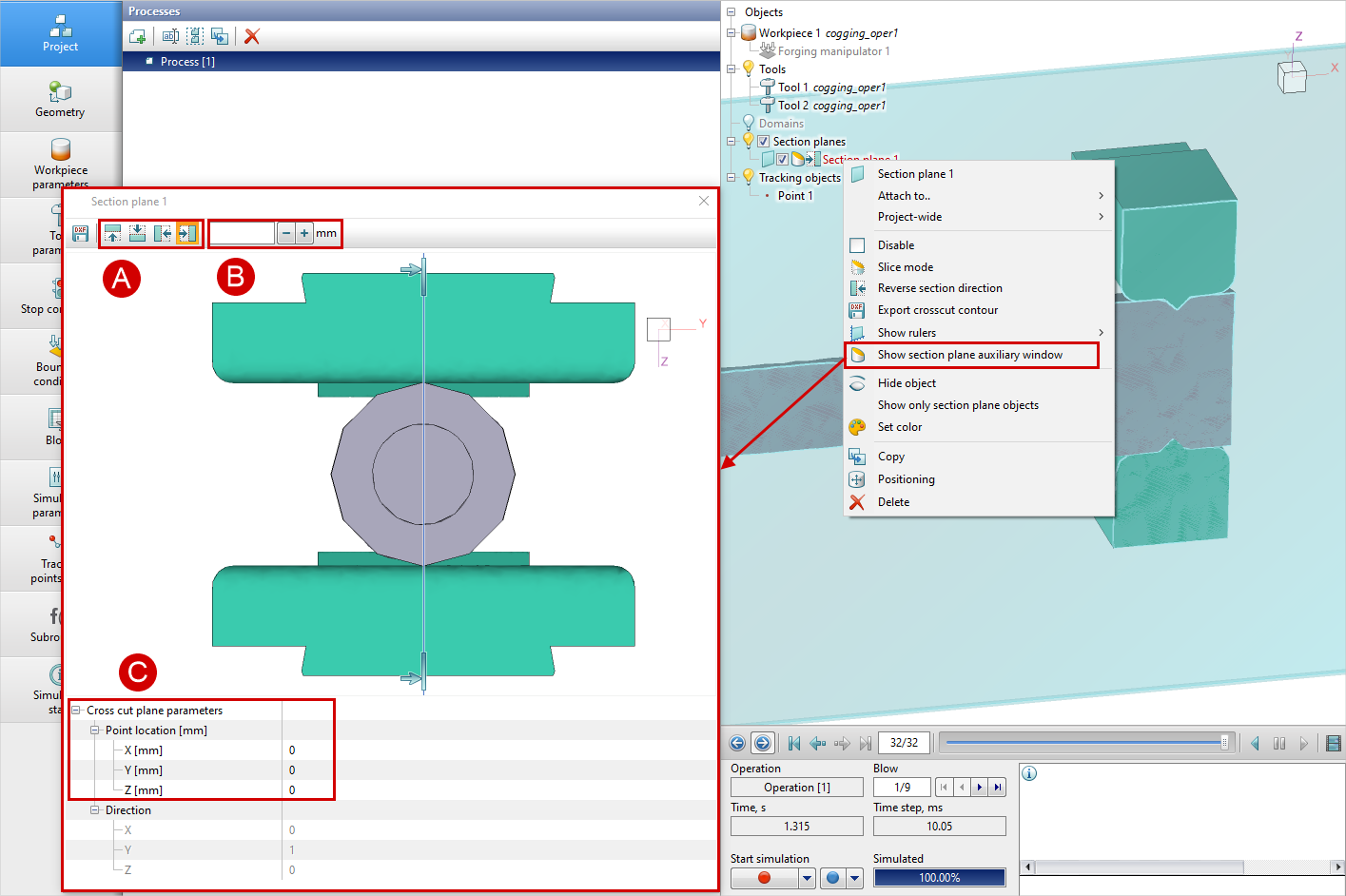
For user convenience, the ability to control section planes from previous versions of QForm UK has been retained. To activate this function, select the desired section plane and choose Show section plane auxiliary window from the context menu.
After that, the Section plane selection window will appear, allowing you to adjust the section plane position by dragging the section plane or rotating it using the middle mouse button within the window.
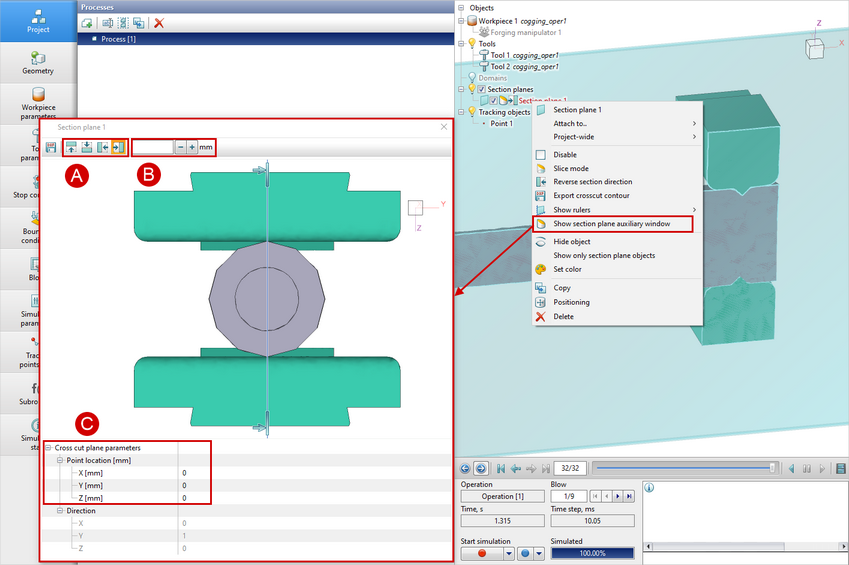
The section plane can also be adjusted using the following elements:
A
|
Changing the section plane direction
|
B
|
Setting the step in mm, which determines the distance the section plane will move when pressing the "-" and "+" buttons.
|
C
|
Setting the section plane coordinates
|
The position of objects in the Section plane selection window is independent of their position in the Results view window.
|
See also:
Positioning of geometric objects
Measurements
|
|