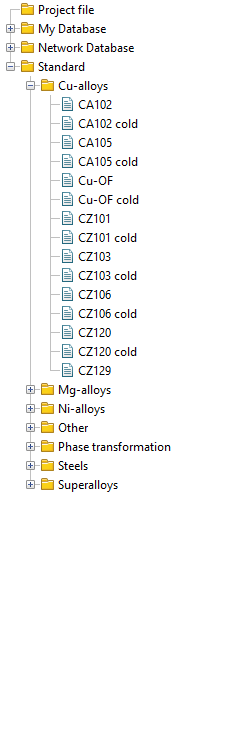
The standard database of deformed materials supplied with the software contains more than 200 fits by steels and alloys for hot and cold metal forming. The material database window is shown in the figure below. When a material is selected, its properties are displayed:
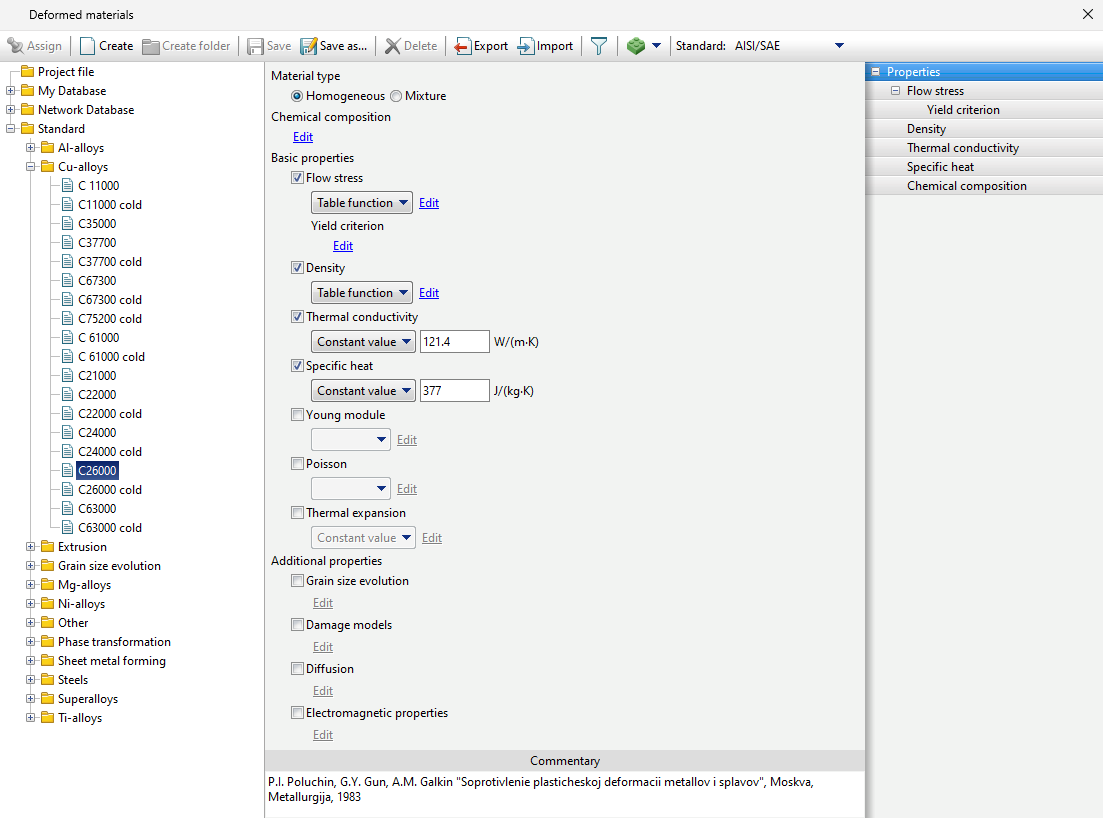
Material names in the Standard section can be displayed according to the selected standard. Materials whose names use the index cold are for cold forming simulations, the other materials are for hot forming.
The following variants of displaying material names in the Standard section are possible:
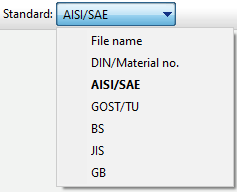
•File name - all material models available in the database are displayed. In this case, their names will correspond to their internal names in the system.
•DIN/Material no. (Germany, Europe)
•AISI/SAE (USA)
•GOST/TU (Russia, CIS countries)
•BS (UK)
•GB (China)
|
Information |
If you select one of the proposed standards, only those material models will be displayed for which the database has an analogue for this standard. |
|

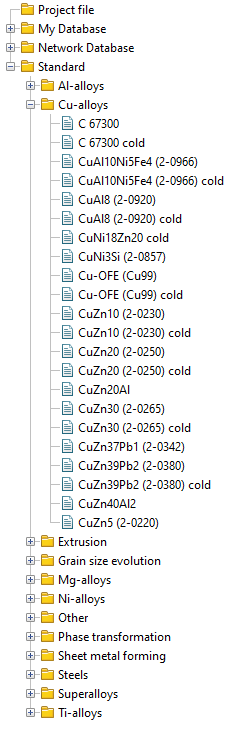
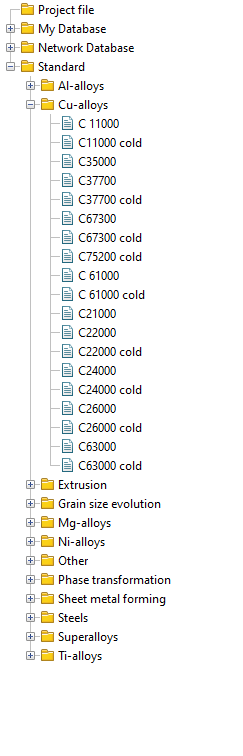
The following shows what a list of deformed copper alloys would look like for different standards:
File name: |
|
AISI/SAE: |
|
BS | DIN | GOST | GB | JIS |
|
|
|
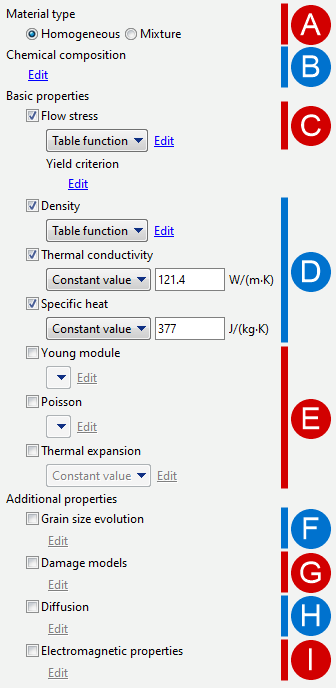
The following is the description on all parameters of deformed materials.

Two types of deformed materials are available in the database: Homogeneous and Mixture. The default material type is Homogeneous, in which case the material properties are conventionally described as a single phase. This material type is used for most calculations of metal forming processes.
If material type Mixture is selected, it is possible to specify the properties of the different phases of the material, while also specifying the conditions type of phase transformations. This material type is commonly used in the simulation of heat treatment processes. See also: |
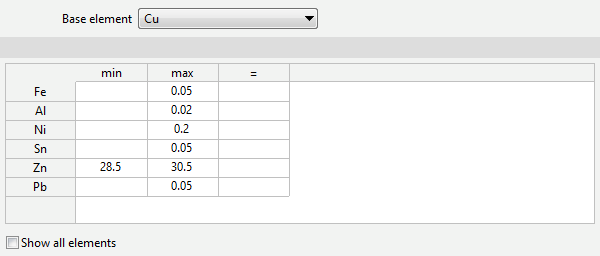
In the database, chemical composition is defined for most material models:
At the top, you are required to select the base element from the drop-down list. Fractions of other chemical elements of the alloy can be specified in the corresponding rows of the table. Columns min and max indicate the lower and upper limit of chemical composition, respectively. The exact value of the fraction of the chemical element in the sample with which the model was created can be specified in the column =. If column = is not filled in, an assumption is made that the exact value of the chemical element fraction is 0.5 * (min + max). If the Show all elements feature is deactivated, the blank lines will be hidden. Specifying the chemical composition in the material model is necessary for: •Possibilities of finding a material by chemical composition; •Predicting phases properties and phase transformations with the help of HT Adviser; •Selection of formula coefficients for parameters Diffusion coefficient and Activity coefficient. See also: |
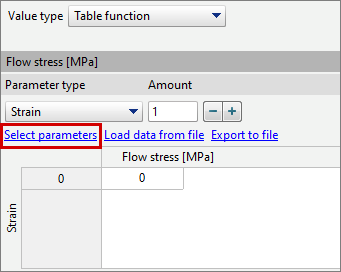
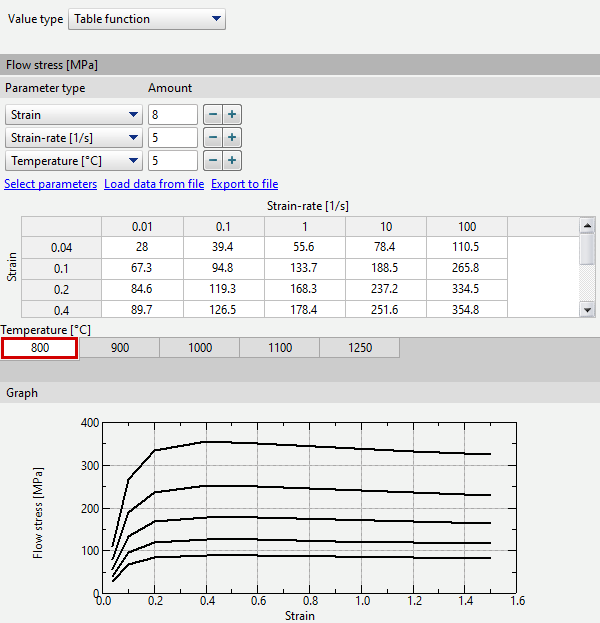
Flow Stress is necessary to perform the calculations. There are several ways to specify flow stress: •Constant value; •Table function; •Formula. Constant valueIn this case, the flow stress is assumed to be constant over the entire volume of the workpiece. Tabular functionThe flow stress is specified point by point and can depend on temperature, accumulated strain and strain rate.
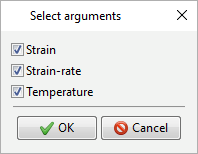
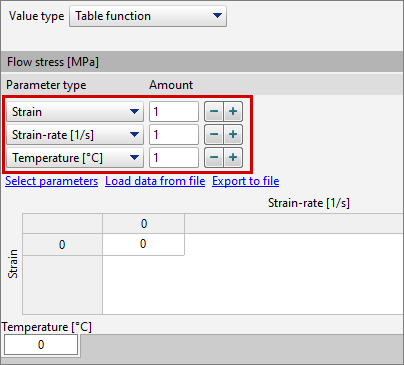
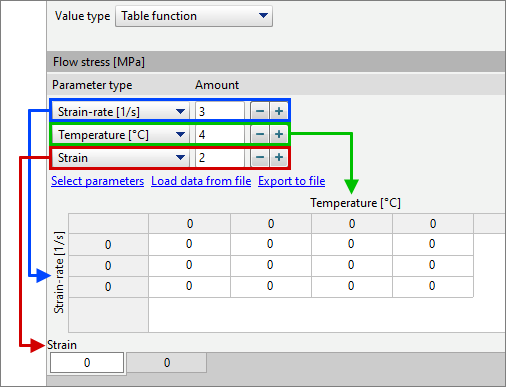
The number of arguments on which the function will depend can be varied by checking the boxes in the window Select parameters:
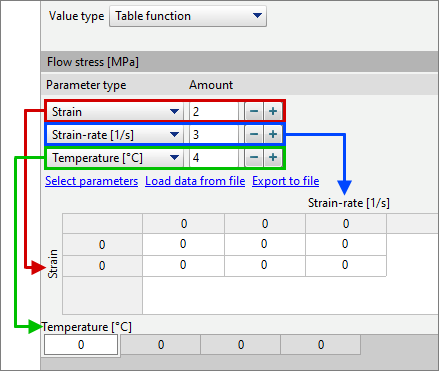
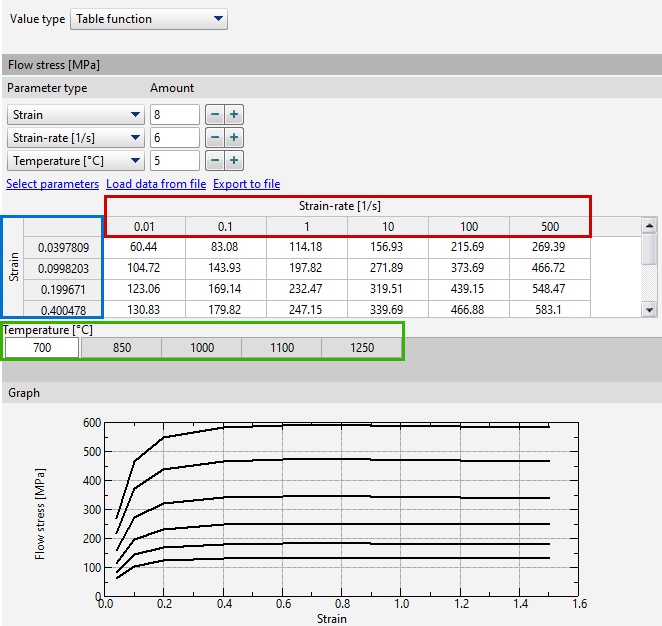
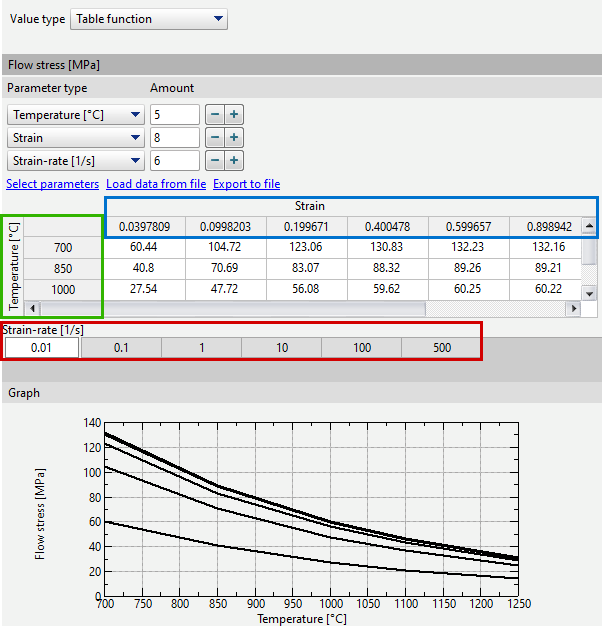
Up to three parameters can be selected. Thus, the table can be two-dimensional: of two columns (if the function depends on one parameter), of several columns (if the function depends on two parameters) or three-dimensional (if the function depends on three parameters). The order in which these parameters are presented also matters. The first parameter corresponds to row headings, the second parameter corresponds to column headings, and the third parameter corresponds to tab headings under the table. The parameter sequence can be switched. To do this, you need to click on the drop-down list and select a different parameter.
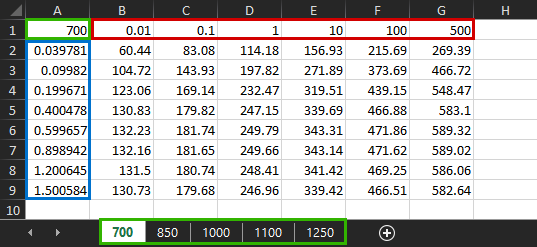
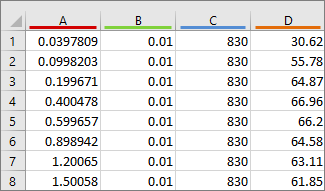
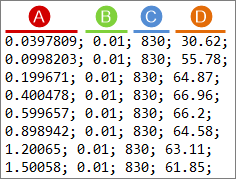
Data preparation is possible in third-party programs. Import and export table options are provided for this purpose. Load data from file - import table function from file with extension *.csv, *.xlsx, *.xls. Export to file - export table function to a file with extension *.csv, *.xlsx, *.xls.
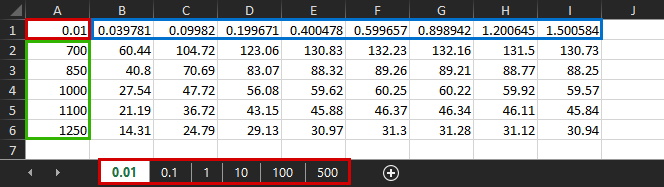
In case the function depends on one or two parameters, the imported file must contain only one tab (sheet). For a single parameter dependency, the left column should contain the values of the argument, the right column should contain the corresponding values of the function. For dependence on two parameters, the first row starting from the second column must contain the values of one argument, the left column starting from the second row must contain the values of another argument. In this case, the value of the function is specified in the cell at the intersection of rows and columns. In case the function depends on three parameters, the imported file must contain several tabs (sheets). The number of sheets should correspond to the desired number of values of the third argument. The data is specified similarly to the two parameter dependency case, except that each tab specifies the parameter value to be assigned to the third argument in the upper left corner.
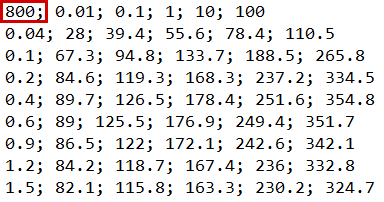
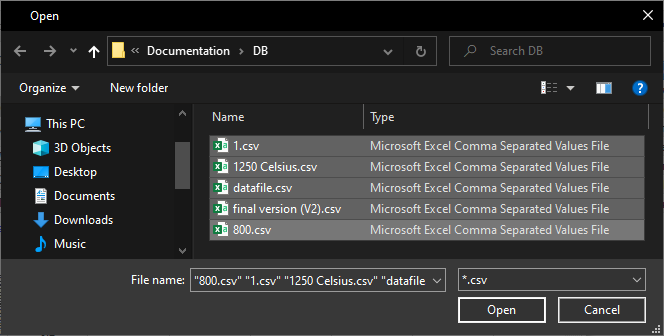
Interaction with files *.csv is similar to Interaction with *.xlsx and *.xls files. The key difference when working with *.csv-files is that such files cannot contain tabs (sheets). Instead of tabs, individual *.csv files act as tabs. In case the function depends on one or two parameters, the export will create 1 file with *.csv extension. Importing from *.csv will require selecting 1 file. In the case the function depends on three parameters, when exporting to the *.csv extension, the number of files will correspond to the number of tabs. When importing from *.csv it is required to select the number of files corresponding to the desired number of values of the third argument:
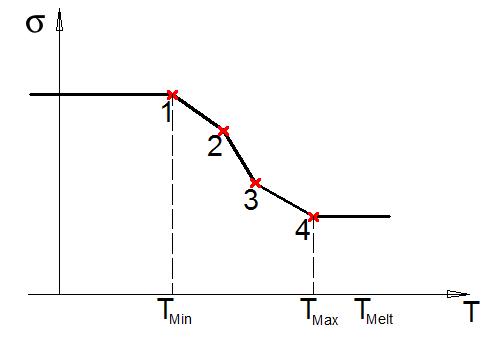
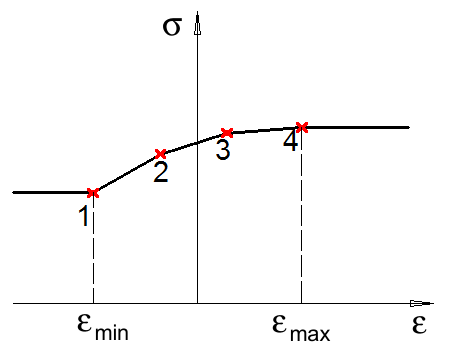
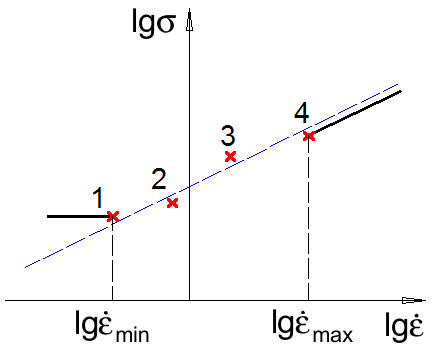
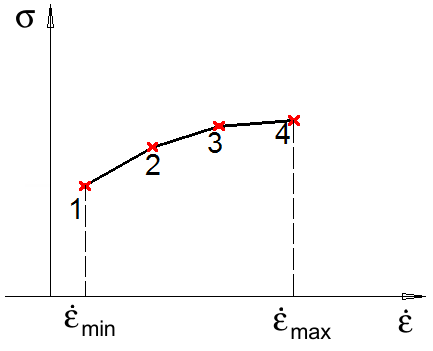
If the flow stress curves are specified point by point as a tabular function, the intermediate flow stress values and values outside the area of definition are calculated as follows: oBelow the minimum set value of the temperature Tmin and above the maximum set value of the temperature Tmax there is no extrapolation, the last known value is taken. A linear interpolation is performed between the set temperature values in the system
oBelow the minimum and above the maximum set values of the plastic strain
oBelow the minimum set value of the strain-rate
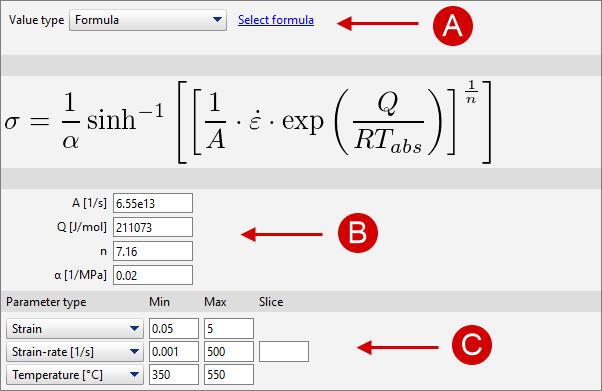
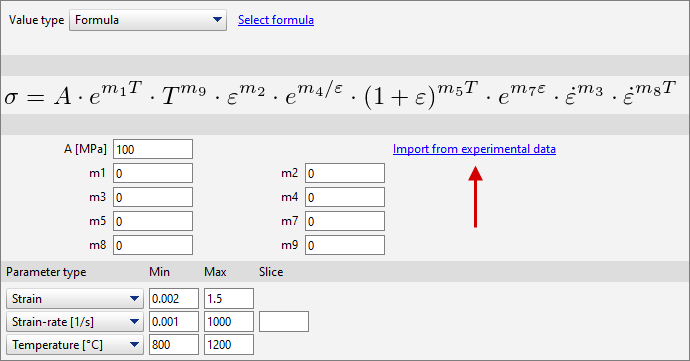
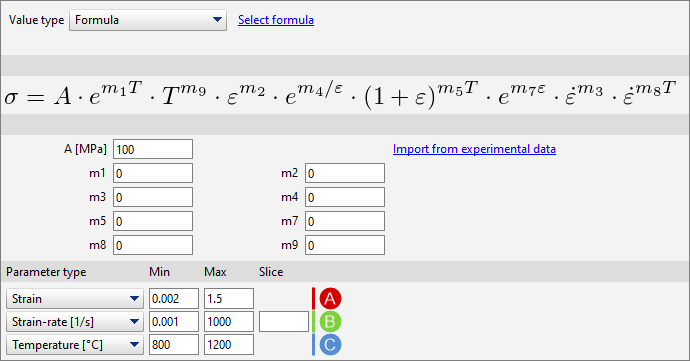
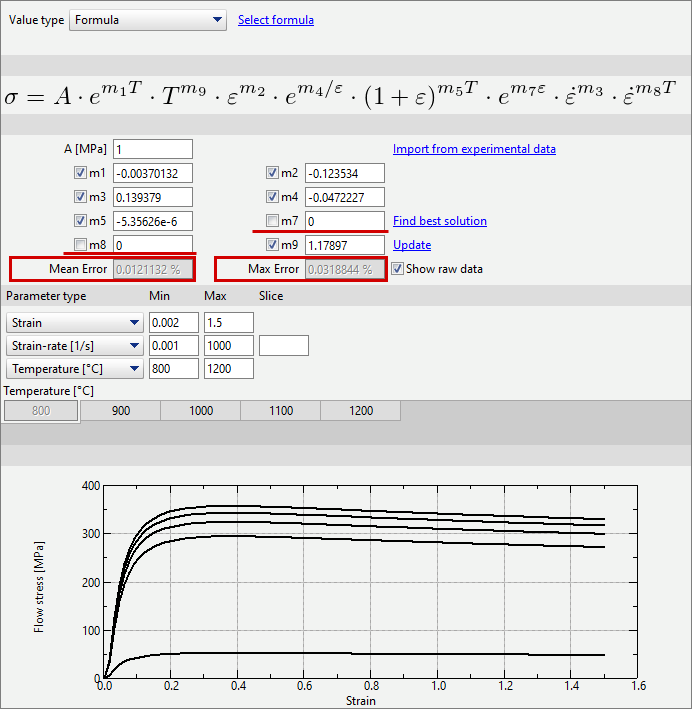
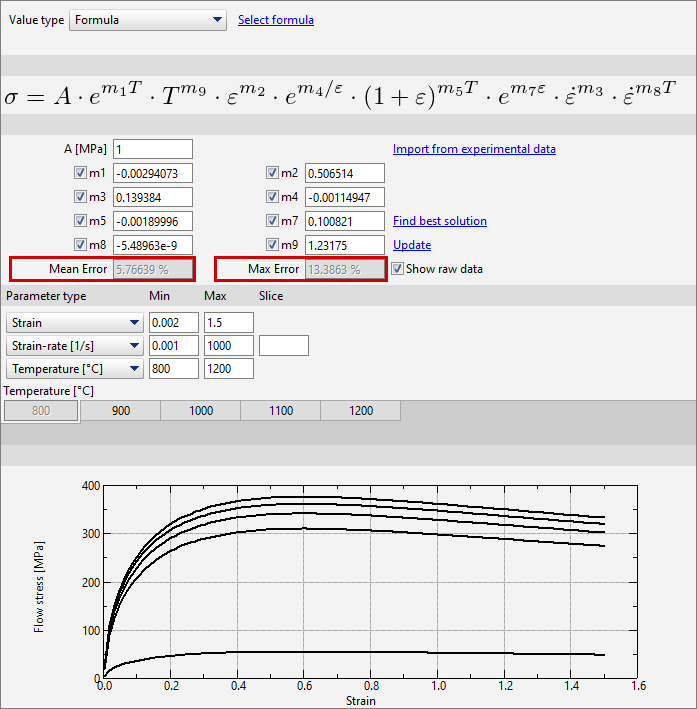
SubroutineIn this case, the flow stress is given by a function described in a special subroutine in the language LUA FormulaThe flow stress is given by one of the formulas provided in the program. It is necessary to select one of the proposed formulas (A), set parameter values (B) and specify constraints (C).
Below the specified minimum value and above the specified maximum value, the flow stress is not calculated according to the formula (the last known value is taken), except for the maximum value of the flow stress dependence on the strain rate.
Below the minimum set value of the strain rate
|
|||||||||||||||||||||||||||||||||||||||||||||||||||||||||||||||||||||||||||||||||||||||||||||||||||||||||||||||||||






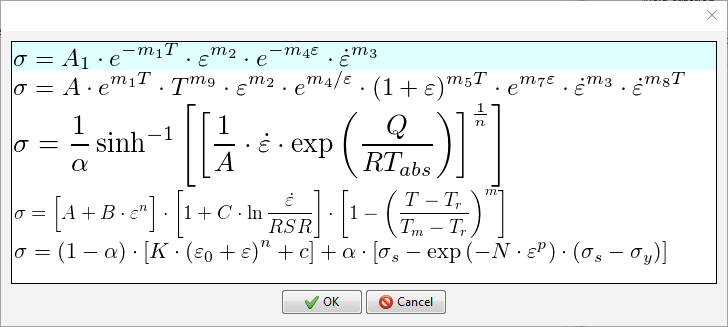


 , where:


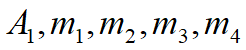
 , where:



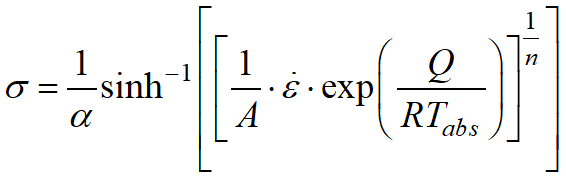 , where:


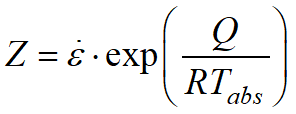
 , where:


 , where:


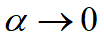

These parameters are mandatory for the calculation of the thermal problem in the workpiece. There are several control methods for specifying density, specific heat, and thermal conductivity: •Constant value; •Table function. Density, specific heat and thermal conductivity are specified by points and may depend on temperature. |
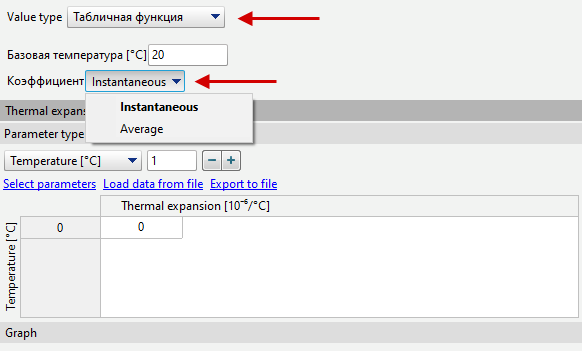
These parameters are mandatory for the simulation considering elastic-plastic deformations. There are several ways to specify Poisson's ratio and temperature expansion coefficient: •Constant value; •Table function. There are several ways to specify Young module: •Constant value; •Table function; •Formula. Young module and Poisson's ratio may depend on temperature and accumulated deformation. Linear temperature expansion coefficient can only depend on temperature. When specifying the coefficient of thermal expansion in the form of a tabular function, there are two options for specifying this coefficient: instantaneous (differential) and average (engineering).
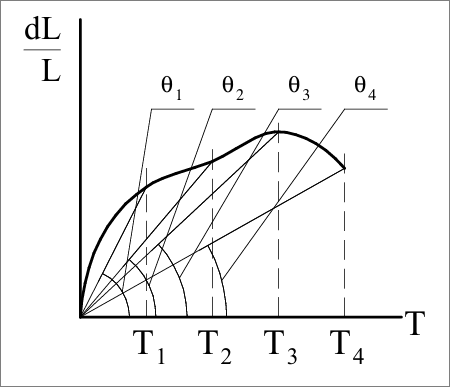
The average (engineering) coefficient of thermal linear expansion is calculated with reference room temperature 200C as the tangent of the angle in the graph below:
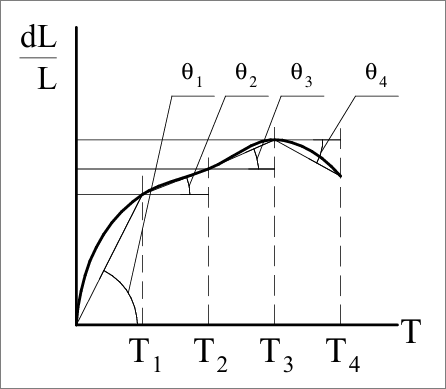
This type of coefficient of thermal linear expansion is specified for different ranges of temperature variation, but all of these ranges take into account the reference temperature 200C(20 - 1000C; 20 - 2000C; 20 - 3000C; 20 - 4000C; etc.). Instantaneous (differential) coefficient - This is the coefficient of thermal expansion at any point in time. Thus, this is the tangent of the angle of the tangent to the function dL/L from temperature:
This type of coefficient of linear thermal expansion is specified for differentiated ranges of temperature changes (for example, 20 - 30 0 C; 30 - 40 0 C; 40 - 50 0 C; 50 - 60 0 C, etc.). The smaller the range, the more accurate the calculation of linear thermal expansion. As can be seen from the graph above, the instantaneous coefficient of linear expansion can also be negative. |
Activation of this parameter allows you to specify a model for the evolution of the material microstructure. |
Activation of this parameter allows the proposed plasticity resource exhaustion models to be applied to the calculation of the standard subroutine of the same name. |
Activating this parameter allows you to specify a material model for simulation of diffusion saturation processes. The model contains the following nested parameters Diffusing element, Diffusion coefficient and Activity coefficient and is selected using the drop-down list. There are several ways to set the Diffusion coefficient and Activity coefficient: •Constant value; •Table function; •Formula. |
Activating this parameter allows you to specify the material model for the simulation of induction heating. The model contains the following parameters Specific electric resistance and Relative magnetic permeabilityand is selected using the drop-down list. There are several control methods for specifying Specific electrical resistance and Relative magnetic permeability: •Constant value; •Table function. |
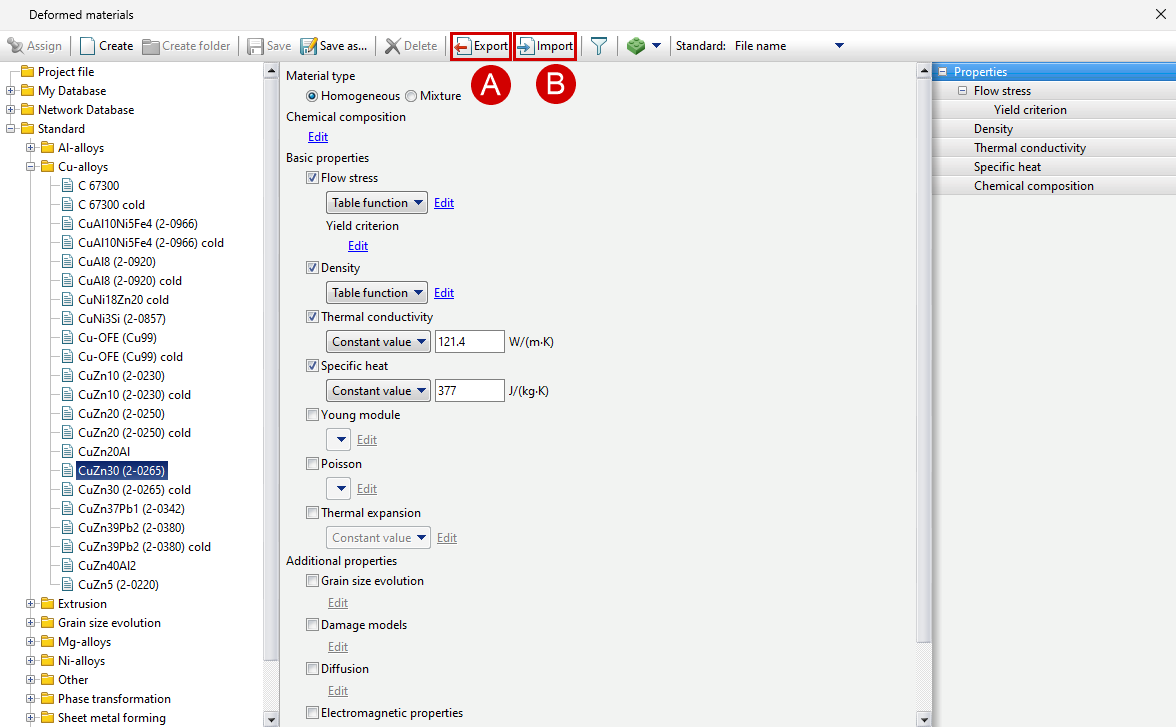
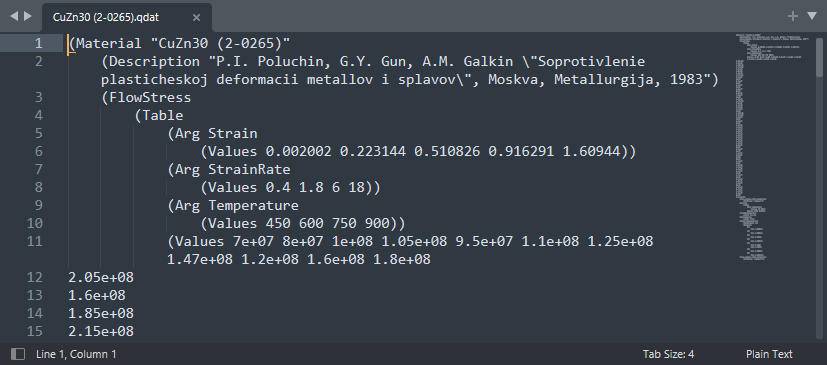
Material models in the QForm UK database can be exported and imported into text file with extension *.qdat. To do this, select the desired material and click the appropriate button on the database toolbar.
When exporting a material model from QForm UK database into a text file with the extension *.qdat.
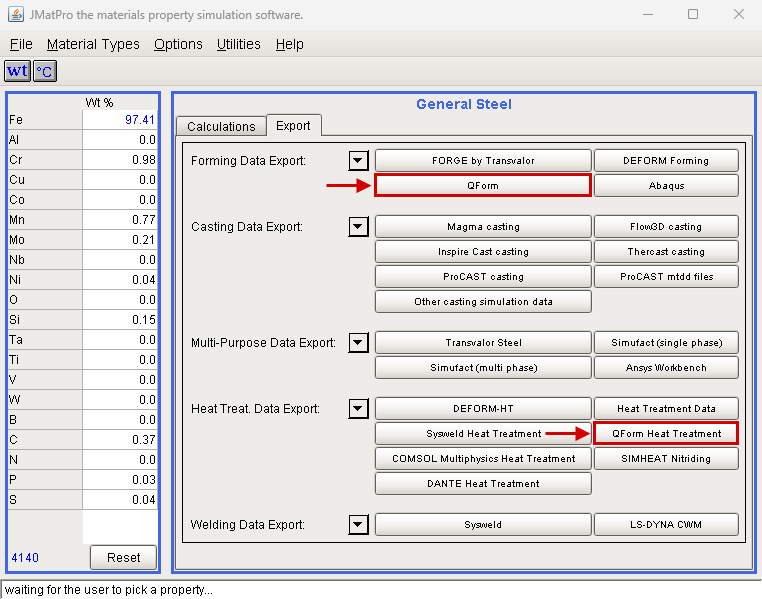
It is possible to import a deformed materials model created in the software JMatPro (http://www.sentesoftware.co.uk/). To do this, the material model calculated in the JMatPro® program should be exported to a text file with *.qdat extension
|
See also: