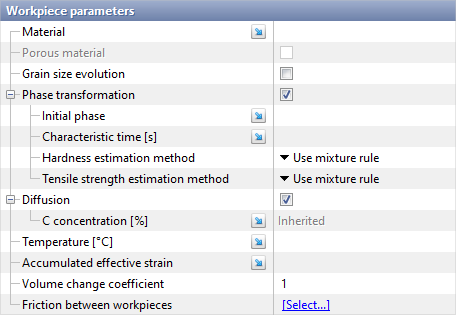
Material, temperature and additional parameters of the workpiece are assigned on the tab Workpiece parameters:
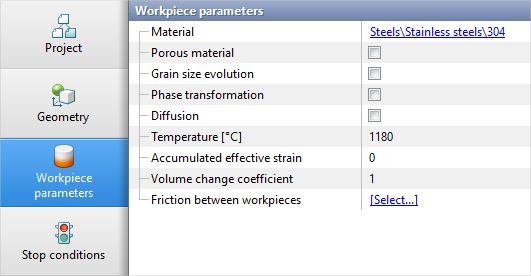

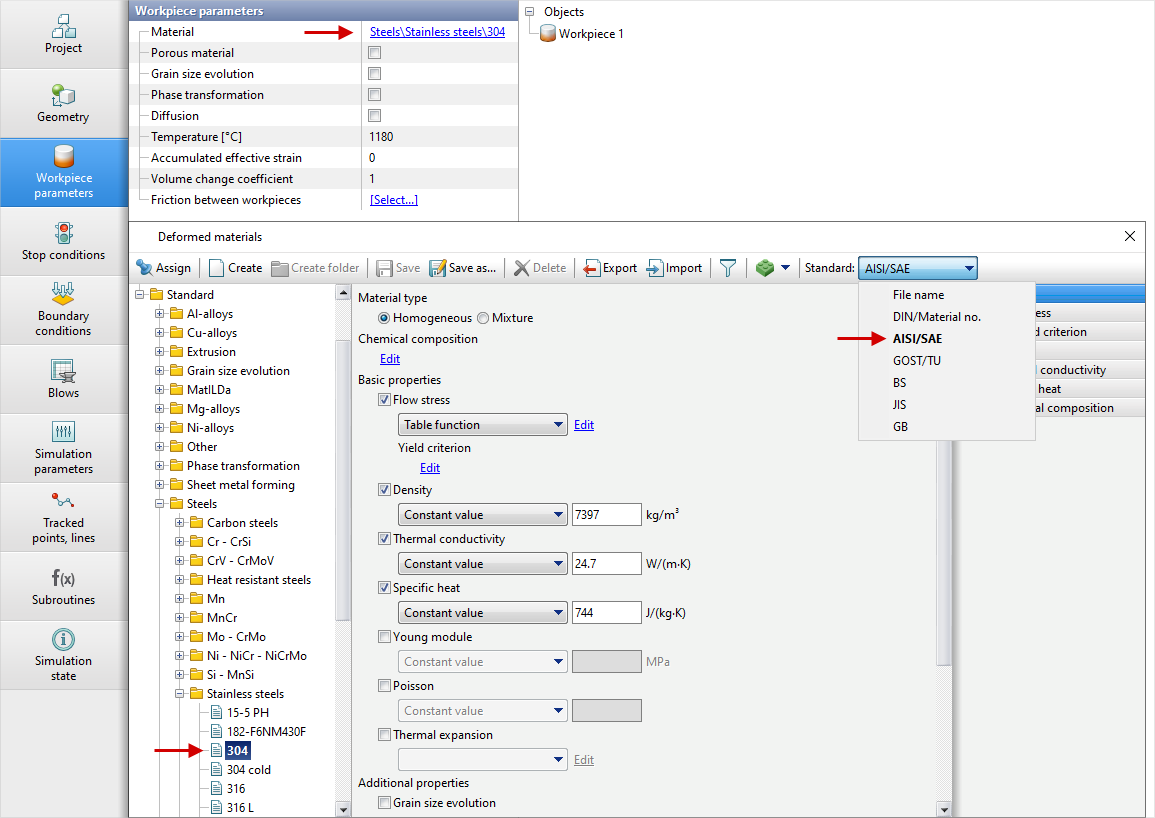
On the tab Workpiece parameters the following parameters are the main: •Material. To assign a material, you must click [Select...] and in the opened database window specify the desired material by double-clicking or with the help of the button Assign. The selected material will appear in the column Material:
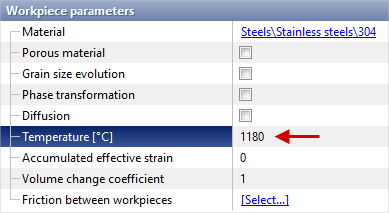
•Temperature. Here you specify the initial temperature of the workpiece:
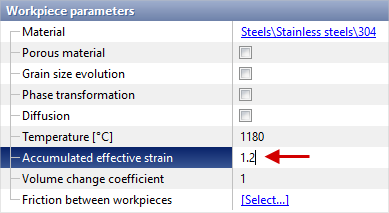
•Accumulated effective strain. The default value is 0.
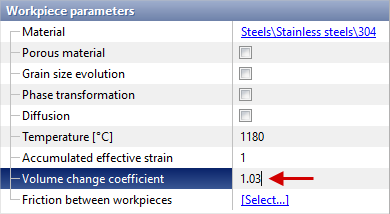
•Volume change coefficient. The default value is 1. The workpiece volume can be changed in proportion to this coefficient before simulation. For example, if you want to take into account the thermal expansion of a steel workpiece by 3%, enter the value 1.03 in this line. The option can also be useful for taking into account the iron loss in case of additional heating between operation:
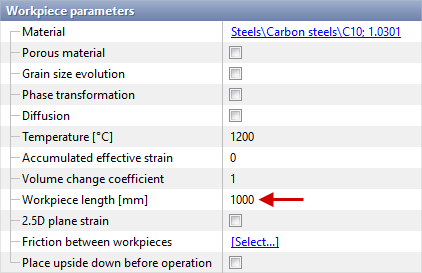
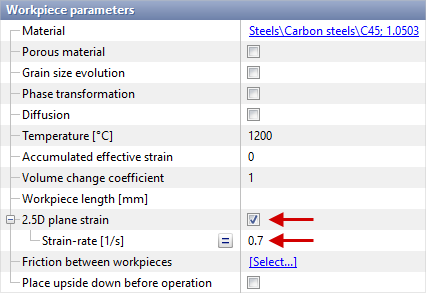
•Workpiece length. You must also specify the workpiece length for Problem type: 2D plane strain.
See also: |
||||||||

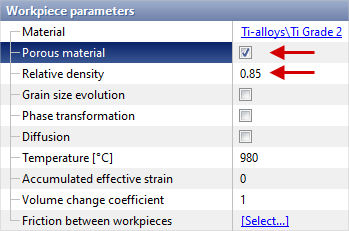
On the tab Workpiece parameters the following parameters are additional: •Porous material. This feature is designed to simulate tasks with workpieces produced by powder sintering, casting or other methods. After activating the option, an additional parameter Relative Density will appear, in which it is necessary to enter the relative density value:
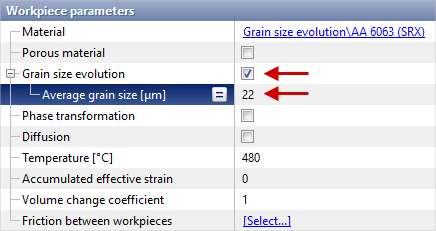
•Grain size evolution. If you want to simulate the microstructure, you must activate this feature. A row, in which you must specify the initial grain size in μm, will appear below:
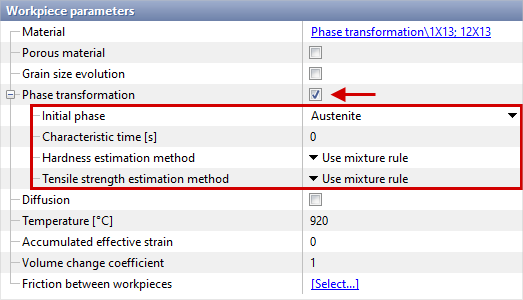
•Phase transformation. This feature must be activated for a heat treatment simulations. Additional lines will appear in which you must specify the initial parameters and select the method for calculating mechanical characteristics:
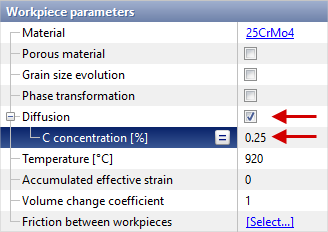
•Diffusion. If it is necessary to calculate the saturation of the workpiece surface with a chemical element, you must activate this option. The row C concentration will appear, in which you must specify the initial concentration of the chemical element in the workpiece. The designation of the chemical element will correspond to the diffusing element specified in the material model:
See also: Heat treatment simulation module |
||||
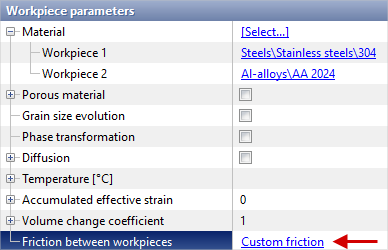
The remaining columns on the tab Workpiece parameters: •Friction between workpieces – if several workpieces are used in the simulation, then the parameters of friction and heat transfer between them should be set, even if they do not contact each other during the simulation.Friction between workpieces must also be specified for simulations without remeshing. Friction and heat transfer parameters will be taken into account for self-contact for such simulations.
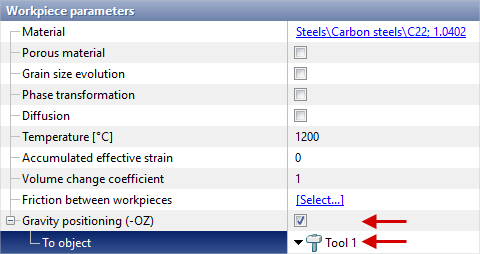
•Gravity positioning. This feature allows us to perform gravity positioning of the workpieces during the simulation. The feature appears for Problem type: 3D if there is at least 1 tool in the operation.
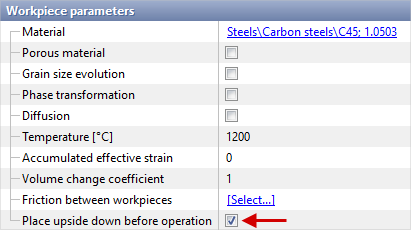
•Place upside down before operation. If you activate this feature, the workpiece will be inverted by reflection through a horizontal plane. This option is designed to make the positioning of the workpieces easier for Problem type: 2D axisymmetric or 2D plane strain.
•2.5D plane strain. Allows us to specify the strain rate along the Y axis for Problem type: 2D plane strain.
See also: |
By default, in all subsequent operation, the material, temperature, and accumulated effective strain are inherited from previous operation:
If the material, temperature or accumulated effective strain should not be inherited in subsequent operation, click on the icon
If additional parameters were activated in the previous operation, they will also be inherited:
|
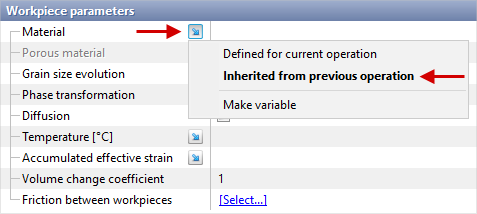
 and select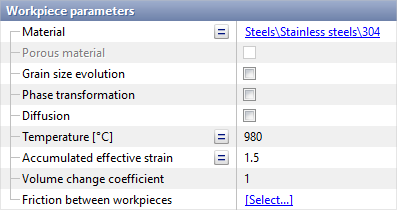
See also:
Heat treatment simulation module