In the Simulation parameters tab, you specify the simulation methods and parameters, the mesh properties of the workpiece and the tool, as well as several other simulation settings:
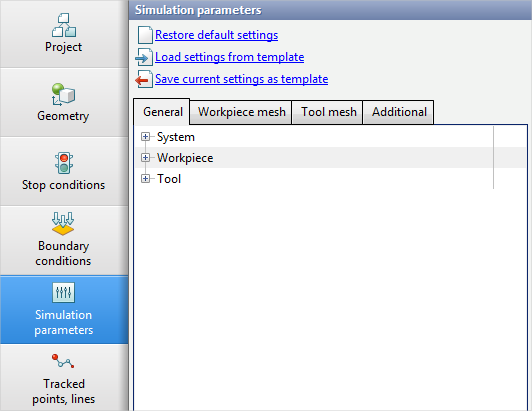
The General section provides controls for parameters that affect simulation accuracy, convergence, speed, and execution order.
The Workpiece mesh and Tool mesh sections define mesh properties for the corresponding object types.
In the Additional section, you can enable the calculation of auxiliary fields and account for special conditions during the main simulation.
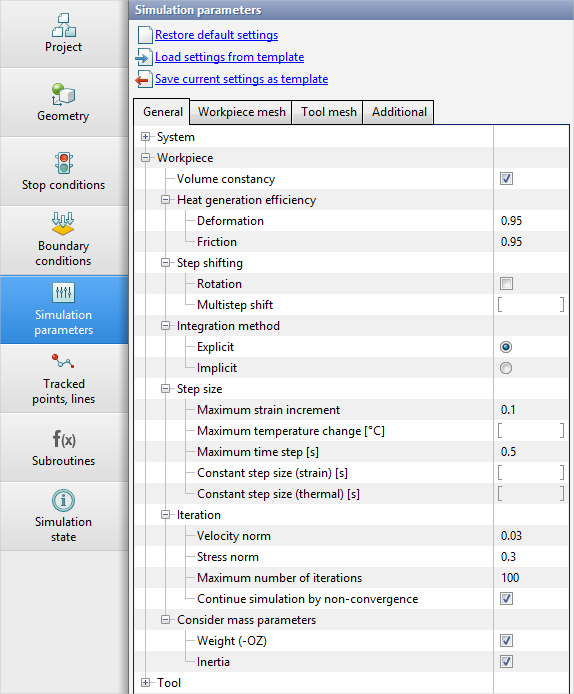
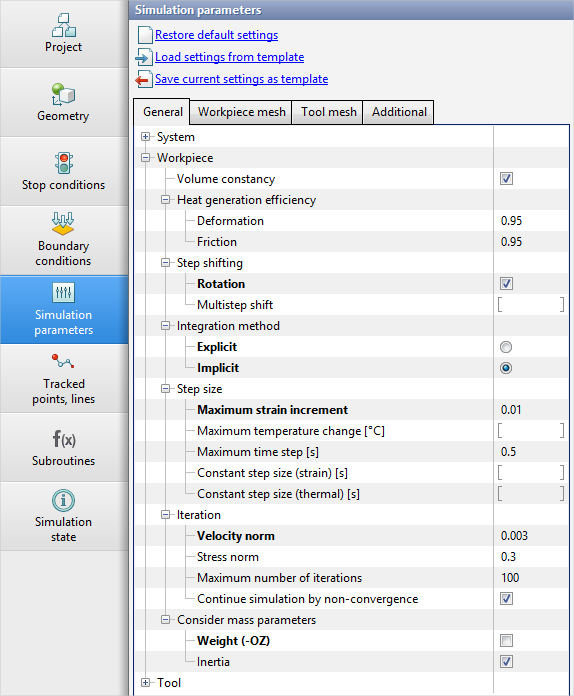
When a new operation is created in the project, all simulation parameters are set to their default values. If any simulation parameter differs from its default value, the row containing that parameter is displayed in bold.
|
|
|
Parameters are set to their standard values
|
|
Parameters modified by the user are highlighted in bold |
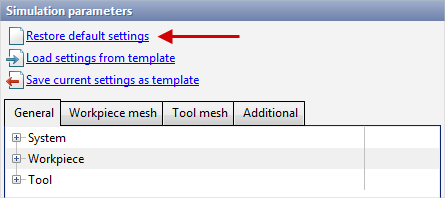
You can reset modified simulation parameters to their defaults using Restore default settings. In this case, parameters in all sections of the Simulation parameters tab are reset:
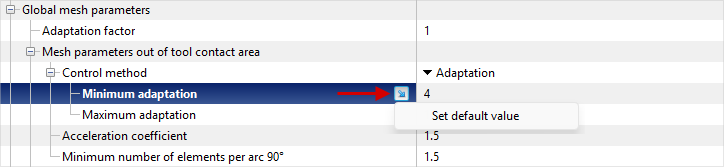
To reset a specific parameter only, select its row, click the arrow icon, and choose Set default value from the menu:
The default simulation values are tuned to provide an optimal balance between speed and accuracy for most forging simulations.
For certain special processes - e.g., forging of large billets, processes with a rotating workpiece, rolling, or heat treatment - you must specify special simulation parameters such as workpiece mesh adaptation settings, step size parameters, and others. Using Load settings from template, parameters are loaded from a user-prepared template stored in the simulation parameters database.
With Save current settings as template, the preset values in the Simulation parameters tab can be saved as a separate template in the simulation parameters database.
See also:
Simulation parameters database