The module allows you to perform simulation with the geometry of rolls of any complexity: from non-profiled (flat) rolls to geometry for rolling channels, rails and beams. Complex geometry must be prepared in CAD systems in STEP format (*.step, *.stp) or in *.dxf format, followed by turning the geometry into a 3D object help the built-in functionality QForm UK. Simple geometry can be easily create in QForm UK help the feature Parametric geometry.
In addition to the geometry of the rolls , loading of the geometry of the roll reinforcement is allowed. The algorithm for preparing and loading geometry is similar.
|
Information |
Geometry preparation for the longitudinal rolling and reverse rolling modules is carried out in the same way. In each of the modules you can use geometry with one or two symmetry planes. |
|

|
Information |
For a sheet rolling simulation it is possible to use a hexahedral mesh for the workpiece. In this task, it is recommended to use a mesh for rolls as a tetrahedral one based on hexahedrons (see the Parametric geometry creation section). |
|

The geometry file exported from CAD must be in STEP format (*.step, *.stp). In one file, you can prepare the geometry of a workpieces and several rolls to loading tools for all passes at once, or load objects for simulation one at a time - a tool or a workpiece in a separate STEP file. To facilitate the preparation of initial data, it is recommended to position the geometry in the CAD-system, while the rolling axis is best positioned along the OX or OY axes, because QForm UK load is always directed along the OZ axes. To loading objects you must execute the following actions: 1. Go to the tab Geometry; 2. Click on the button Load from file and in the window that opens, select the file; 3. When the import process is complete, click the button OK.
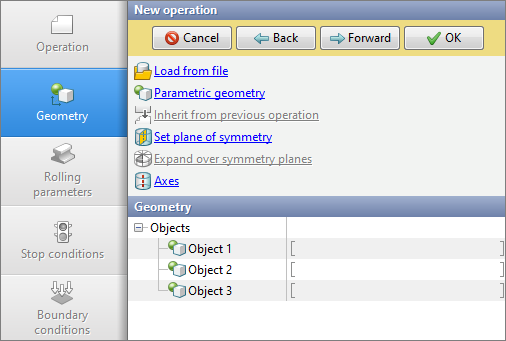
After loading the geometry, all objects stored in the file will be show view collections in the tab Geometry:
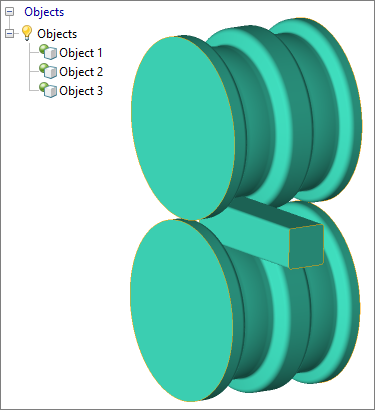
The objects will also be show in results overview window:
|
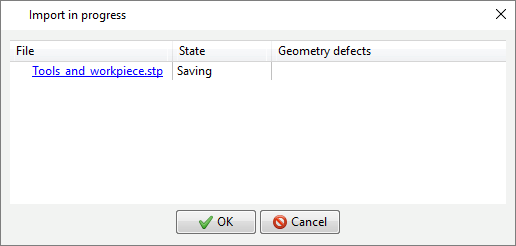
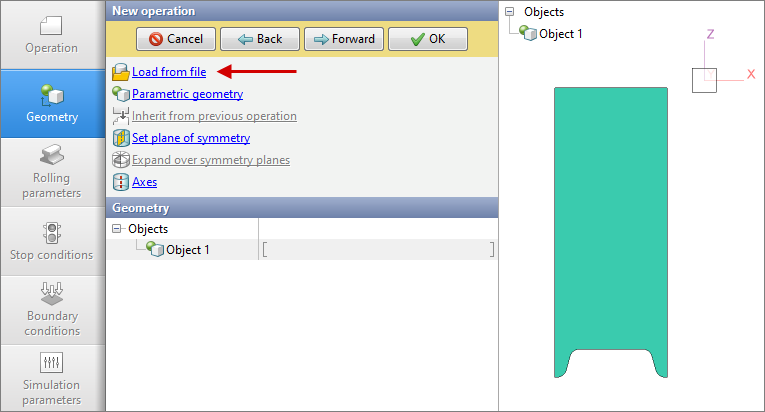
In QForm UK you can rotate a 2D contour into a 3D object. The feature is available for any applications module. Help this feature in longitudinal and reverse rolling modules, it is convenient to create rolls of any complexity from *dxf files without using third-party CAD-systems To create a 3D body you must execute the following actions: 1. Go to the tab Geometry; 2. Click on the button Load from file and in the window that opens select *dxf file; After which you will be show the loaded geometry:
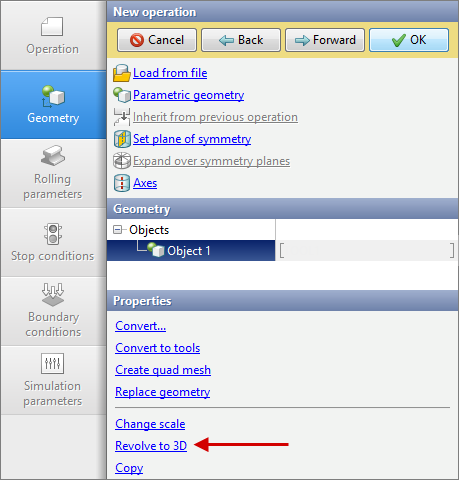
After loading the geometry, you must select an object in the collections or in Results overview window, and then click on the button Revolve to 3D:
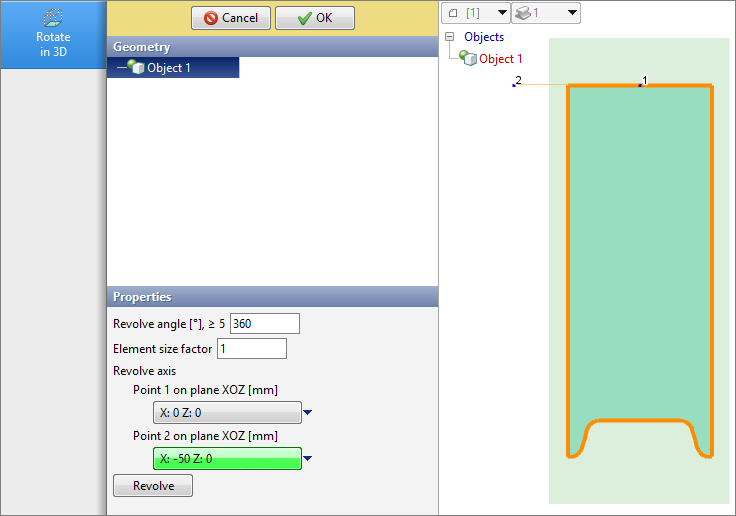
In the tab Rotate in 3D you need to prepare all the properties: enter the revolve angle and set the coordinates of two points to determine the revolve axes. Click on the button Revolve:
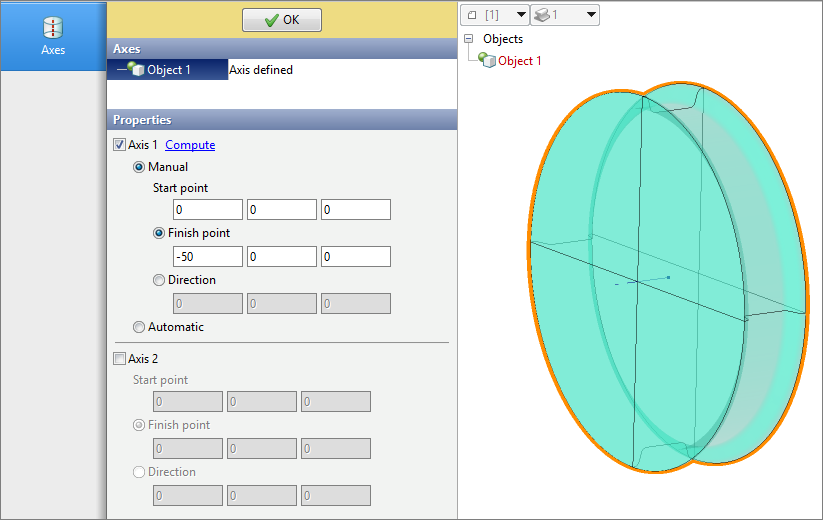
After the rotation, a 3D object will appear on screen , and the original loaded *dxf the contour will be deleted. With such a rotation, the object axis is created auto. The figure below shows the tab Axes immediately after creating a 3D object help a spread:
|
||||||||
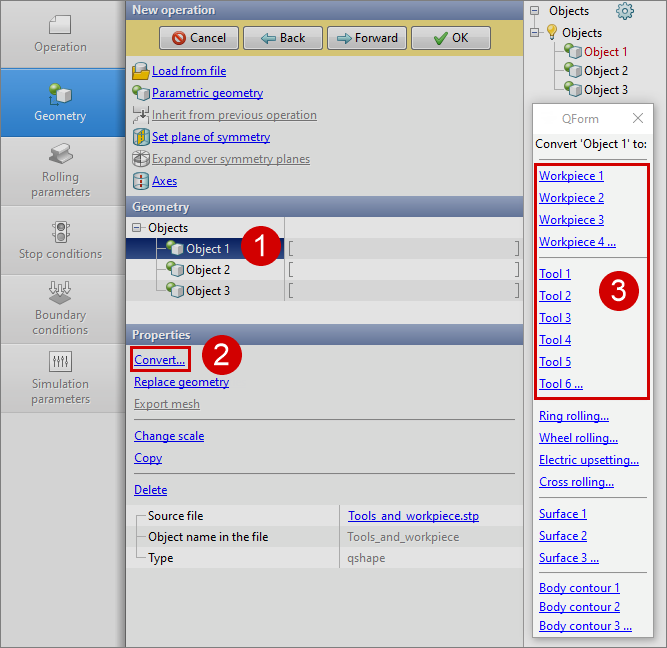
The loaded objects must be convert to workpiece and tools. To do this, you need to select an object, click on the button Convert... and select its type in the window that opens.
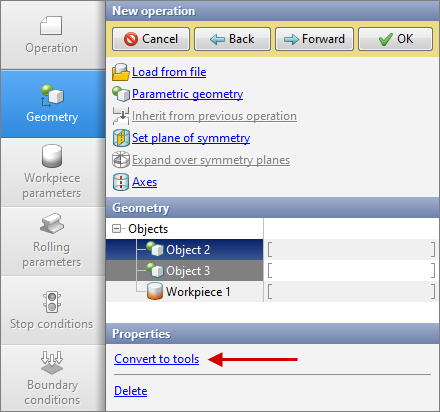
To speed up the converting of objects into tools , the ability to group tools has been added. To do this, select all the tools and click on the button Convert to tools.
|
||||
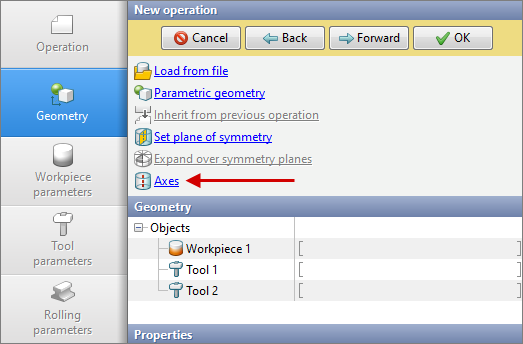
To set rotation movement to tools, it is should be set rotation axes. To do this, in the tab Geometry you need to press the button Axes.
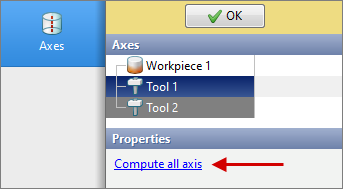
In the tab that opens, select all the tools while holding the Shift button and then press the button Compute all axis. This functionality calculates axes for bodies of rotation through their center.
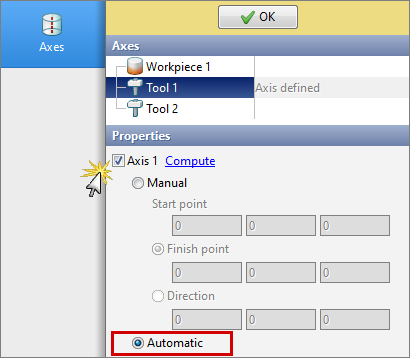
After the software has set the axes for the selected objects , click OK to return to the tab Geometry. You can also set the axes manual (see section Geometry) or activate the axis and select Automatic, then the axis for the selected object will be specified QForm UK at the origin of the simulation:
|
||||