In the mode of creating a new operation, the Project tab replaced with an Operation tab. The Operation tab contains only those options from Project tab, that should be specified when creating the operation. The operation name, operation type and problem type are specified in the Operation tab.
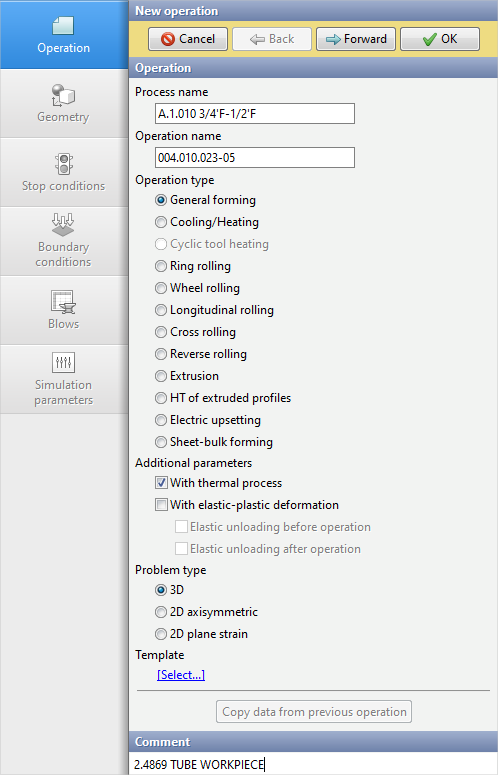
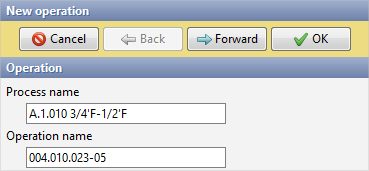
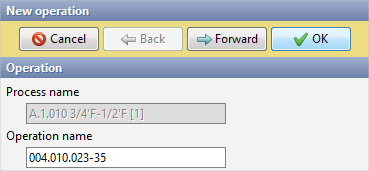
1. When creating a new operation in the Operation tab it is possible to specify the name of this process and the name of the first operation. Only the indication of the operation name is available for all subsequent operations of this process.
|
|
|
Specifying a name for the first operation |
|
Specifying a name for subsequent operations |
2. Then choose the Operation type: General forming, Cooling/Heating, Cyclic tool heating, Ring rolling, Wheel rolling, Longitudinal rolling, Cross rolling,Reverse rolling, Extrusion, HT of extruded profiles, Electric upsetting or Sheet-bulk forming:
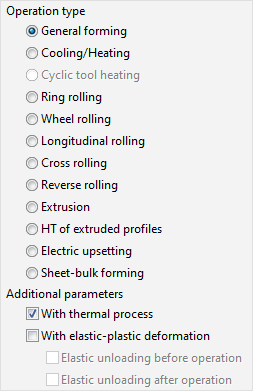
General forming (by default) – simulation of the material forming as a result of the strain applied to it.
If the option With elastic-plastic deformation is activated, then elastic strain will also be taken into account during the simulation. In this case, the Poisson's coefficient, Young module (coefficient of elasticity) and coefficient of thermal expansion must be specified in the workpiece material. Additionally, you can simulate the elastic unloading of the workpiece before or after operation by activating the options Elastic unloading before operation and Elastic unloading after operation respectively.
|
Information |
When calculating elastic unloading for a problem with multiple workpieces, there is no separation in contact between them. At this stage, the weight of the workpieces is not taken into account. |
|

If the option With thermal process is disabled, then the thermal task will not be solved during the forming process: in this case, the workpiece temperature will be constant during the entire process. Pay attention that if in the Blows tab the Cooling in air or Cooling on tool is given, then it will be taken into account in the simulation of the temperature distribution.
Cooling/Heating - simulation of cooling or heating of the workpiece by influence of the environment and/or tools.
If the option With elastic-plastic deformation is activated, then the stress state of the workpiece and its forming as a result of thermal expansion and internal stresses. In this case, the Poisson's coefficient, Young module (coefficient of elasticity) and coefficient of thermal expansion must be specified in the workpiece material. It is possible to set boundary conditions for workpiece while simulating the thermo-elastic-plastic problem. Additionally, the Elastic unloading before operation can be simulated, if the With elastic-plastic deformation option was also activated in the previous operation.
Cyclic tool heating - module for simulation the steady temperature fields in the tool after a certain number of deformation cycles based on the simulation results of the previous operation.
Ring rolling- is the ring rolling simulation module.
Longitudinal rolling- is the longitudinal rolling simulation module.
Cross rolling- is the cross rolling simulation module.
Reverse rolling- is the reverse rolling simulation module.
Extrusion - is the profile extrusion simulation module. See the documentationQForm UK Extrusion.
HT of extruded profiles -is the profile quenching simulation module. See the documentationQForm UK Extrusion.
Electric upsetting- is the electric upsetting simulation module.
Sheet bulk forming - is the simulation module for thick plate forging.
3. Then necessary to select the Problem type: 3D, 2D axisymmetric or 2D plane strain:
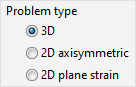
4. Template. Some of the initial operation data can be loaded from the process templates database:

5. Copy data from previous operation. If the active operation is not the first in the chain, and the initial data are not significantly different from the initial data of the previous operation, you may copy all the initial data from the previous operation in one click and make some changes later (for example, replace the geometry of the tools and stop conditions). It makes the operation creating process faster. This option is particularly useful for simulating of forging and open die forging processes, which including a large number of similar operations:

6. It is possible to provide reference information in the Comment window. You can write a comment for any operation either on the current tab or in the Project tab after exit the mode of creating a new operation. For example: you can enter an additional help information about the active operation in the Comment tab. This information will also be displayed when the corresponding operation is selected in the Project tab:
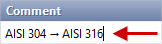
Changing all of the above parameters and properties in the Operation tab is available only in the mode of creating a new operation. After leaving the creation mode, all changes are made on the Project tab.