The simulation of sheet metal forming operations is examined below using the example of the cold drawing process of a part.
The forming of the part is carried out in two stages, which are simulated as separate operations.
In cases where the process has mirror symmetry, it is recommended to simulate only the symmetric sector using symmetry planes rather than the full model to reduce computation time. Thus, the simulation of the example considered in this section was performed for a symmetric quarter of the model.
Operation 1 |
Operation 2 |
|
|
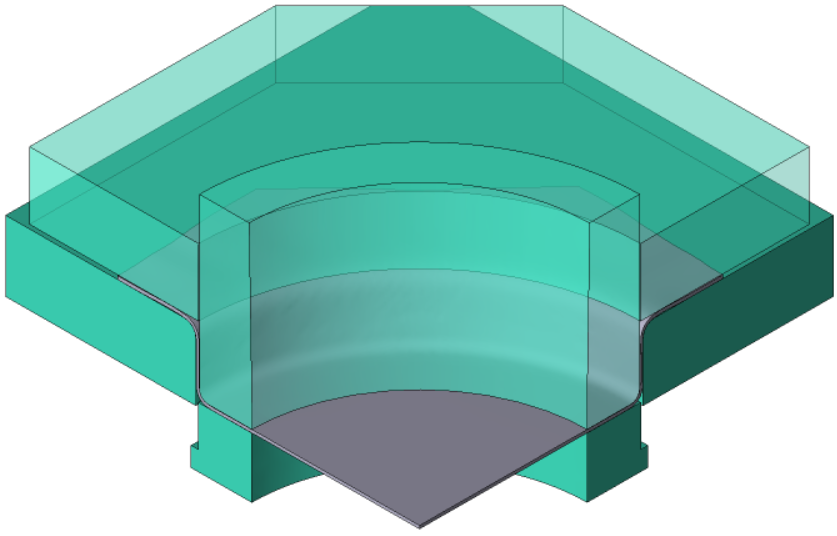
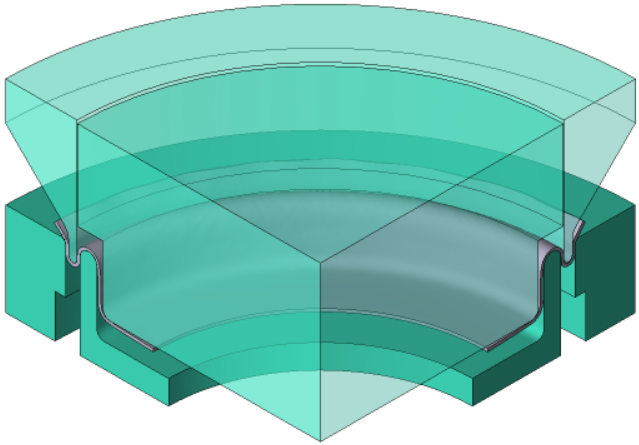
Initial data
Operation 1* |
|||
Operation |
Operation type |
Sheet-bulk forming |
|
Problem type |
3D |
||
Additional parameters** |
With elastic-plastic deformation |
||
Geometry |
Load from file |
Op1_tools.SHL WP.DXF |
|
Parametric Geometry |
Cylindrical*** |
Outer radius - 117 mm Inner radius - 70 mm Height - 100 mm Sector - Use symplanes |
|
Create quad mesh |
Contour accuracy - 0.0001 Number of zero-level elements per smaller dimensions - 50 Min. element level available for division with closing i n node - 1 Max. element level at contour - 3 |
||
Convert in 3D-object |
Number of layers - 4 Thickness - 1.2 mm |
||
Workpiece parameters |
Material |
Sheet metal forming\1.4510 cold |
|
Tool parameters |
Drive |
Tool 1 - Mechanical press\6.3MN Tool 2 - Fixed drive\+OZ Tool 3 - Universal drive 0.03 MN Tool 4 - Load holder 0.005 MN |
|
Lubrication |
Tool 1, 2, 3, 4 - Sheet metal forming\Carbon steels\Graphite + water |
||
Material |
Tool 1, 2, 3, 4 - D2 HRC59 |
||
Put in contact |
Tool 1, 2, 3, 4 - keep current position |
||
Stop conditions |
Tool stroke |
27.5 mm (for tool 1) |
|
* - for parameters not specified in the table, the default values are used. ** - only the additional parameters used in the calculation are specified. *** - an object created in the Parametric Geometry tab is used as the clipping surface. |
|||
Operation 2* |
||
Operation |
Operation type |
Sheet-bulk forming |
Problem type |
3D |
|
Additional parameters** |
With elastic-plastic deformation Elastic unloading after operation |
|
Geometry |
Load from file |
Op2_tools.SHL |
Tool parameters |
Drive |
Tool 1 - Mechanical press\6.3MN Tool 2, 3 - Fixed drive\+OZ Tool 4 - Universal drive 0.03 MN |
Lubrication |
Tool 1, 2, 3, 4 - Sheet metal forming\Carbon steels\Graphite + water |
|
Material |
Tool 1, 2, 3, 4 - D2 HRC59 |
|
Put in contact |
Tool 1, 2, 3, 4 - keep current position |
|
Stop conditions |
Tool stroke |
10 mm (for tool 1) |
* - for parameters not specified in the table, the default values are used. ** - only the additional parameters used in the calculation are specified. |
||
1.Click Create a new process.
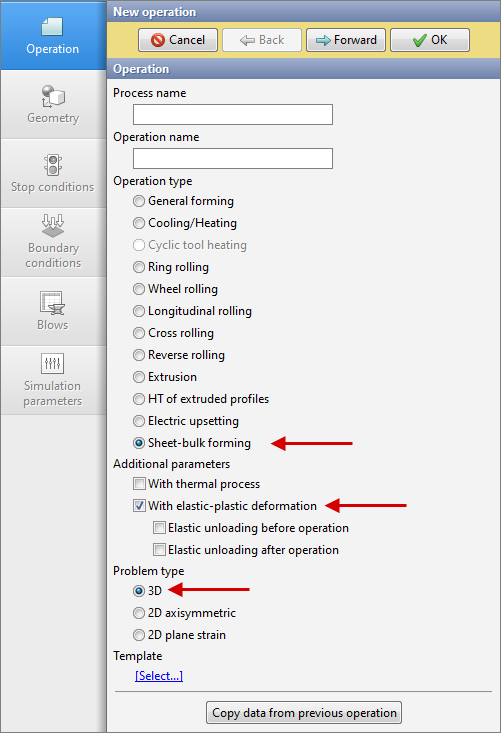
2.In the Operation tab, select Operation type - Sheet-Bulk Forming, Additional parameters - With elastic-plastic deformation, and Task type - 3D. Click Forward.
3.In the Geometry tab click Load from file , specify the path to the geometry files C:\QForm UK\12.0.1\ geometry\sheet-bulk_forming and select files Op1_tools.SHL and WP.DXF. The loaded geometry will appear on the screen. The example uses pre-prepared tool geometry files from QShape, where named models and symmetry planes have already been defined. For detailed information on preparing geometry in QShape, as well as directly importing STEP geometry files into QForm UK without prior preparation in QShape, refer to the section QShape: Preparing 3D Geometry.
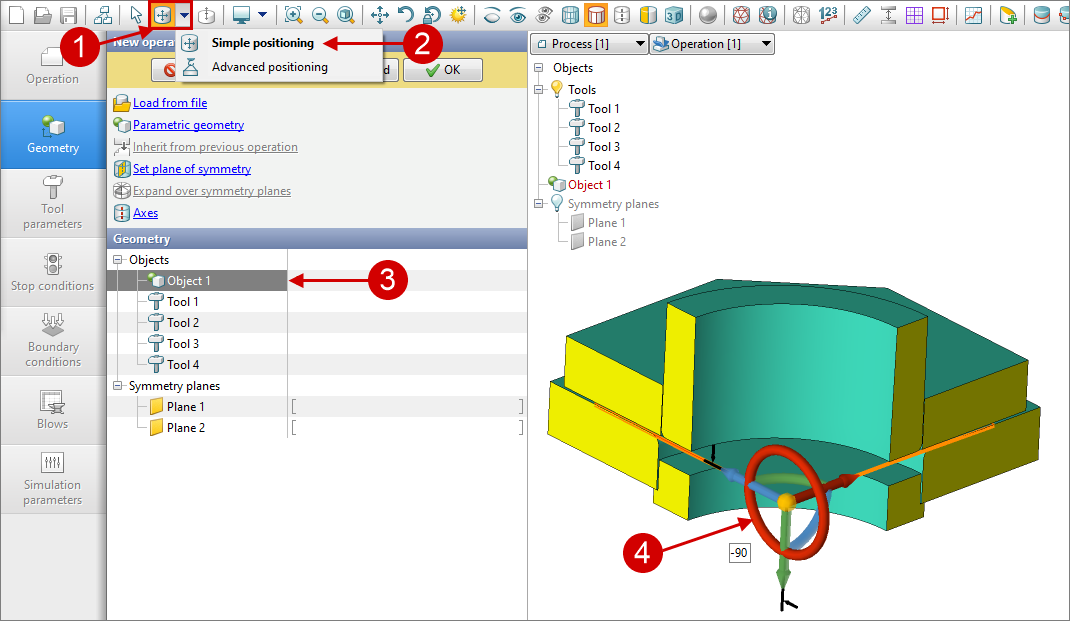
4.Object 1, corresponding to the workpiece, is positioned in the x0z plane after loading, perpendicular to the die surface on which the workpiece is placed. Therefore, it is necessary to rotate it 90° counterclockwise around the X-axis. To do this, activate the Positioning mode by clicking the corresponding button on the Toolbar, select Object 1, and rotate it by the specified angle by dragging the red arc arrow (for more detailed information on positioning, refer to the section Positioning Geometric Objects). After that, it is recommended to disable the Positioning mode by clicking the corresponding button on the Toolbar again.
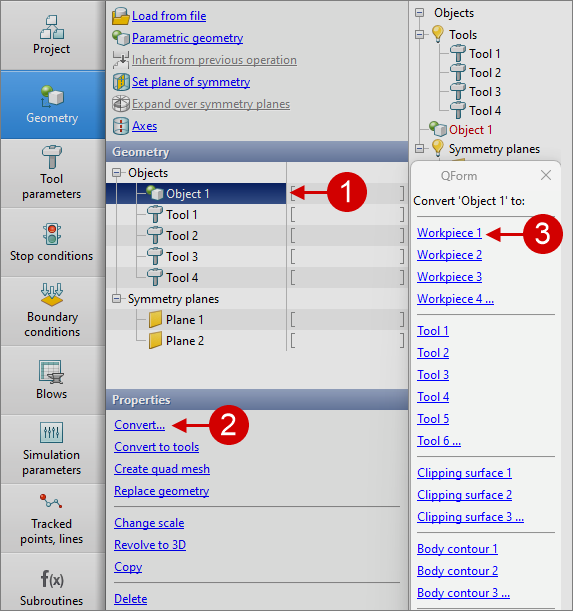
5.Select Object 1 , in the section Properties click on Convert... and in the list that appeared Convert 'Object 1' to: select Workpiece 1.
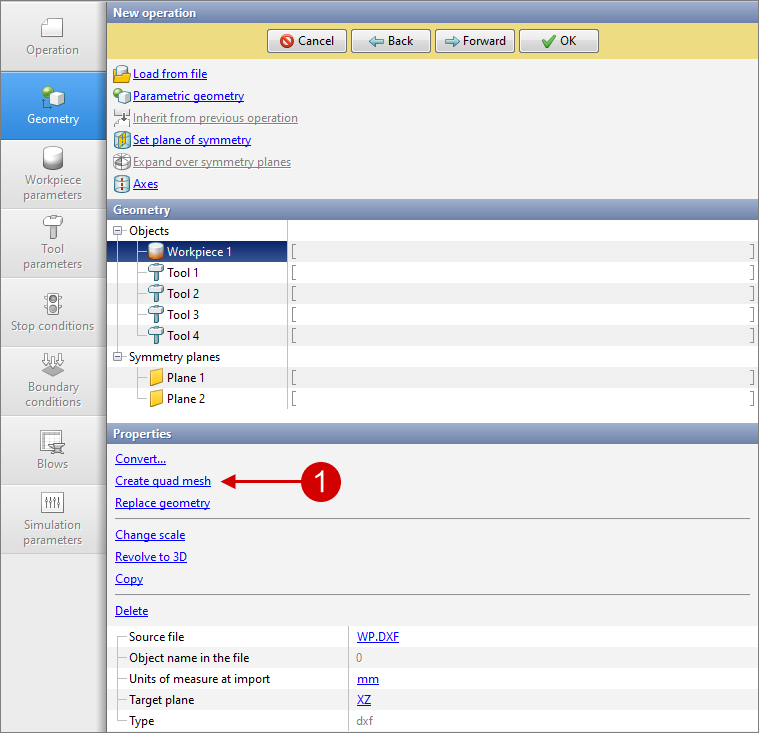
6.Make sure that in the section Geometry selected Workpiece 1. In the section Properties click Create quad mesh.
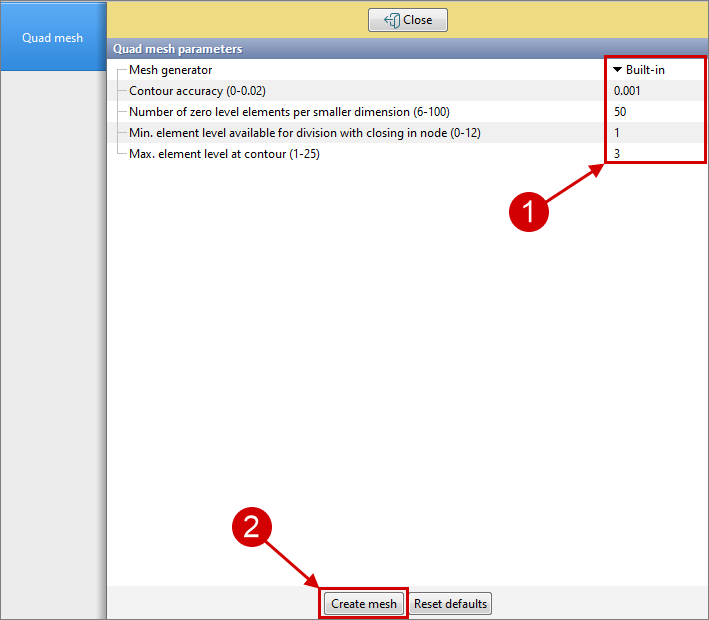
Enter the parameters for the generated mesh: Mesh Generator - Built-in, Contour accuracy - 0.001, Number of zero level elements per the smaller dimension - 50, Min. element level available for division with closing in node - 1, Max. element level at contour - 3. Click Create mesh , and then Close.
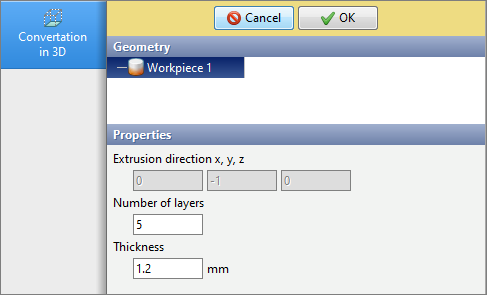
7.In the section Properties click Convert in 3D-object .
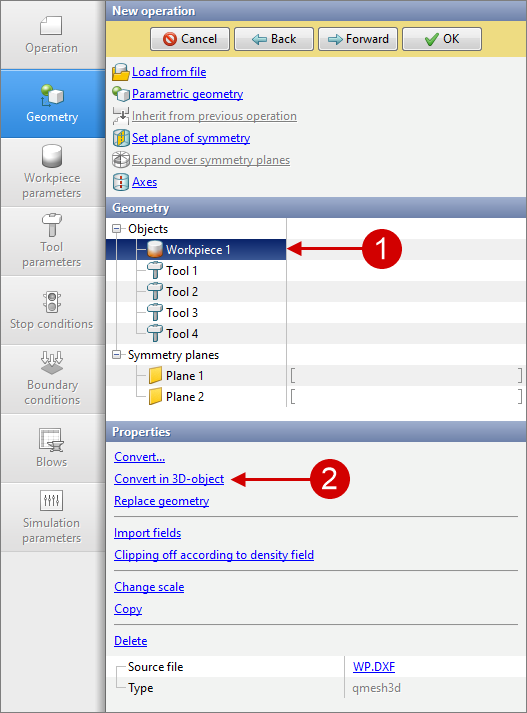
Enter the following parameter values: Number of layers - 5 , Thickness - 1.2 mm .Click OK.
8.In the considered example, a separating operation is used between the drawing stages to remove part of the workpiece material, which is not simulated. To account for the influence of material removal on the obtained results, a clipping surface is used in the simulation. The use of a clipping surface in the simulation allows for the removal of workpiece mesh elements at a selected moment in time, either inside or outside the surface.
|
Important |
For the hexahedral mesh model of the workpiece, the clipping surface is currently available only in the form of a straight circular cylinder or a rectangular parallelepiped, created using the Parametric Geometry command in the Geometry tab of the input data setup panel. |
|

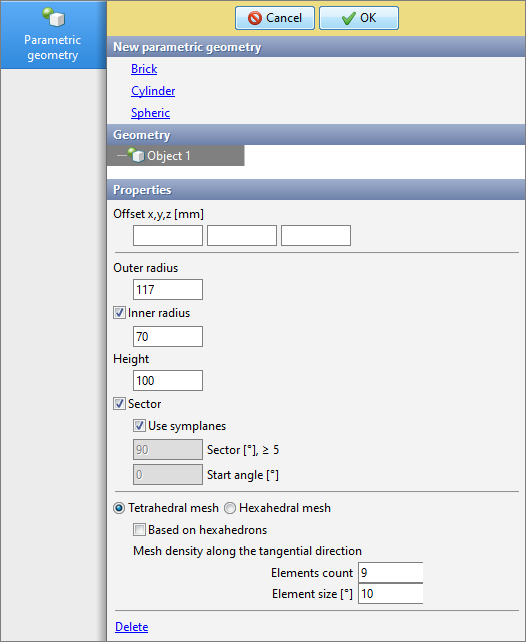
To create a geometric object corresponding to the clipping surface, click Parametric Geometry.In the section New parametric geometry select Cylinder , and then in the section Properties activate parameters Inner radius , Sector with Use symplanes and enter the following parameter values: Outer radius - 117 , Inner radius - 70 , Height - 100. Click OK .
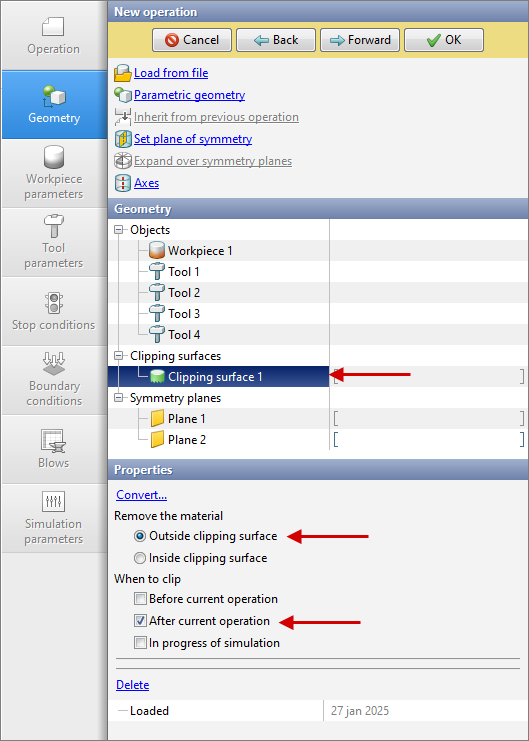
Make sure that in the section Geometry selected Object 1. In the section Properties click on Convert... and in the list that appeared Convert 'Object 1' to: select Clipping surface 1.In the section Geometry select Clipping surface 1 , after which in the section Properties please specify Remove the material - Outside clipping surface , When to clip - After current operation. Click Forward.
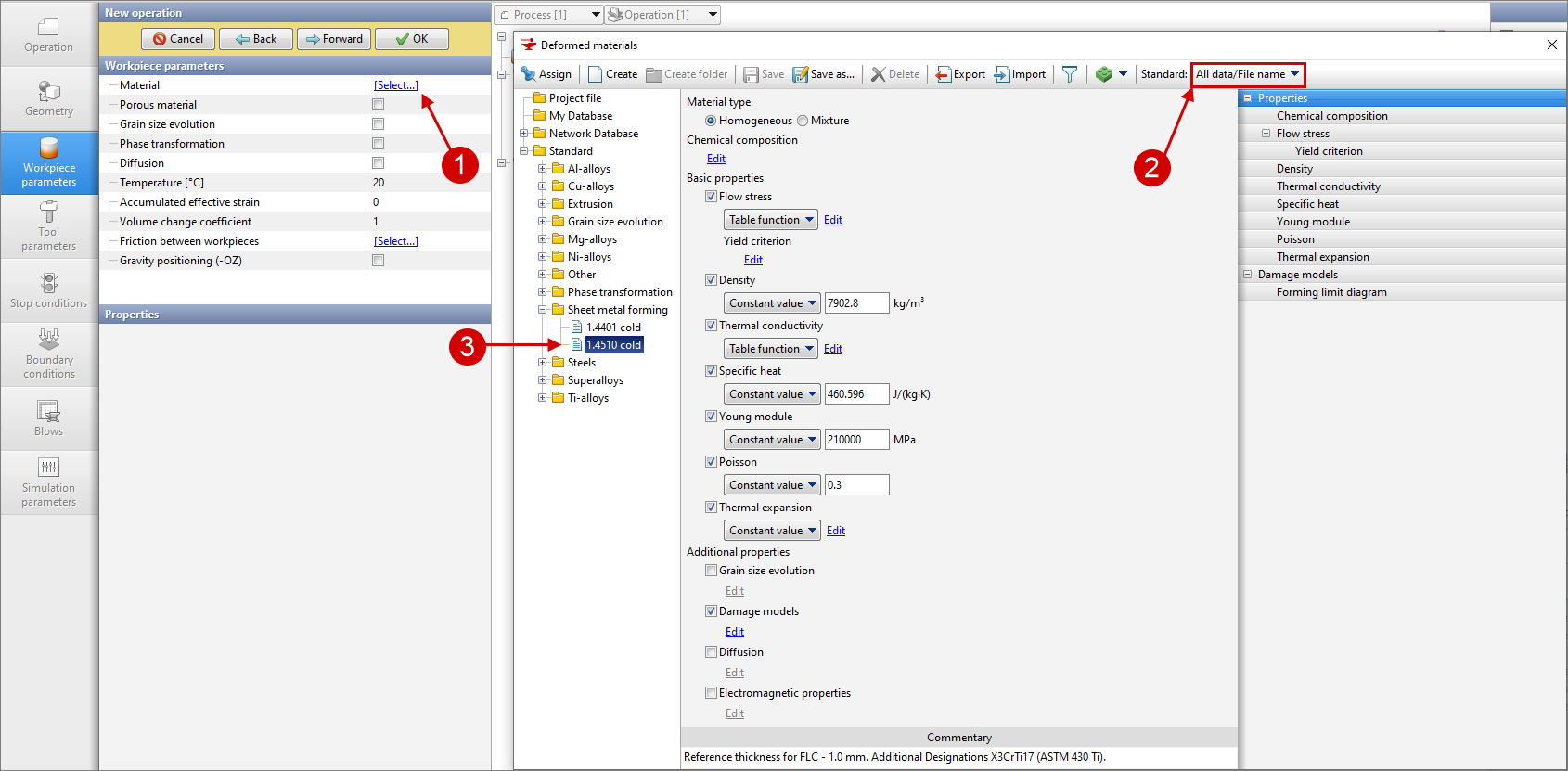
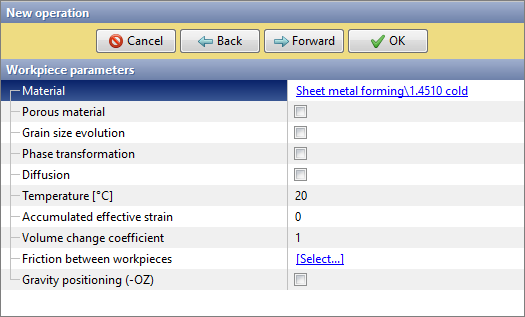
9.In the Workpiece Parameters tab, it is necessary to specify its material. To do this, click [Select...] next to Material. In the opened database window Deformed materials on toolbar in the drop-down list of parameter values Standard: select All data/File name , and then in the folder Standard\Sheet metal forming find material 1.4510 cold. Double-click to select it, after which the material will appear in theWorkpiece Parameters tab.
|
Information |
In the example, the workpiece material is selected from the standard materials database QForm UK, which is included in the software. If necessary, users can create and use their own custom materials. |
|

Detailed information about the databases used inQForm UK can be found in the Database section.
In this example, the process of cold forming is considered, so the workpiece temperature, as well as other parameters in this tab, do not need to be changed. Click Forward.
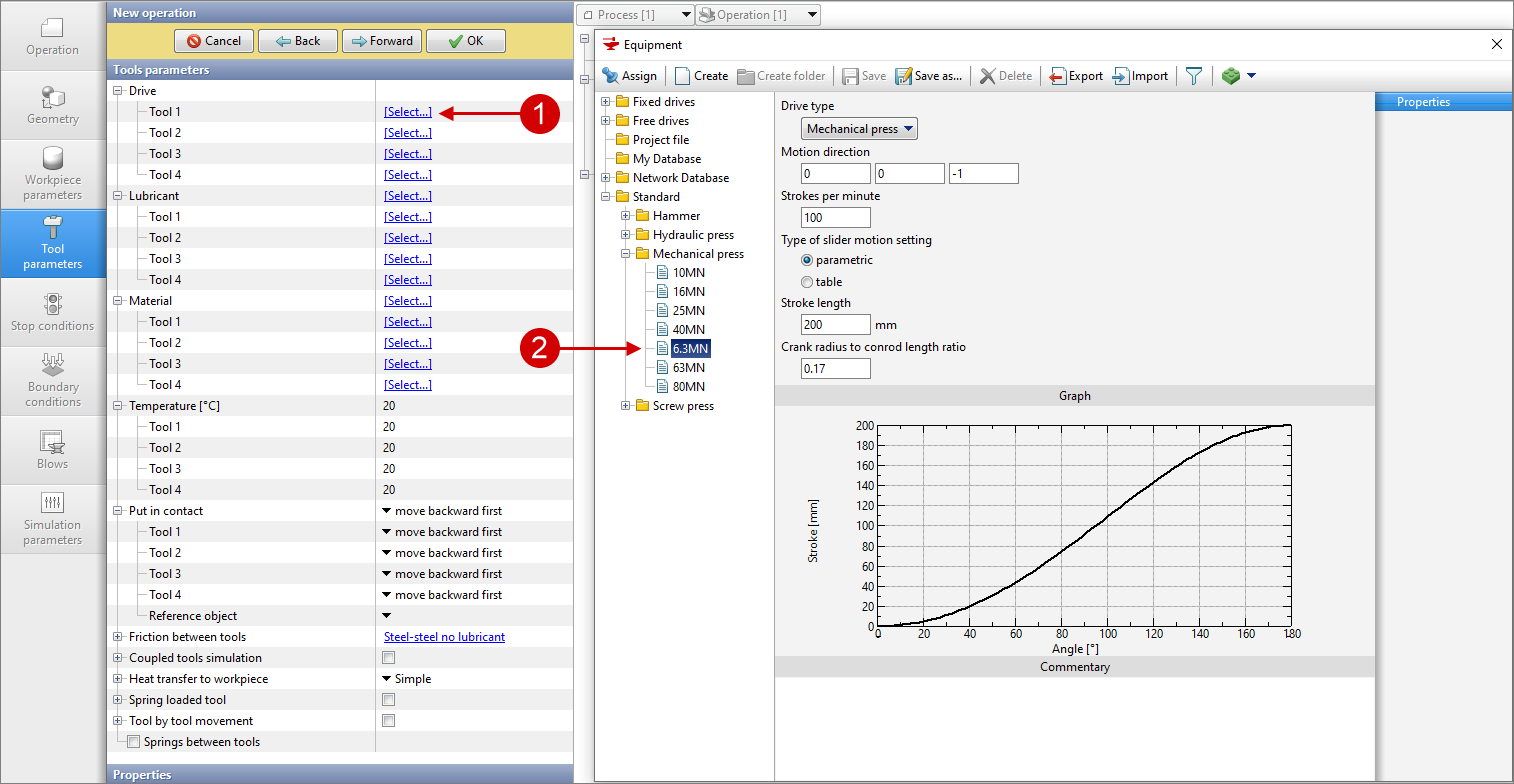
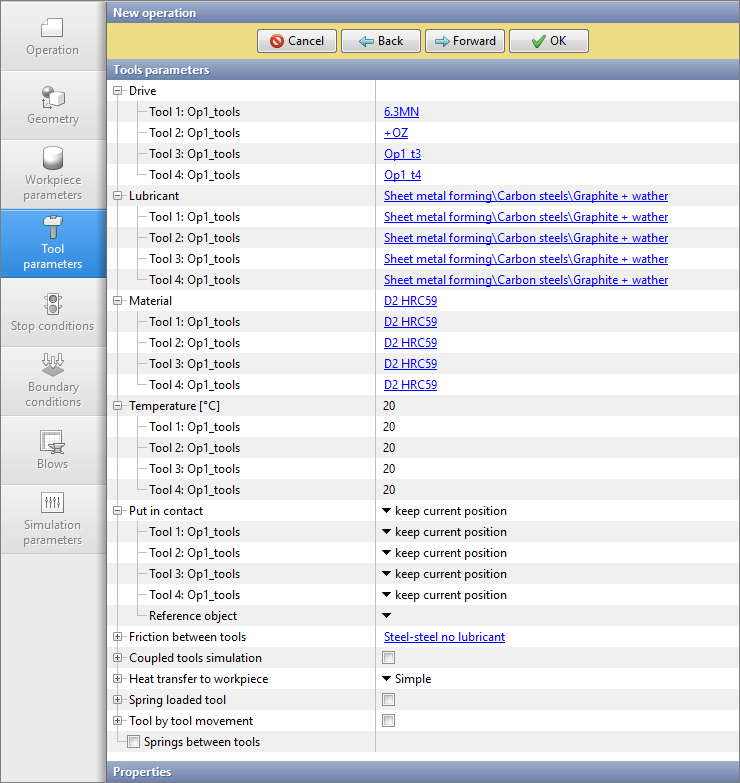
10.In the Tool Parameters tab, for each tool, it is necessary to select the drive type, lubrication, material, and disable its contact initialization with the workpiece. To set the drive for tool 1 in the section of the same name opposite it, click [Select...]. In the opened Equipment Database window, navigate to the Standard\Mechanical press folder, find the 6.3MN drive, and select it with a double-click, after which it will appear in the Tool Parameters tab.
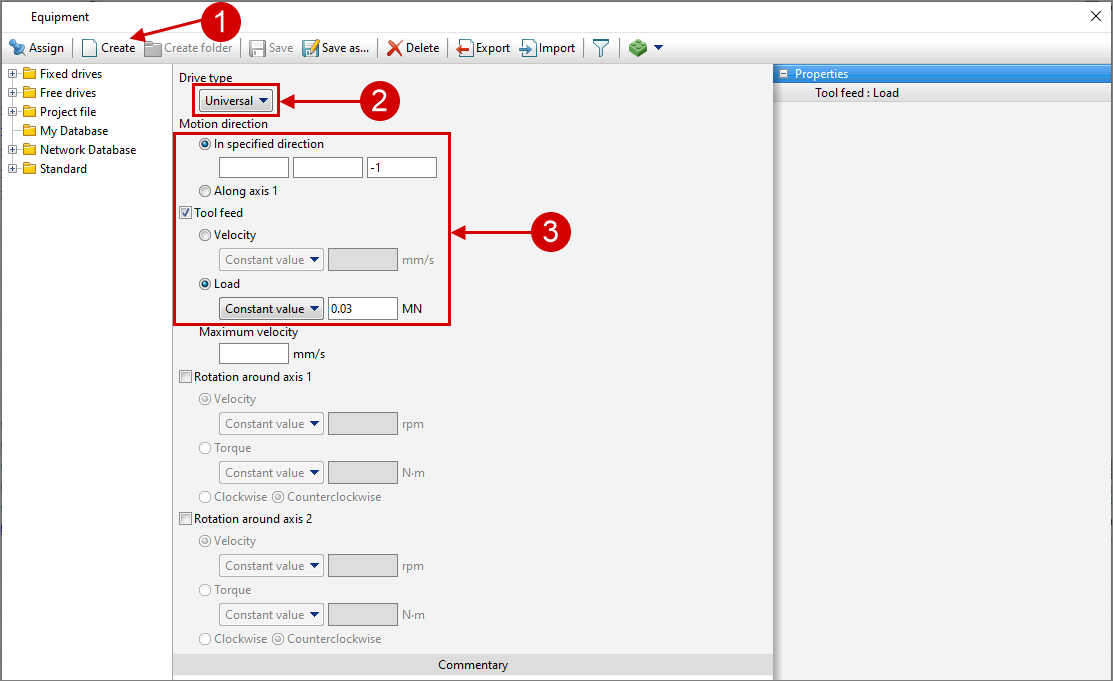
Similarly, for Tool 2, select the +OZ drive from the Fixed Drives folder as its drive. The equipment used as the drive for Tools 3 and 4 needs to be created. For this purpose, toolbars database windows Equipment click Create , select Drive type - Universal , Motion direction - In specified direction , Tool feed - Load , and enter the following parameter values: In specified direction - (0, 0, -1); Load - Constant value , 0.03 MN.
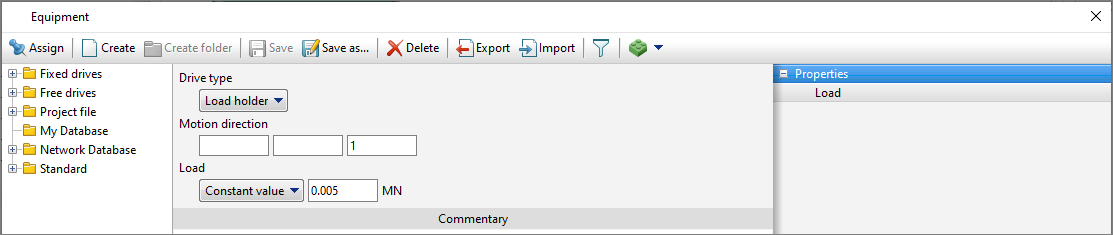
In the toolbar of Equipment Database window, click Save, select Project File as the save directory in the pop-up window, in the Name field enter Op1_t3, and click OK. After that, the created drive will appear in the Project File folder of the Equipment Database. Select it as the drive for Tool 3, just as you previously selected the drives for the other two tools. Similarly, for Tool 4, create and select the Op1_t4 drive with the following parameters: Drive Type – Load Holder, Movement Direction – (0, 0, 1), Load – Constant Value, 0.005 MN.
Since the same lubricant is used for all tools in this example, to set it for each of them at once, click [Select...] next to the Lubricant section name (if you need to select a lubricant for a specific tool, click the selection button next to that tool). In the opened Lubricants Database window, navigate to Standard\Sheet metal forming\Carbon steels, find the Graphite + Water lubricant, and select it with a double-click, after which it will appear in the Tool Parameters tab next to all tools.
Since all tools used in this example are made of the same material, just like when selecting the lubricant, to set it for all tools at once, click [Select...] next to the Material section name. In the opened Tool Materials Database window, on the toolbar, in the dropdown list of the Standard parameter, select All Data/File Name, then in the Standard folder, find the D2 HRC59 material and select it with a double-click, after which it will appear in the Tool Parameters tab next to all tools.
To disable putting the tools in contact with the workpiece for all tools at once, just like when selecting the lubricant and tool material, from the dropdown list next to Put in contact, select the option Keep current position (detailed information on the options for putting tools in contact with the workpiece in QForm UK can be found in the Tool Parameters section).
Other parameters in this tab do not need to be changed. Click Forward .
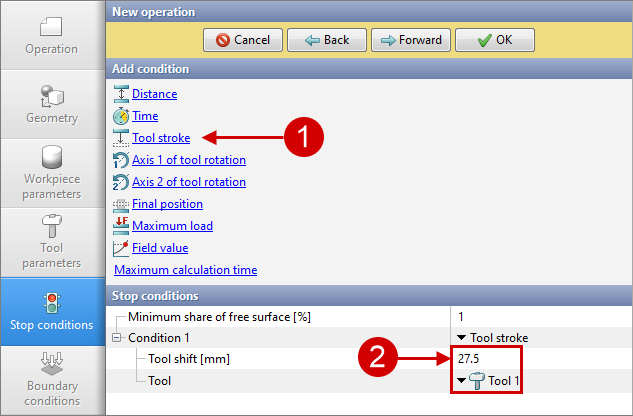
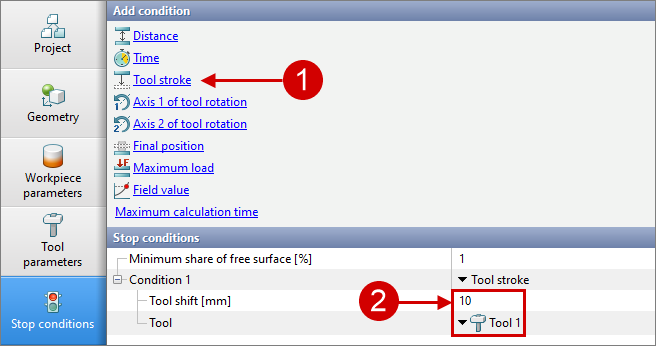
11.In the Stop Conditions tab, it is necessary to set the displacement of the deforming tool up to which the first operation is performed. Click Tool stroke . After that, in the Stop Conditions section, in the empty cell next to the Tool shift [mm] parameter enter the value 27.5, and from the dropdown list of available values for the Tool parameter, select Tool 1. Click Forward.
12.In the tab Boundary conditions no changes need to be made. Click Forward.
13.In the tab Blows no changes need to be made. Click Forward.
14.In the tab Simulation parameters no changes need to be made. Click OK.
15.Click on the button Simulation , and the program will offer to save the project. Specify the location to save the project, set its name, and click Save. After that, the calculation will begin. Wait for its completion.
This step is not mandatory. You can proceed directly to preparing the second operation of the sequence and then start the calculation for the entire sequence at once.
16.Open the tab Project and make sure that in the section Processes selected Process 1 . Below, in the Active Process chain section, click the Add Operation to process chain.
17.In the Operation tab, select Operation Type – Sheet-Bulk Forming, Additional Parameters – With Elastic-Plastic Deformation and Elastic unloading after operation, and Task Type – 3D. Click Forward .
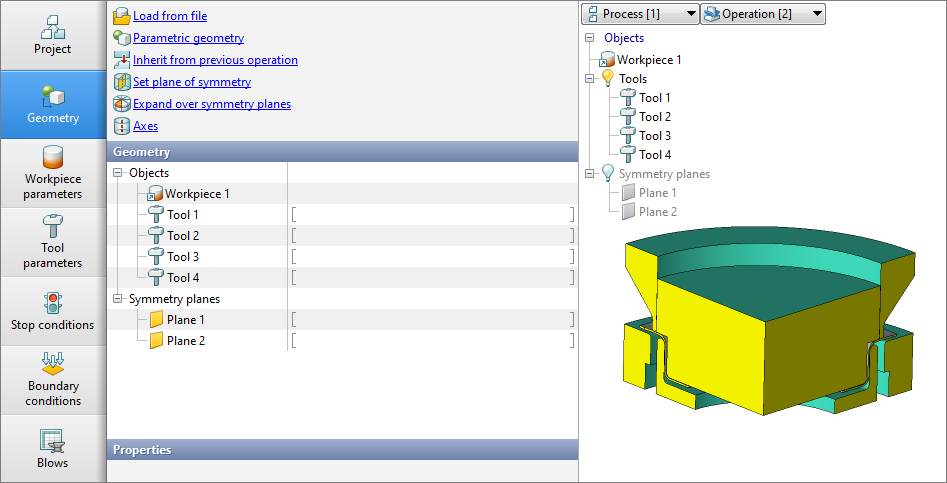
18.When simulating a sequence of operations, the workpiece geometry obtained from the previous operation is automatically used as the initial geometry for the next operation by default. To load the tool geometry, in the Geometry tab, click Load from File, specify the path to the geometry file C:\QForm UK\12.0.1\\geometry\sheet-bulk_forming, and select Op2_tools.SHL. The loaded geometry will appear on the screen. Click Forward.
19.In the tab Workpiece parameters no changes need to be made. Just like the workpiece geometry, its parameters such as material, temperature, and deformation achieved during the operation are automatically transferred as initial conditions to the next operation when simulating a sequence of operations. Click Forward.
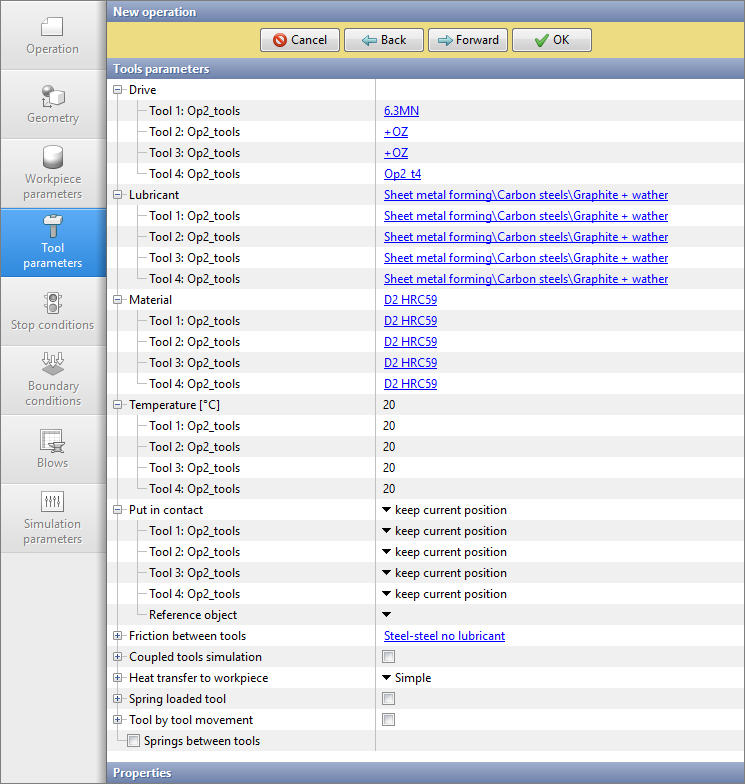
20.In the Tool Parameters tab, similarly to the previous operation, select the 6.3MN drive for Tool 1 from Standard\Mechanical press, for Tools 2 and 3 - +OZ fromFixed Drives, and for Tool 4, create and select the Op2_t4 drive with Drive Type – Universal, Motion Direction – In specified direction - (0, 0, -1), Tool Feed – Load, Constant Value – 0.03 MN.
As in the previous operation, for all tools, select the Graphite + Water lubricant from the Standard\Sheet metal forming\Carbon steels folder in the Lubricants database, set the material to D2 HRC59 from the Standard folder in the Tool Materials database, and disable the contact initialization of the tools with the workpiece.
Other parameters in this tab do not need to be changed. Click Forward .
21.Similar to the previous operation, in the Stop Conditions tab, set the travel for Tool 1, upon reaching which the simulation will be completed, to 10 mm. Click Forward.
22.In the tab Boundary conditions no changes need to be made. Click Forward.
23.In the tab Blows no changes need to be made. Click Forward.
24.In the tab Simulation parameters no changes need to be made. Click OK.
25.Save the project and click the button Simulation