It is possible to automatically generate a technical report about the simulation in QForm UK. Let's create a report for the previously simulated example QExample.
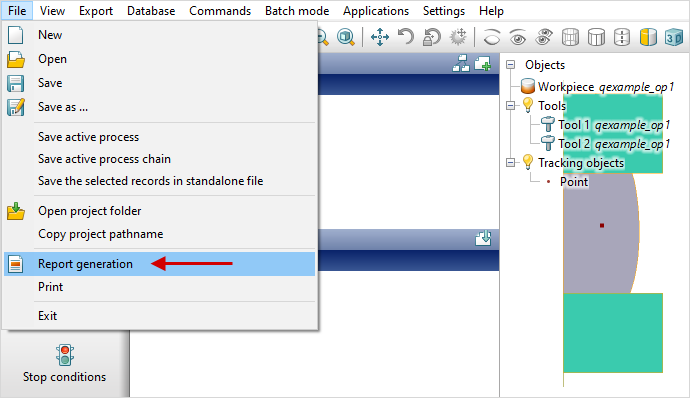
As a report template , we will use the example supplied with the software, which is located in the directory C:\QForm UK\12.0.1\report_templates\. Open the simulated example QExample and select command Main menu - File - Report generation:
In the opened window, specify the path and name of the *.docx- file to save the report, as well as the path to *.dotx- report template file :
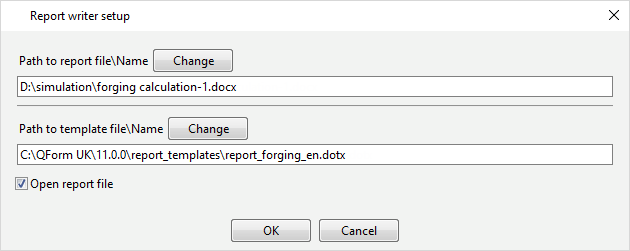
Click OK. QForm UK will start generating a report according to the script described in the report template.
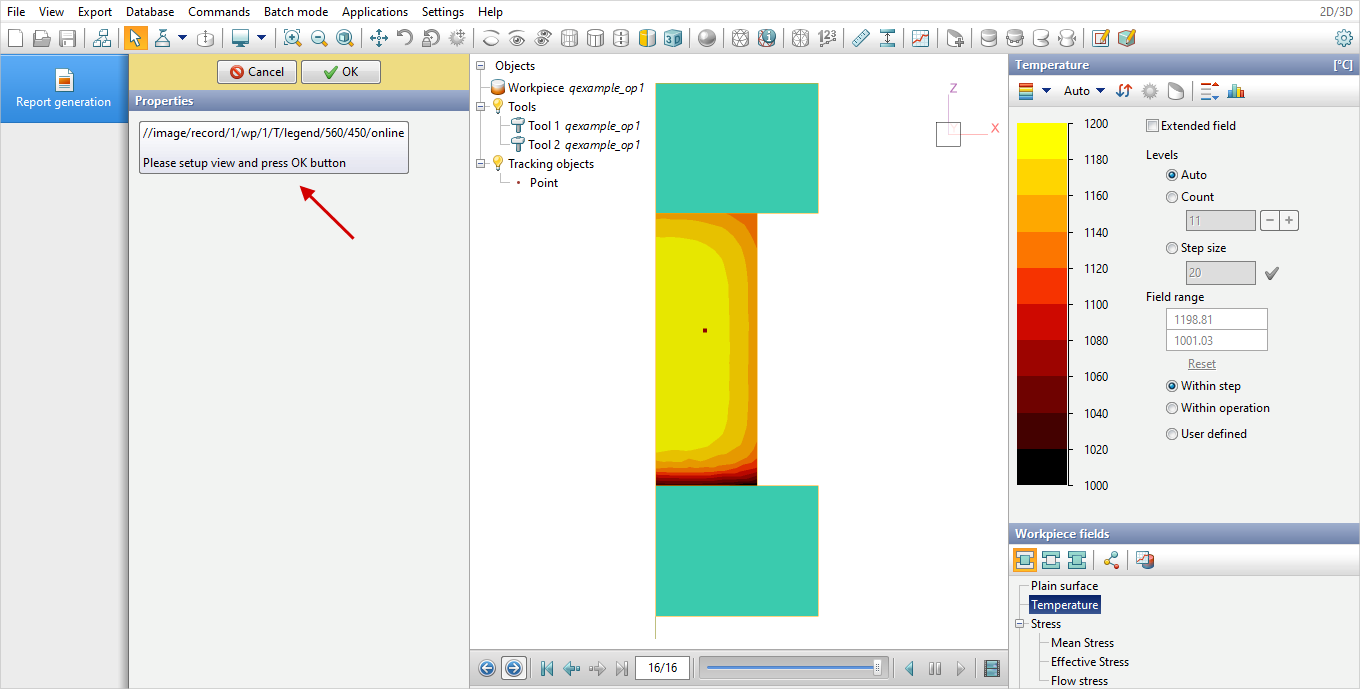
If the tag for adding an image to a report contains the parameter online, automatic report generation on this tag will be suspended, and the program will prompt you to configure the display of objects and select the required simulation field. Then you need to click OK, and report generation will continue according to the template script:
After generation, the report will be saved to the specified file with the extension *.docx. The contents of the file are shown in the figure below:
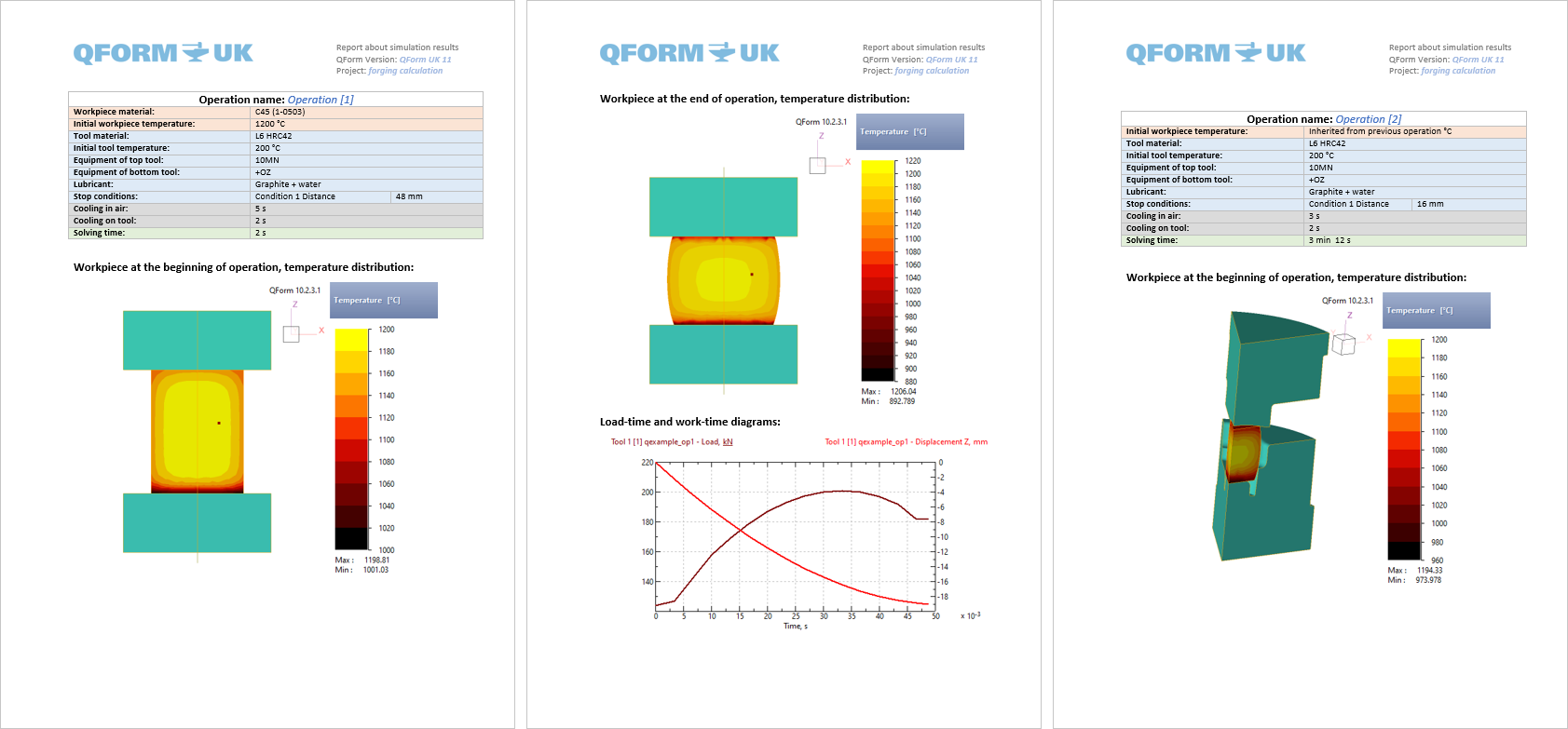
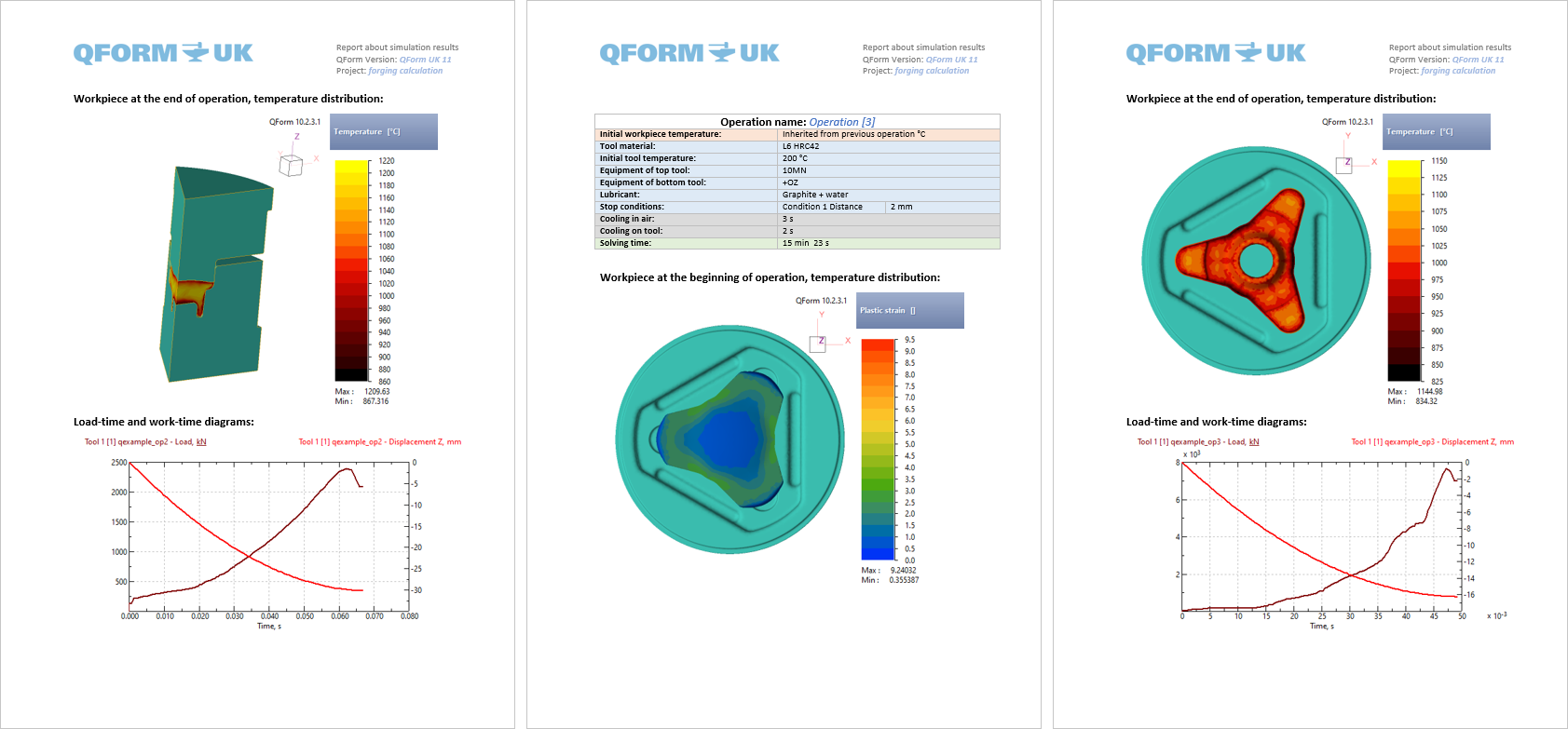
The user can add a custom script in his report template using special tags (commands). Thus, the auto generated report can have any structure and design.
It is also possible to create a report in presentation format. PowerPoint. To do this, you need to specify the path to the template with the extension *.potx.
See also:
Comment of report template tags