To create animations and images with simulation results, press the button  located on Playback bar. In the opened window Options you need to specify the saving parameters and click the button Save. In the directory specified in the line File path\Name, the created animations or images will be saved.
The first part of the name of the saved file corresponds to the name specified after the "\" sign, the second part of the file name is created additionally and, depending on the type of saved data, may contain the number of the record for which the image is created, and the name of the displayed calculated fields:
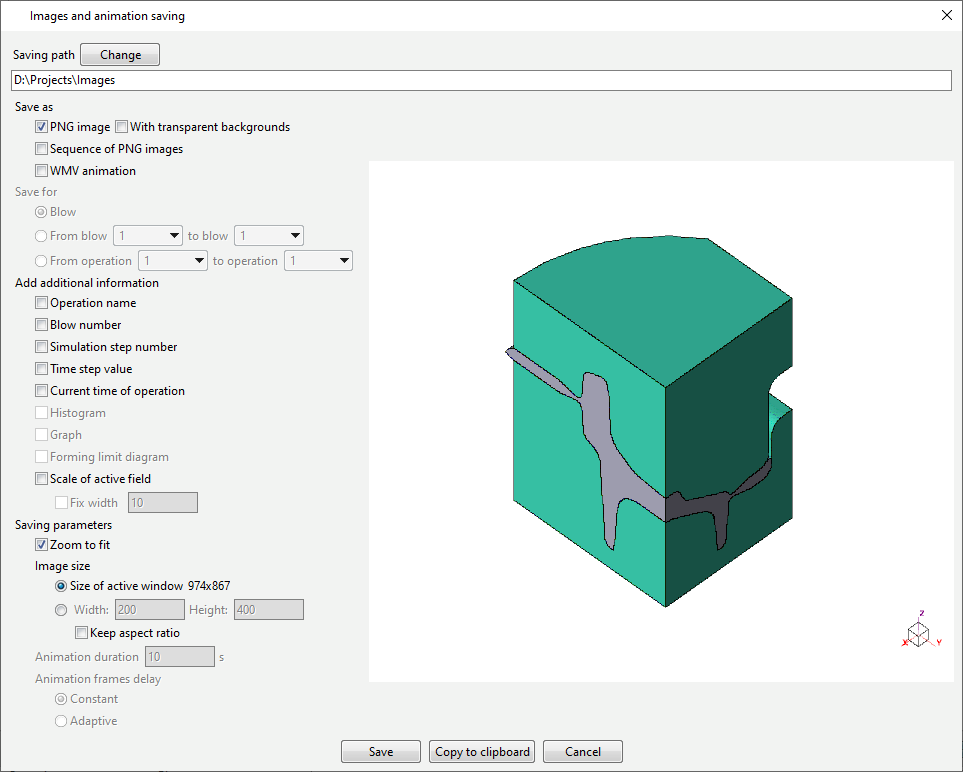
Saving mode
PNG image feature is used if you want to save one image in the PNG format for the active simulation record.
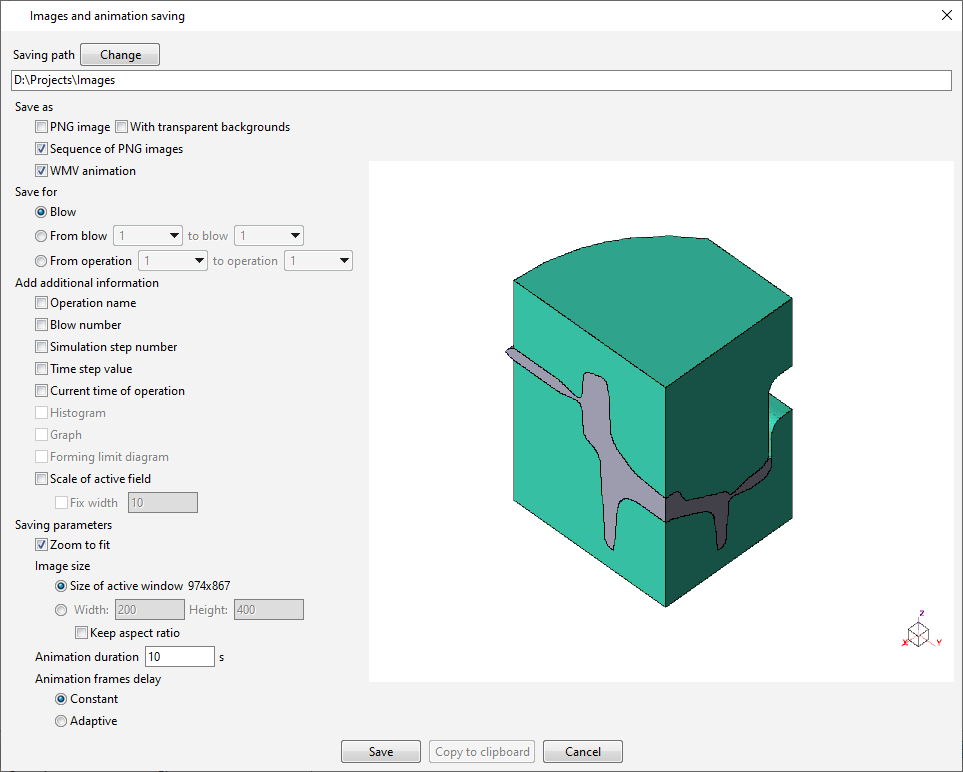
A series of PNG images feature saves a series of images in the PNG format for the selected blow/pass/billet, operation or operations chains. If the value Video Time in seconds keeps unchanged, then the images will be saved for each simulation record. If zoom out the clip time, the amount of saved images will be reduced in proportion to the time.
WMV animation - used if you want to save the animation in the format WMV. The Animation duration is set in the line Video Time in seconds.
Choice of blow or operation
Blow/pass/billet – savesWMVfile for the active blow/pass/billet.
From blow/pass/billet... to blow/pass/billet – saves a WMV file for all blows/passes/billets of the active operation between the selected values.
From operation ... to operation – saves a WMV file for all operation of the active process between the selected values.
|
Information |
The choice of blow/pass/billet or operation is available only for the saving mode - WMV animation. |
|

Additional info on the image or animation
Operation name – adds the operation name.
Number of blow/pass/billet – adds the number of the blow/pass/billet.
Simulation step number – adds the simulation step number.
Simulation step value – adds the value of the active simulation step.
Current operation time – adds the current time of the active operation.
Histogram - adds a Statistics window for selected fields. Active when window Statistics is open.
Graph - adds the Graphs window. Active when the Graphs window is open.
FLD Diagram - adds the FLD Diagram window. Active when the FLD Diagram window is open.
Active field scale - adds the scale of the displayed fields. You can set the scale width using the parameter Fix width.
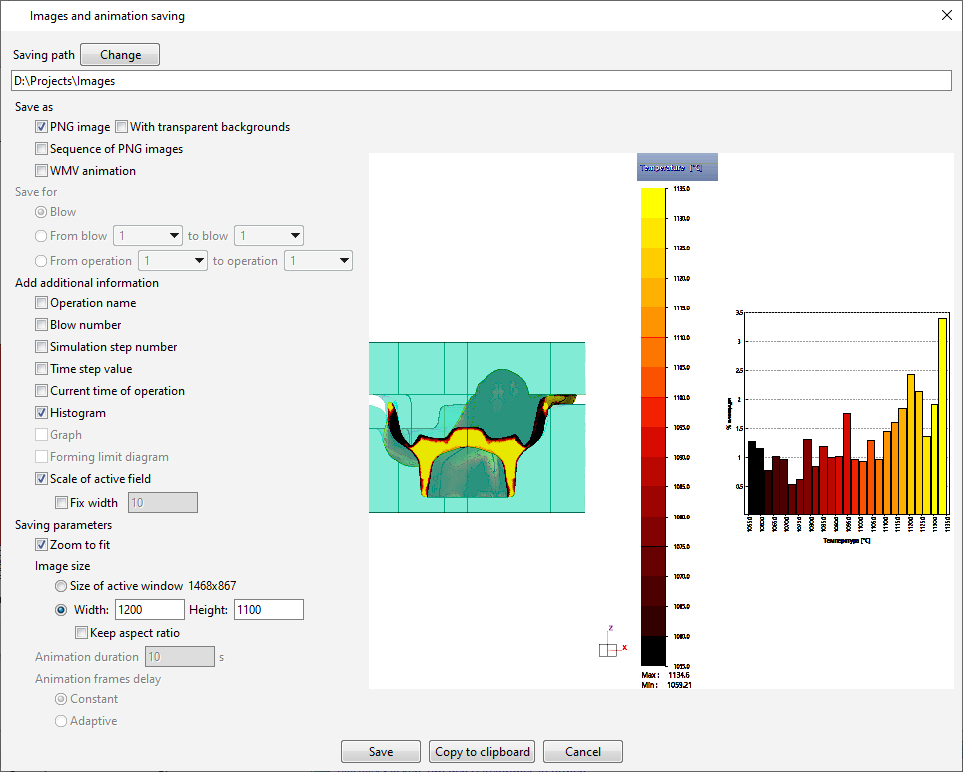
Saving parameters
Zoom to fit – before saving, the Zoom to fit function is used.
Image size – the size of the saved image is selected, which either corresponds to the size of the QForm UK viewing results window or is set manually.
Animation duration – sets the animation duration in seconds. It is active only for WMV animation saving mode.
Animation Frames Delay – selection of duration of animation frames. With the Constant selected mode the duration of 1 frame = 1 step without reference to the duration of this simulation step. The Adaptive mode binds the frame duration to the simulation step duration.
The Copy to clipboard command works only if the Save PNG file feature is enabled. This feature allows save quickly the active image to the clipboard and paste it into any document (for example, a presentation or a text document Microsoft Word).
You can also Copy an image to the clipboard without opening the window Images and animations saving: To do this you need to press the button on the Playback bar, holding down the Ctrl button.
|
Important |
|---|---|
If you have problems saving WMV files, you must install update for the appropriate platform: From catalog C:\QForm UK\12.0.1\\msi\ •WMFormatSDK64.exe for platforms Windows Server 2003, Datacenter x64 Edition, Windows Server 2003, Enterprise x64 Edition, Windows Server 2003, Standard x64 Edition, Windows XP 64-bit;
•Windows6. 1-KB968212-x64-RefreshPkg.msu for platforms Windows 7 Starter N, Windows 7 Home Premium N, Windows 7 Professional N, Windows 7 Enterprise N, Windows 7 Ultimate N, Windows 7 Starter KN, Windows 7 Home Premium KN, Windows 7 Professional KN, 7 7 KN, Windows 7 Ultimate KN.
From the site http://technet.microsoft.com/en-us/library/cc772567.aspx: •Desktop Experience for the Windows Server 2008 platform. |
|
