The results playback panel is used to switch between computed simulation records, save animations and images with simulation results.

1. Simulation steps. On the left side there are buttons for switching between simulation stages:
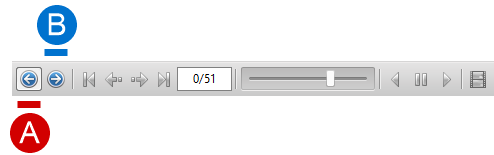
A |
Initial data |
Simulation objects are displayed in their original position set during positioning or inherited from the previous operation. The Source data preparation mode is designated as the zero step. Viewing simulation results is not possible. |
B |
Simulation results |
The simulation results are displayed on the screen in this mode, and playback buttons are available. |
2. Results view. The figure below describes the feature available when viewing simulation results:
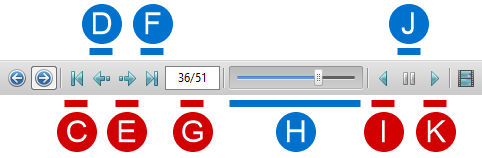
C |
Go to the beginning of the simulation |
Activates the first record of the simulation of the current operation/blow. |
D |
Step backward |
Activates the previous record of the simulation of the current operation/blow. |
E |
Step forward |
Activates the next record of the simulation of the current operation/blow. |
F |
Go to the end of the simulation |
Activates the last record of the simulation of the current operation/blow. |
G |
Active record number/ total records |
Displays the active simulation record of the current operation/blow and the total amount of the calculated records. |
H |
Scroll slider |
Tool for quickly switching between simulation records. The slider can be moved in the following ways: •Click the left mouse button on the desired point on the scroll bar; •Hold the slider with the left mouse button; •Position the cursor on the scroll bar and rotate the mouse wheel. |
I |
Play back |
Sequentially moves the scroll bar from the active record to the first record in automatic mode. |
J |
Pause |
Stops playback. |
K |
Play forward |
Sequentially moves the scroll bar from the active record to the last record in automatic mode. |
Simulation results can be viewed without stopping the simulation.
3. Creation of animations and images. To record the simulation results, you must press the button shown in the figure below:

L |
Opens a window Creating animations and images. When you click on the icon with the Ctrl key pressed, the image with the calculation results displayed in the main window is copied to the clipboard. This uses the image options specified earlier in the window Creating animations and images. |