This section provides information about specialized modules for simulation of longitudinal rolling processes: Longitudinal rolling and Reverse rolling. The table below describes the advantages of using specialized modules over the module General forming for simulation of longitudinal rolling processes.
Longitudinal rolling |
General forming |
•The program automatically recognizes the longitudinal rolling process and the solver is adapted to the specific process to accelerate the simulation without loss of accuracy; •The finite element mesh of tools remains stationary during the simulation process; •To accurately describe the trajectory of the workpiece components in contact with the tool, an algorithm is used to divide the simulation step into advanced steps; •The simulation stops when the workpiece stops contacting the last tool in the rolling axis. |
•The module is designed to simulate forging and open die forging processes. The program does not automatically recognize the simulation of the rolling process and the preparation of initial data is not adapted to this process. |
Automatic preparation of the project for simulation with CAD QKaliber (More details on the official website http://qform3d.com/products/qkaliber) |
|
•All initial data for simulation are prepared auto-based on roll pass design in CAD QKaliber: a 3D project ready for simulation in QForm UKis created based on the 2D roll pass design. |
•Not supported |
Creating boundary conditions |
|
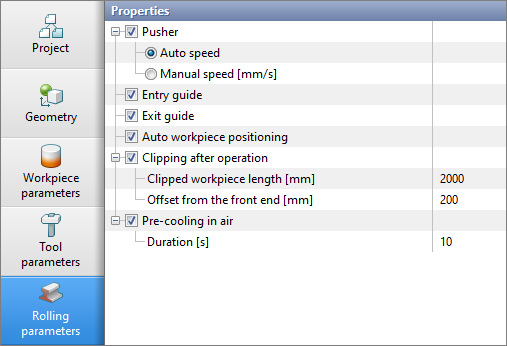
•Rolling parameters are located in a special tab on the initial data panel; •The pusher and guides are enabled by default. They are not created as separate simulation objects, but act on the workpiece nodes as invisible boundary conditions. They don't need to be positioned and configured; •The workpiece is automatically brought into contact with the nearest roll in the rolling direction at the beginning of the simulation; •Simulation of air pre-cooling of the workpiece in the preprocessor is available;
|
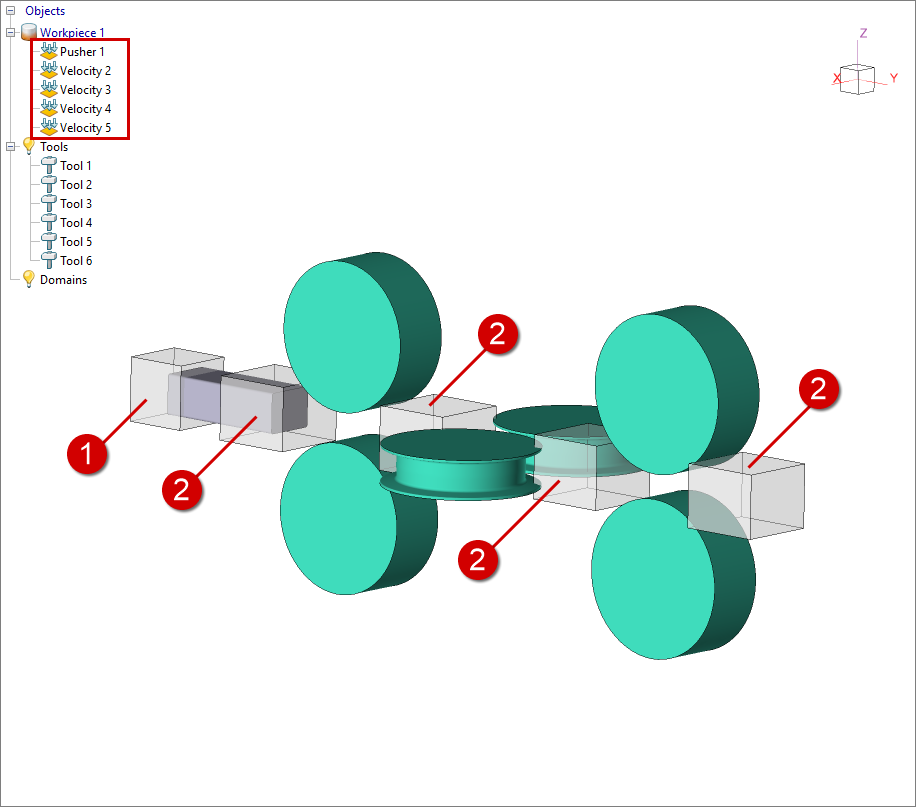
•The pusher and guides need to be created manually as boundary conditions, also their parameters and position should be set; •Positioning of the workpiece before starting the simulation is done manually;
1 - Boundary condition Pusher; 2 - Boundary condition Velocity. |
Drive of tool |
|
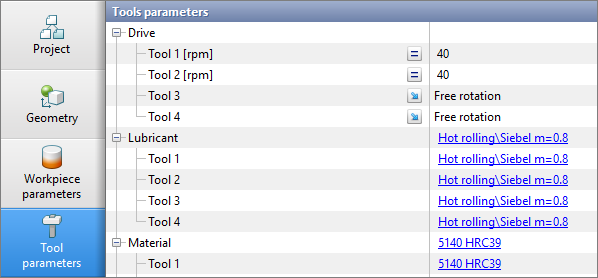
•The direction of rotation of the rolls is automatically determined. The user only needs to set the rotational velocity for the drive rolls or select option Free rotation for non-driven rolls;
|
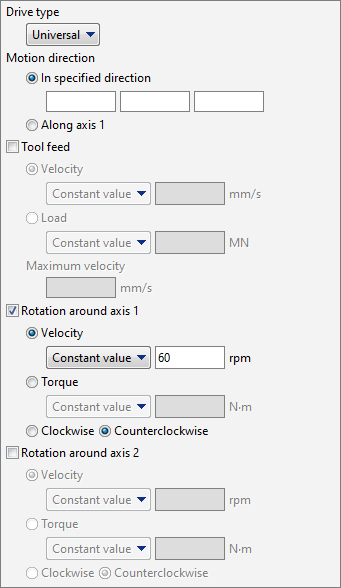
•For each number of revolutions per minute it is necessary to create separate drive type Universal. The direction of rotation of the rolls is determined by the user.
|
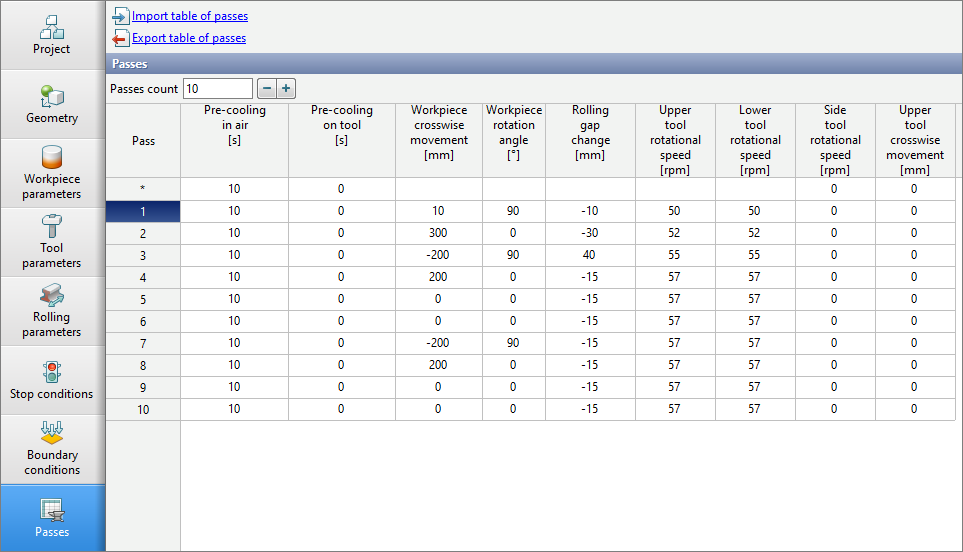
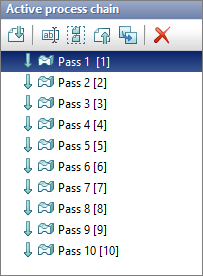
•Parameters of all passes are located in a special tab Passes. In the table Passes the initial data for each pass is entered and all passes are simulated in one operation, in which the workpiece is automatically transferred to the next pass.
|
•Each pass must be prepared in a separate operation;
•The positioning of the workpieces between passes is set manually. |
Clipping after operation |
|
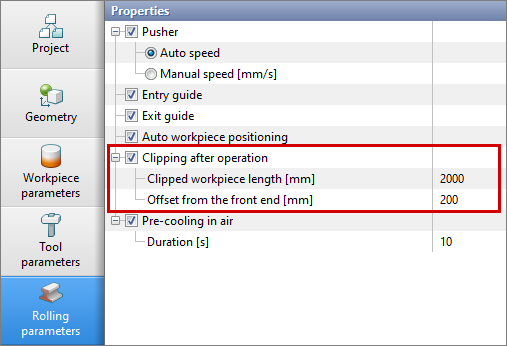
•For cutting workpiece at the end of an operation, it is enough to set the length of the cut workpiece with or without an offset; •You do not need to restart the simulation from the beginning to account for clipping during the simulation. To do this, activate the clipping option and recalculate the simulation from the previous step.
|
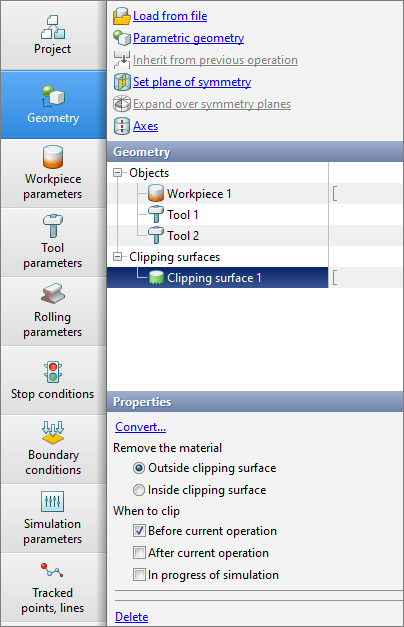
•You must create and position the clipping surface before simulation of the operation.
|
Flow analysis and fields distribution in cross sections of the workpieces |
|
•An array of sections at the centers of each group of rolls is created in one click on the right mouse button |
•Cross cut plane are created and positioned by the user |