Below is an example of the rolling simulation of a circle in two longitudinal rolling operation. The first operation is created in the module Reverse rolling, the second is in the module Longitudinal rolling.
Operation 1 |
Operation 2 |
|
|
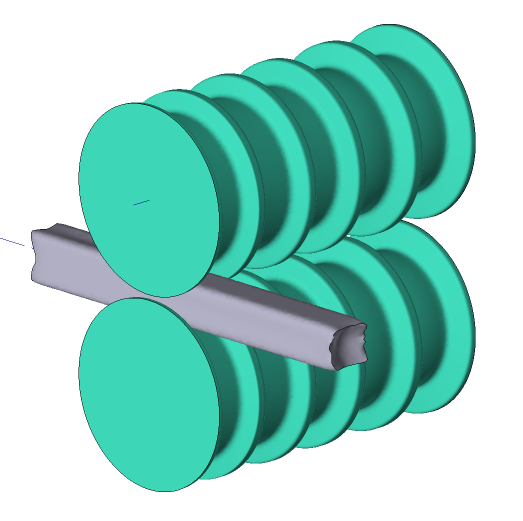
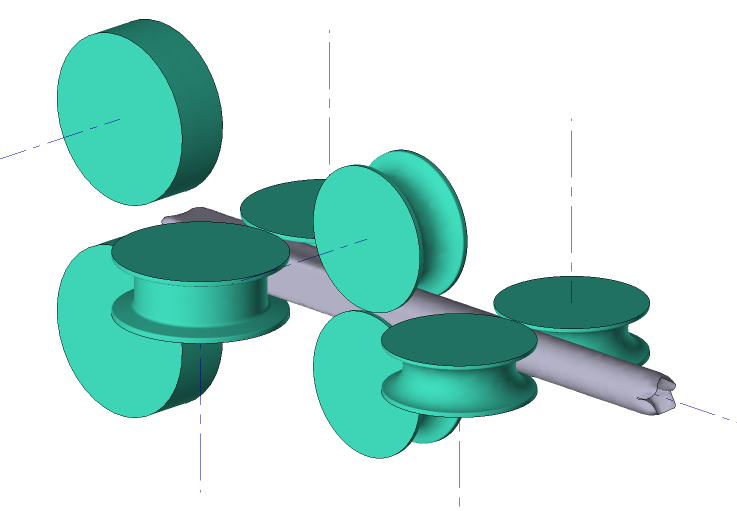
|
Information |
All necessary materials for preparing the example are located here: C:\QForm UK\12.0.1\geometry\rolling\ |
|

Initial data
Operation 1 |
||
|---|---|---|
Operation |
Operation type |
Reverse rolling |
Additional parameters |
With thermal process |
|
Problem type |
3D |
|
Geometry |
Load from file |
Tools_and_wp.shl |
Workpiece parameters |
Material |
Steels\Carbon steels\C10 (1.0301) |
Temperature |
1100˚С |
|
Tool parameters |
Lubrication |
Hot rolling/Siebel m=0.8 |
Material |
5140 HRC39 |
|
Temperature |
70˚С |
|
Heat transfer to workpiece |
Constant temperature |
|
Rolling parameters |
|
Default |
Stop conditions |
Time |
2 s |
Boundary conditions |
Environment |
Air 20˚С |
Passes |
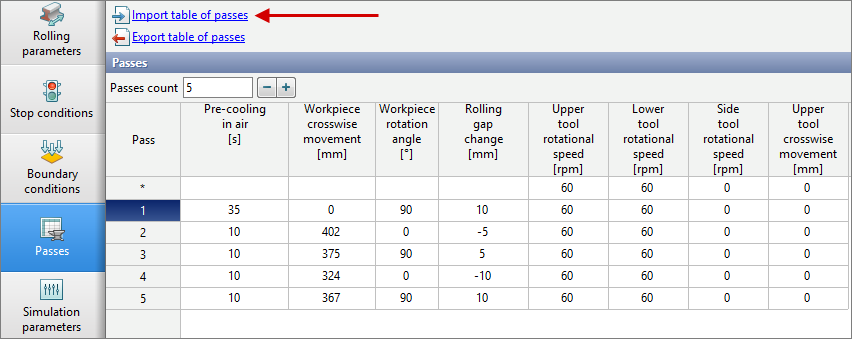
Import table of passes |
table_of_passes.xlsx. |
Simulation parameters |
Default |
|
Operation 2 |
||
Operation |
Operation type |
Longitudinal rolling |
Additional parameters |
With thermal process |
|
Problem type |
3D |
|
Geometry |
Load from file |
Tools.shl |
Workpiece parameters |
Material |
Inherited from previous operation |
Temperature |
Inherited from previous operation |
|
Tool parameters |
Drive |
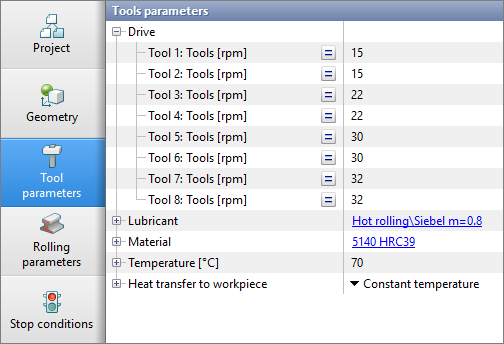
Tool 1, 2 - 15 [rpm] Tool 3, 4 - 22 [rpm] Tool 5, 6 - 30 [rpm] Tool 7, 8 - 32 [rpm] |
Lubricant |
Hot rolling/Siebel m=0.8 |
|
Material |
5140 HRC39 |
|
Temperature |
70˚С |
|
Heat transfer to workpiece |
Constant temperature |
|
Rolling parameters |
|
Default |
Stop conditions |
Time |
10 s |
Boundary conditions |
Environment |
Air 20˚С |
Simulation parameters |
Default |
|
1.Click Create new process
2.In the tab Operation select Operation type - Reverse rolling, With thermal process and Problem type - 3D. Click Forward.
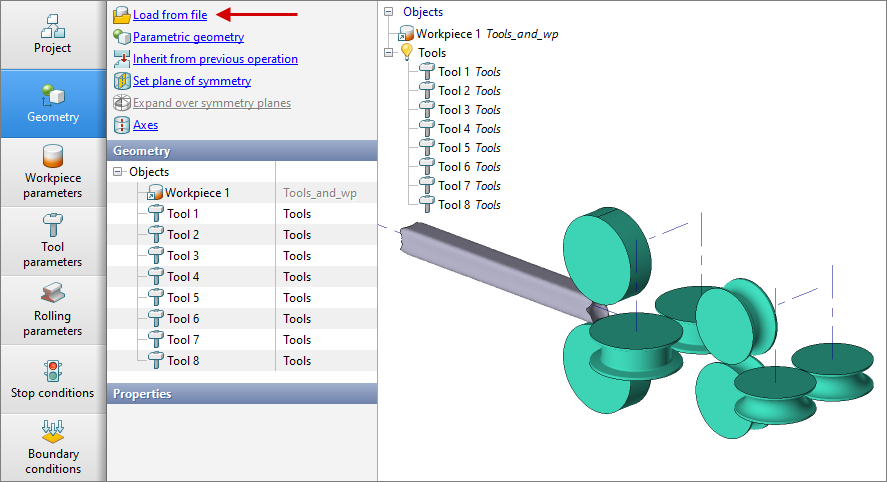
3.In the tab Geometry click Load from file and specify the path to the geometry file C:\QForm UK\12.0.1\geometry\rolling\Tools_and_wp.shl . The loaded geometry will appear on screen. Click Forward.
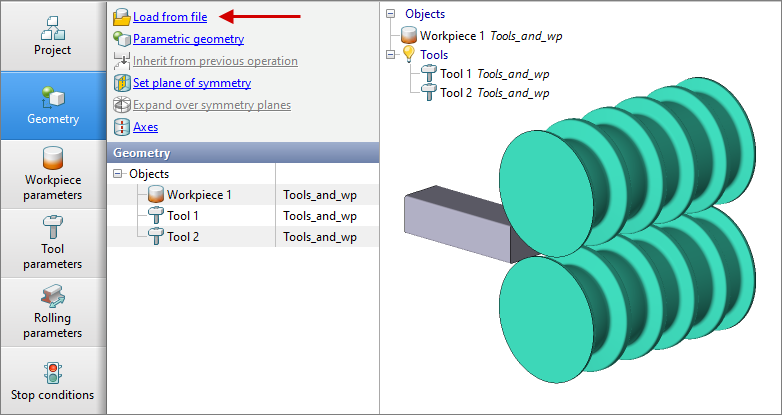
4.In the tab Geometry click Axes, then select all objects and click Compute all axis, click OK. Click Forward.
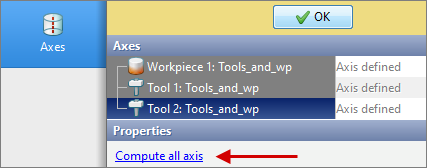
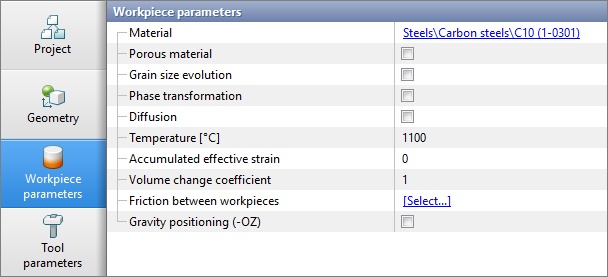
5.In the tab Workpiece parameters it is necessary to specified the material and workpiece temperature. Click next to Material [Select...]
In the database window that opens, select the material Steels\Carbon steels\C10 (1.0301) and double click on it, after that the material will appear in the tabWorkpiece parameters.
Set workpiece temperature 1100˚С. Click Forward.
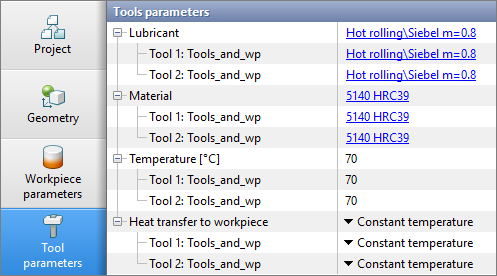
6.In the tab Tool parameters it is necessary to select a lubricant, material, temperature, heat transfer to workpiece for each tool. Next to Lubricant click [Select...], the lubricants database window will open. Select lubricant Hot rolling/Siebel m=0.8 and click on it twice, after which the selected lubricant will appear in opposite of all tools.
Opposite Material click [Select...] and double click to set material 5140 HRC39. The material will appear immediately opposite all tools.
Opposite Temperature set the tool temperature to 70 °C. Next to Heat transfer to workpiece select Constant temperature.
Click Forward.
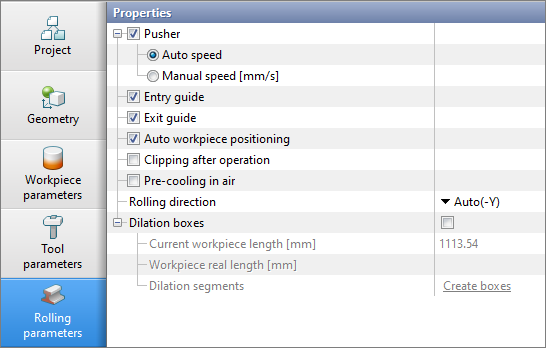
7.In the tab Rolling parameters all remains unchanged. Click Forward.
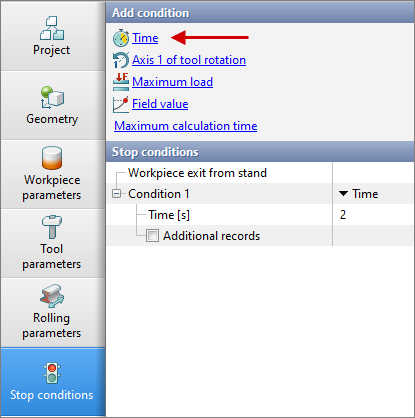
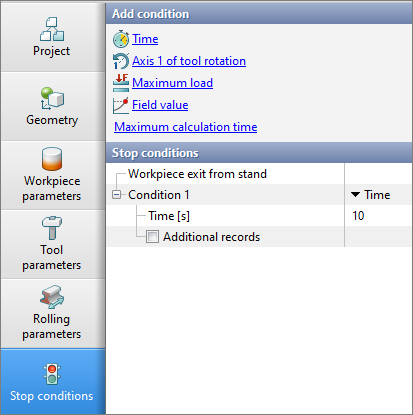
8.In the tab Stop Conditions, the default setting for rolling modules is Workpiece exit from stand. However, an additional stop condition, such as a process time, must be specified. Click Time. After this, enter the time (2 s). Click Forward.
9.In the tab Boundary conditions all remains unchanged. Click Forward.
10.In the tab Passes click Importtable of passes. Select C:\QForm UK\12.0.1\geometry\rolling\table_of_passes.xlsx. Click Forward.
11.In the tab Simulation parameters all remains unchanged.. Click OK
12.Click on the button Simulation  , and the programm will offer to save the project. Set the project a name and click Save. The simulation will start after that.
13.When the operation has been simulated, open the tab Project and press Add operation to process chain.
14.In the tab Operation select Operation type - Longitudinal rolling, With thermal process and Problem type - 3D. Click Forward.
15.In the tab Geometry click Load from file and specify the path to the geometry file C:\QForm UK\12.0.1\geometry\rolling\Tools.shl. The loaded geometry will appear on screen. Click Forward.
16.In the Workpiece parameters tab all remains unchanged: the workpiece and its temperature are inherited from the first operation. Click Forward.
17.In the tab Tool parameters it is necessary to select the drive, lubricant, temperature, material, heat transfer to workpiece for each tool. For Drive let's set the rotation speed of the rolls [rpm]. For this, select the Constant velocity for each Tool .Further opposite Tool 1, Tool 2, Tool 3 enter 15. Next to Tool 4 enter 22. Next to Tool 5, Tool 6 enter 30. Next to Tool 7, Tool 8 enter 32.
Next to Lubricant click [Select...] and double click to set lubricant Hot rolling/Siebel m=0.8. Lubricant will appear immediately for all tools.
Next to Material click [Select...] and double click to set the material 5140HRC39. The material will appear immediately for all tools. Next to Temperature set the tool temperature to 70 °C. Next to Heat transfer to workpiece select Constant temperature. Click Forward.
18.On the Rolling parameters tab, set the rolling direction to –Y. Click Forward.
19.On the Stop conditions tab, specify the process time. Click Time. After this, enter the time (10 s). Click Forward.
20.In the tab Boundary conditions all remains unchanged. Click Forward.
21.In the tab Simulation parameters all remains unchanged.. Click OK
22.Save the project and click on the button Start simulation