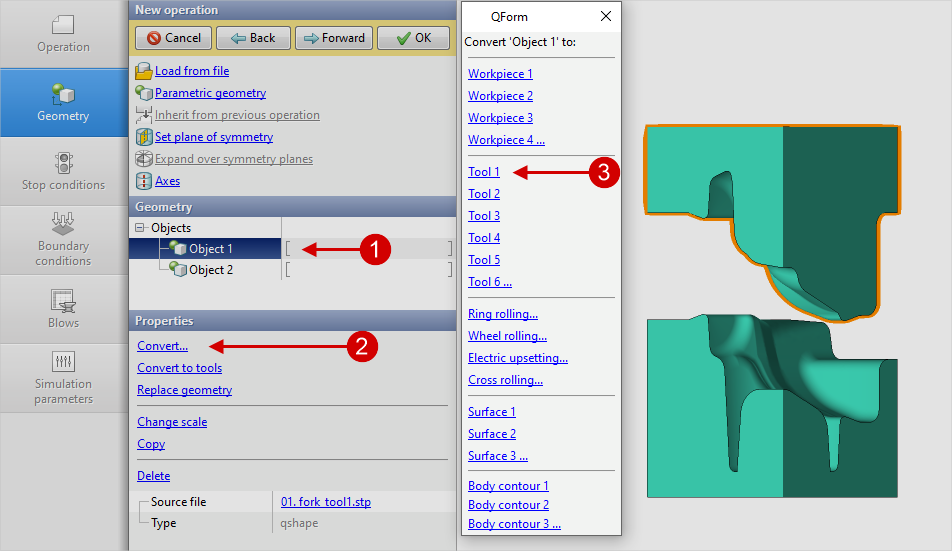
In QForm UK direct import possible STEP-files without preliminary preparation of the mesh in the programm QShape. In this case, the mesh of all objects is created auto, including fixing some defects initial geometry: Narrow faces, Tiny edges, Composite Faces, Pointed faces. Direct import can be very convenient when objects have relatively simple geometry, or when complex geometry is well prepared in a CAD system and does not require serious corrections in QShape.
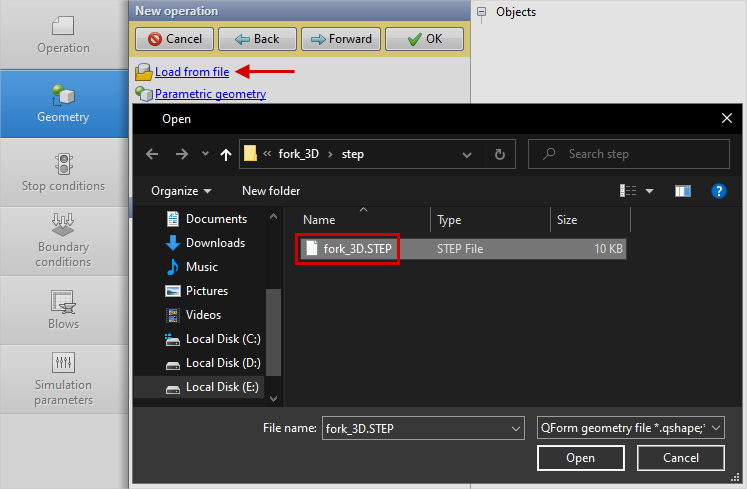
To import STEP- file, you need to enter the tab Geometry on Initial data panelQForm UK, press Load from file and select the desired file:
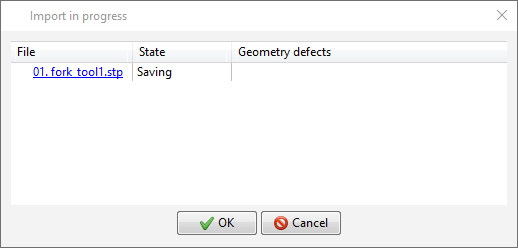
After the file is opened, the QShape in the background, automatic diagnostic and correction of some geometry errors (Narrow faces, Tiny edges, Composite Faces, Pointed faces) in the parametric fit by and finite element mesh generation:
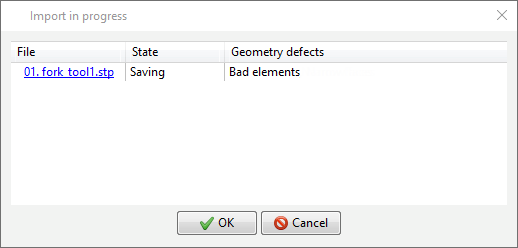
If geometry defects were obtained process mesh generation, then in the column Geometry defects a corresponding message will appear. In this case, click on the link with the file name:
In the opened window QShape manual to correctBad Elements, save changes and close QShape:
As a result, the error message in the geometry import window will disappear:
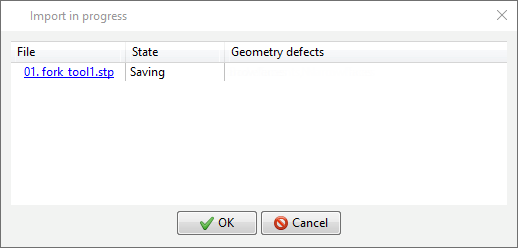
After pressing the button OK objects from STEP- file will be shown on screen. Next, you need to convert the objects to Named that is, assign Workpiece, Tools and, if necessary, other objects: