Multi-window mode allows you to split results View Window on several windows (from one to four). In each window, you can open an operation (blow ), operation case from the same or different projects (*.qform-files). In multi-window mode, the user works only with active window, which is highlighted in red.
Multi-window features:
View sync - copying options for displaying objects and active calculation fields from the active window to other windows.
View bind – linking the position and linear scale of objects in different windows.
Window snapping Cross cut plane, Graphs, Dimensions, Statistics to the active window.
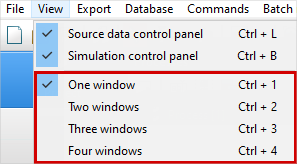
To switch to multi-window mode, you must select the desired amount of windows in Main Menu - View or at Toolbar:
|
|
|
Switching to multi-window mode help the commands of the Main menu |
|
Switching to multi-window mode from the Toolbar |
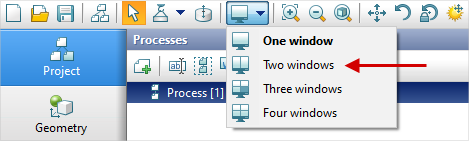
Below is an example of work with two windows. On the toolbar , switch to dual-window mode:
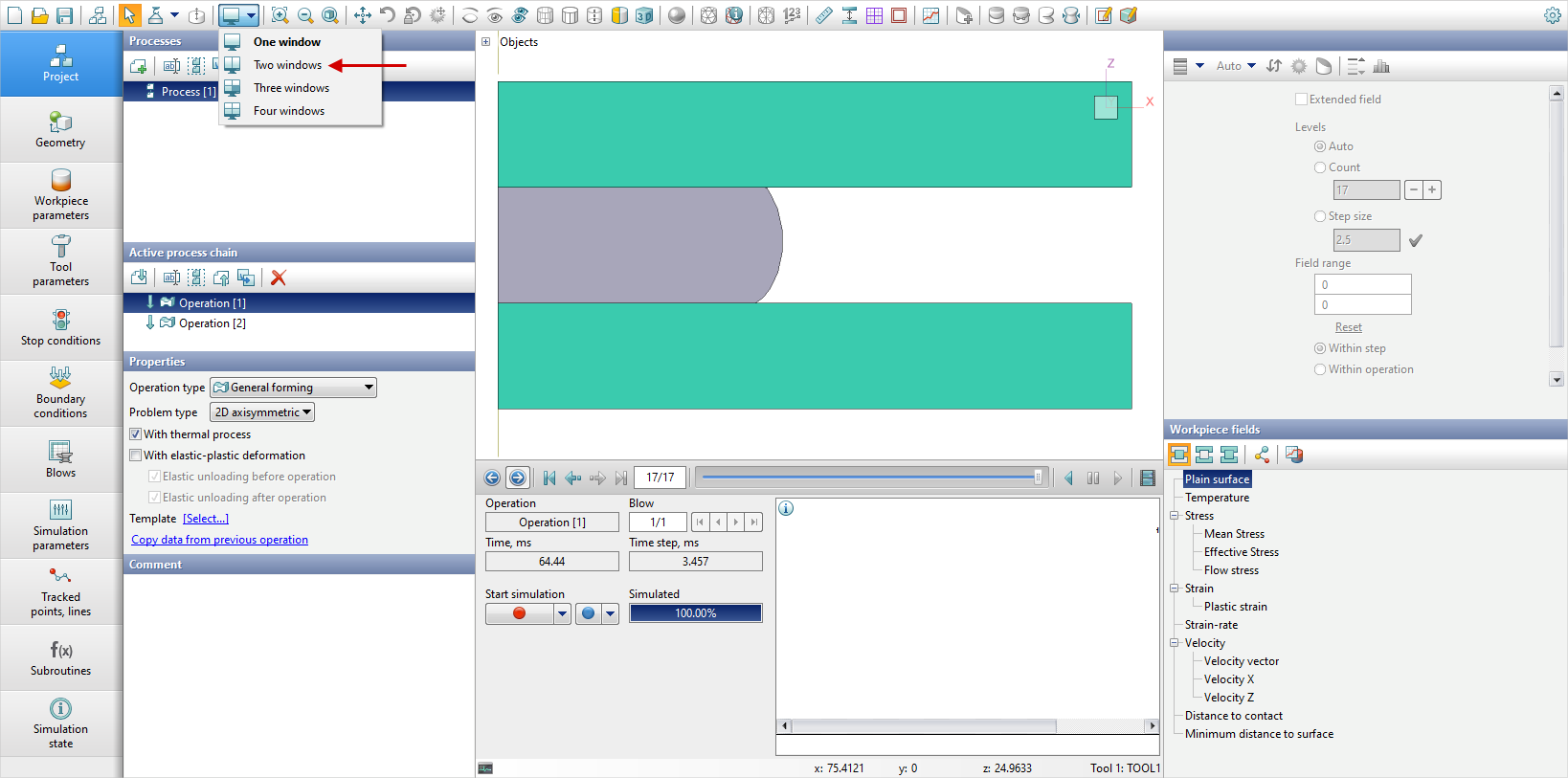
If in QForm UK some project is already open, then when you go to Multi-window mode the active operation auto opens in other windows. In this case, the display options , linear scale and position of objects will be accepted by default. To copy the display options of the active window to the second window, you need to click on the roller View sync of objects in the lower right angle of the active window:
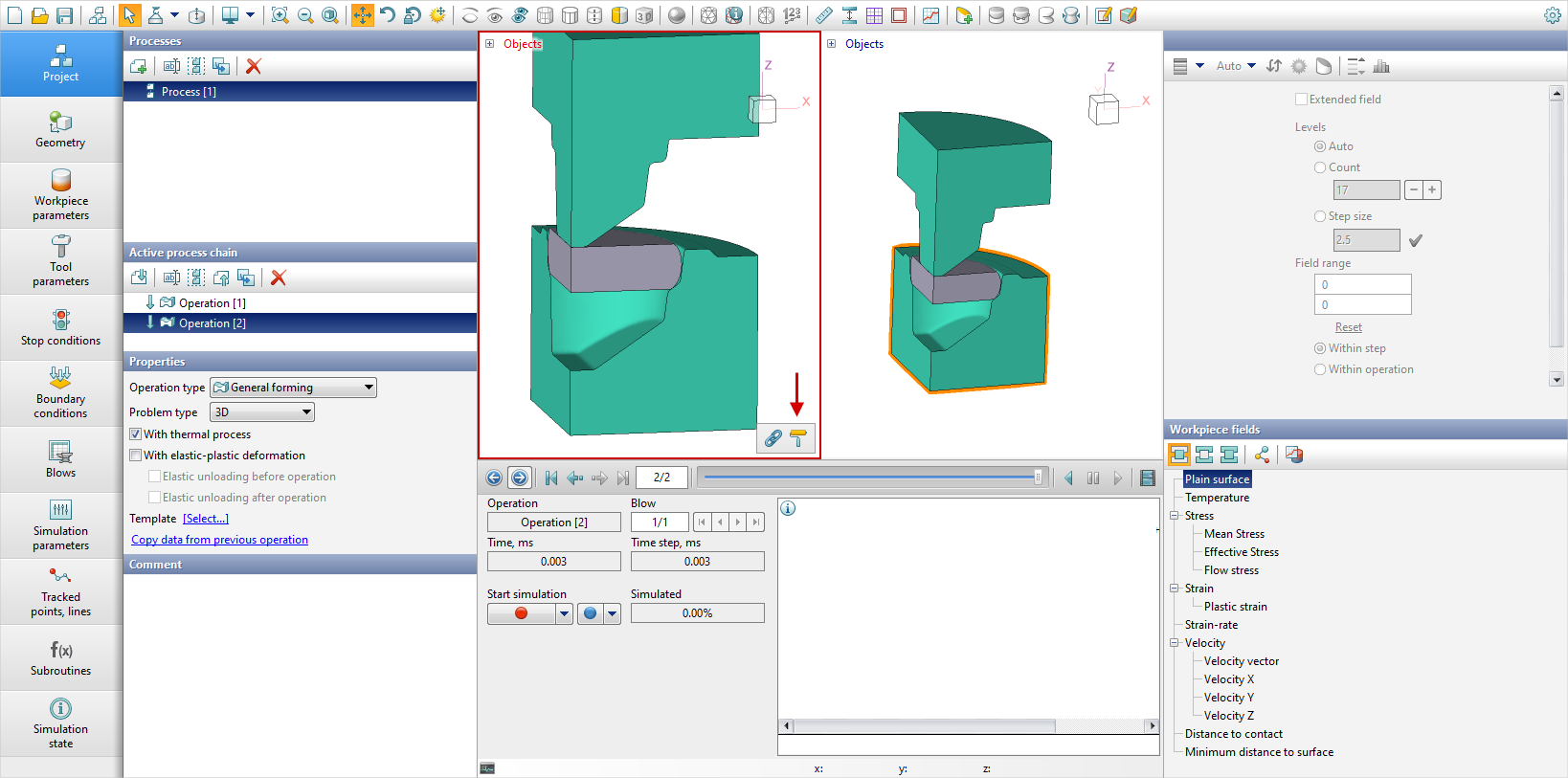
objects View sync - a single action, that is, if you need to copy the display parameters , you must press the roller each time.
To link the linear scale and position of objects in other windows with the linear scale and position of objects in the active window, click on the chain links  :
:
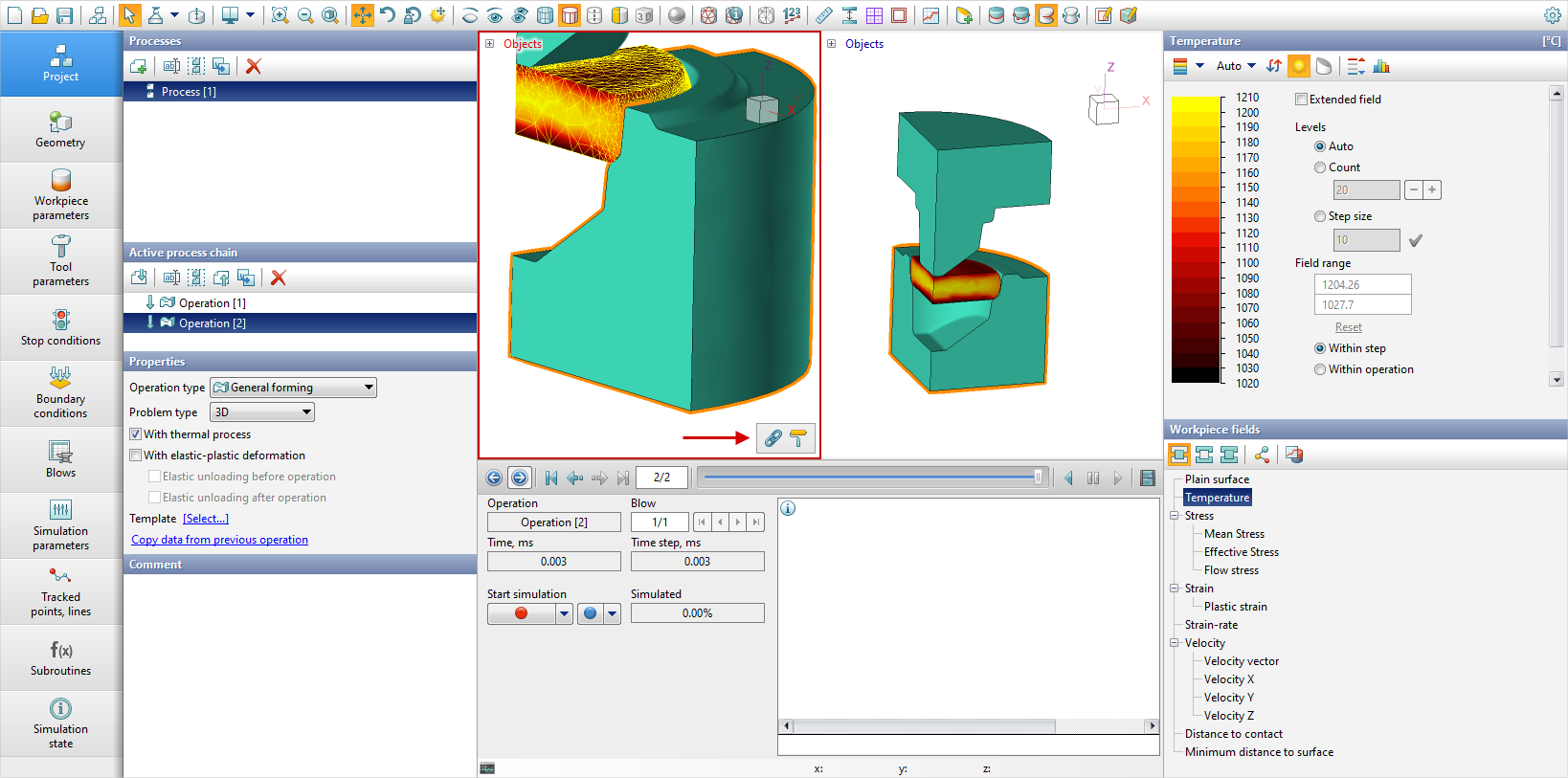
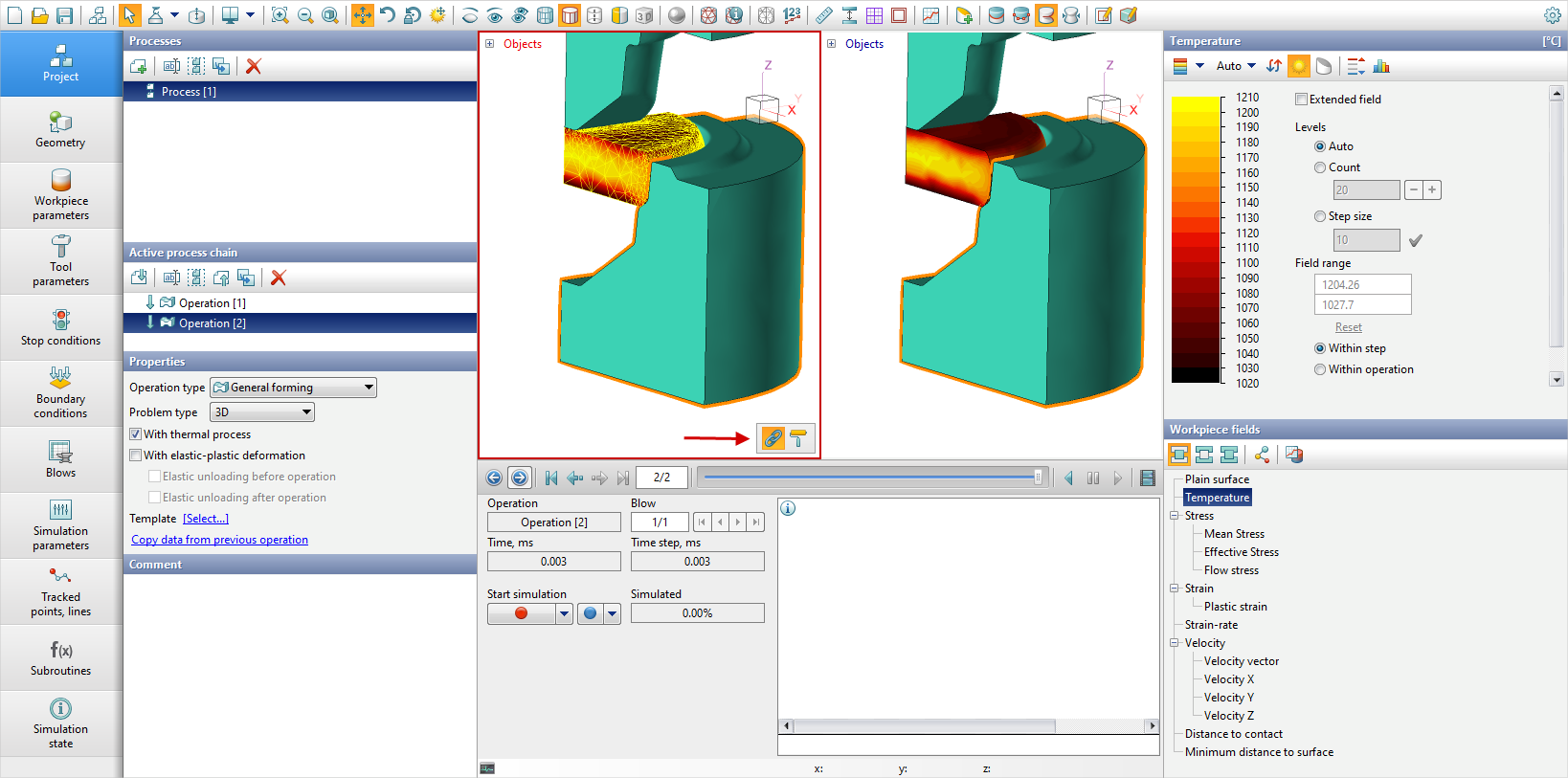
Unlike Synchronization of display options in mode View bind Oobjects in all windows are synchronously moved, rotated and scaled until the torque the mode is deactivated View bind repeated pressing on the links of the chain  :
:
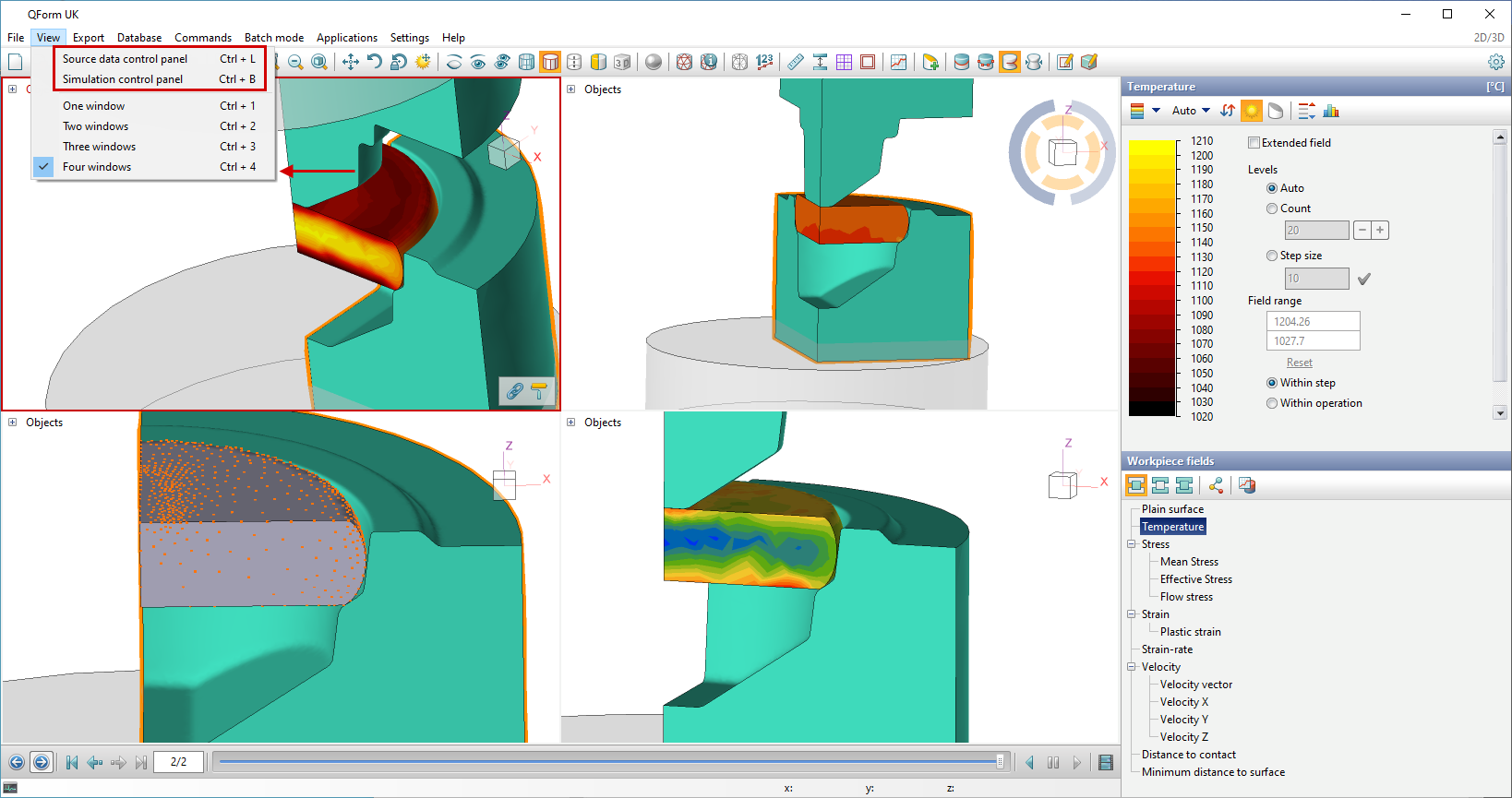
For the convenience of using the multi-window mode, you can zoom in the viewing array by hiding Initial data panel And simulation control panels (Main menu - View). You can also use keyboard shortcuts:
ctrl + L - hide/ show Initial data panel left
ctrl + B - hide/ show simulation control panel at the bottom
ctrl + Z - hide/ show Initial data panel And simulation control panel
In the figure below, the same operation is open in four windows, with different calculation fields active in each window:
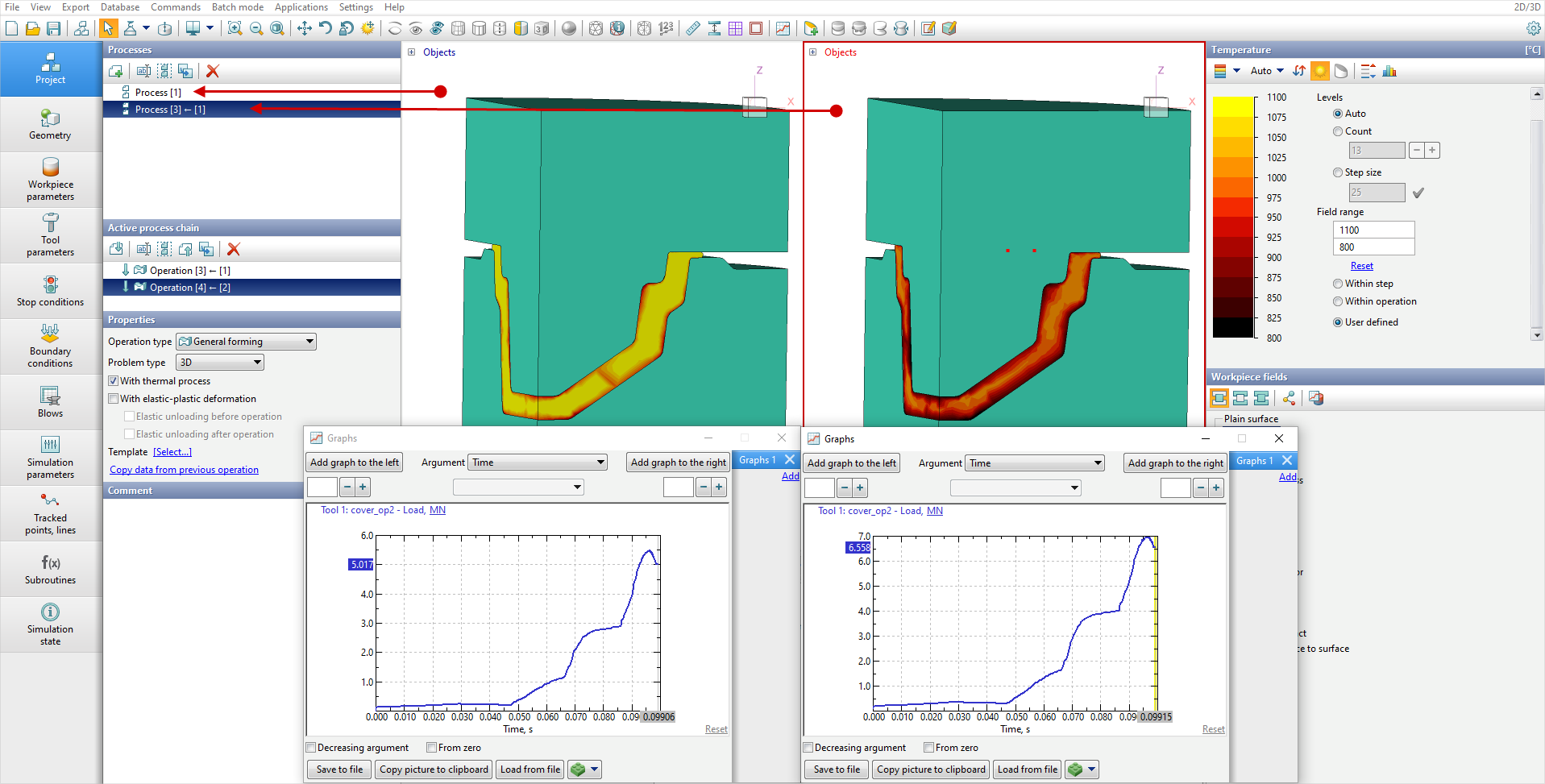
In each window, you can open an operation (blow ) or operation case from the same or different *.qform-files. For example, below is a comparison of load graphs and temperature distribution in two different operation. The Operation differ only in the starting workpiece temperature. In the window on the left , the initial workpiece temperature is 1200°C, in the window on the right - 1000°C. To open any operation in the window, you need to activate this window with a mouse click (the window will become active and be highlighted with a red frame) and select in the tabProject or in the window Project structure desired operation. Window Graphs binds to the active window. Thus, for each window, you can open its own window Graphs:
To open any Project in a certain window, this window must be activated with a mouse click and open the desired *.qform- file (Main menu - File - Open).