To work with the QForm API in the C# programming language, install the Visual Studio Community development environment (current version) by following the link www.visualstudio.microsoft.com.
To get started, select the type of application you want to create (console App, Windows Forms, etc.).
Let's look at the specifics of work on the example of a console App.
To be able to use API commands, you need to add a QForm.cs file to the project. To do this, right-click on the project name in the solution explorer, find the Add command and select Existing Item. Then go to the following directory C:\QForm UK\12.0.1\ API\App\C# (if QForm UK is installed on the C drive) and add the file.
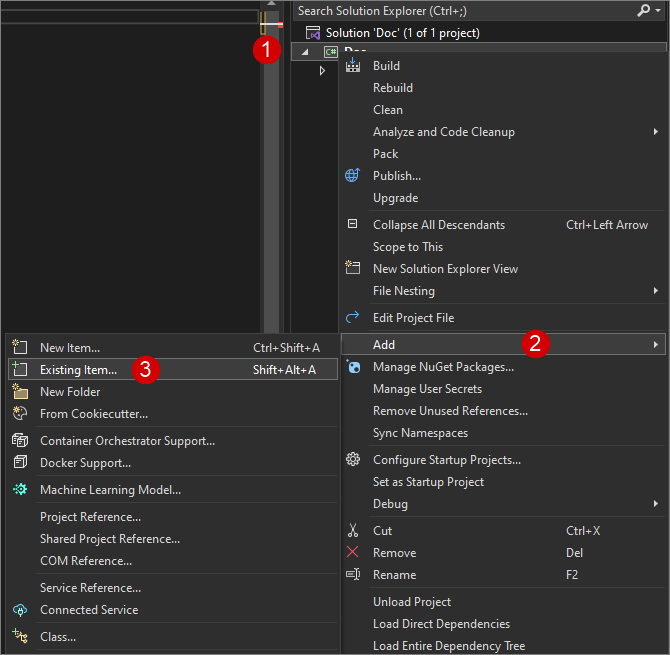
After adding the file with API commands to the project, the following command must be written:
1 |
|
using QFormAPI; |
Now everything is ready for writing applications.
Let's look at an example of an application that runs QForm UK and creates 2 empty operations.
First you need to set the path to run the QForm UK program:
1 |
|
const string QFormPath = @" C:\QForm UK\12.0.1\ x64"; |
Next, initialize the qform variable and open the software:
1 2 3 |
|
QForm qform = new QForm(); qform .qform_dir_set(QFormPath); qform .qform_start(); |
The function for creating operations is shown below. This and other functions can be found in the Application Wizard.
1 2 3 4 5 6 7 8 |
|
OperationParams arg1 = new () { id = 1, name = @"Operation 1", parent = 0, creation_mode = OperationCreationMode.CreateAsNewProcess, }; ItemId ret1 = qform.operation_create(arg1); |
The entire code of the console application is presented below:
1 2 3 4 5 6 7 8 9 10 11 12 13 14 15 16 17 18 19 20 21 22 23 24 25 26 27 28 29 30 31 32 33 34 35 36 37 |
|
using QFormAPI;
namespace Test { class Program { const string QFormPath = @"C:\QForm UK\12.0.1\ x64";
static void Main(string[] args) { QForm qform = new QForm (); qform .qform_dir_set(QFormPath); qform.qform_start();
OperationParams arg1 = new() { id = 1, name = @"Operation 1", parent = 0, creation_mode = OperationCreationMode.CreateAsNewProcess, }; ItemId ret1 = qform.operation_create(arg1);
OperationParams arg2 = new() { id = 2, name = @"Operation 2", parent = 0, creation_mode = OperationCreationMode.CreateAsNewProcess, }; ItemId ret2 = qform.operation_create(arg2);
} } } |