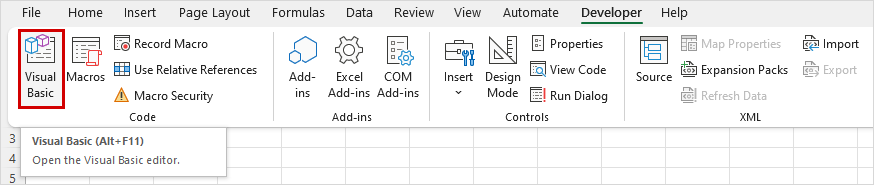
1. First, you need to install the API object library. Navigate to the executable file located at C:\QForm UK\12.0.1\API\App\Excel\QFormApiCom.exe and proceed with the installation. To work with the API in Excel, save the document as an Excel Macro-Enabled Workbook (.xlsm). Then, go to the Developer tab on the ribbon and launch the Visual Basic editor:
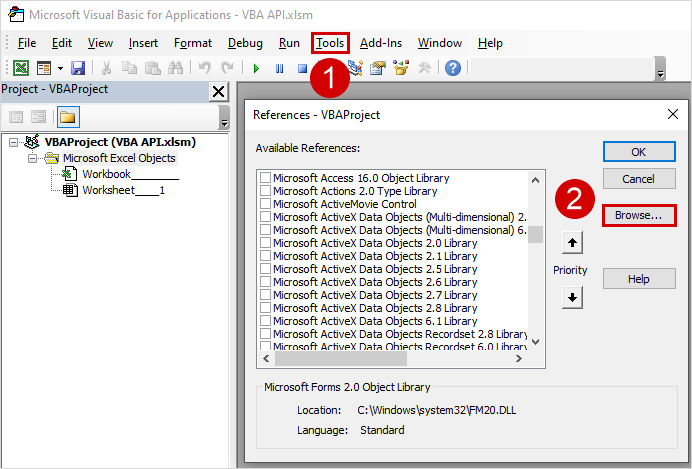
2. Then, go to Tools > References and add the installed object library QFormAPI.tlb:
|
Important |
By default, the library is installed in the directory C:\QForm UK\12.0.1\QFormApiCom_12.0.1. To use the library, it must be selected in the References window. |
|

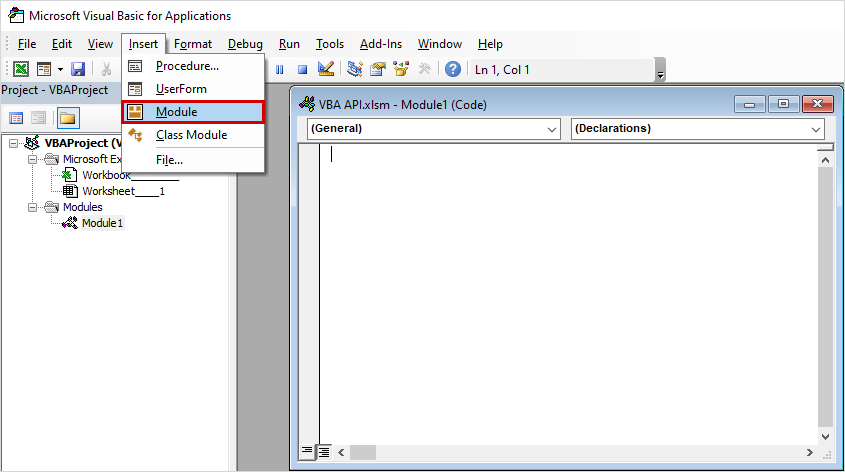
3 .Next, in the editor that opens, create a module in the tab Insert :
4. Declare a global variable qform and write a function to launch the program:
1 2 3 4 5 6 7 8 9 10 11 12 13 14 |
|
Option Explicit
Global qform As QFormAPI.qform
Sub QFormStart() If qform Is Nothing Then Dim mgr As New QFormAPI.QFormMgr Set qform = mgr.instance("DefaultInstance") End If
qform.qform_dir_set " C:\QForm UK\12.0.1\ x64"
qform.qform_start End Sub |
|
Important |
Before running, check the path to the C:\QForm UK\12.0.1\ directory and, if necessary, replace it with the path to the installed version of QForm UK. |
|
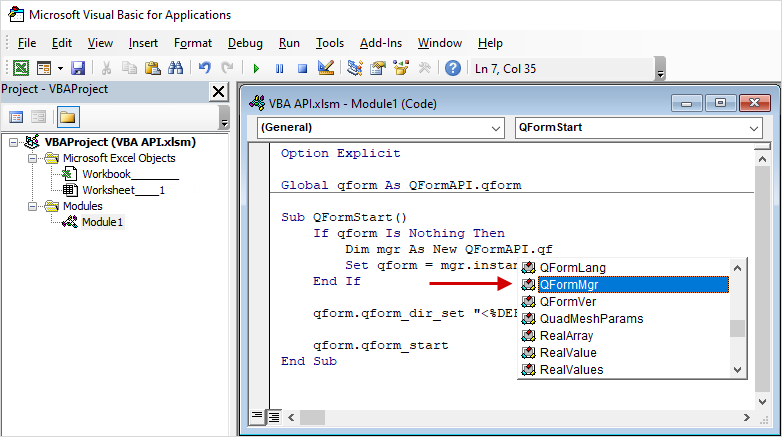
When writing code, the installed library provides functions in a dropdown list for easy selection:
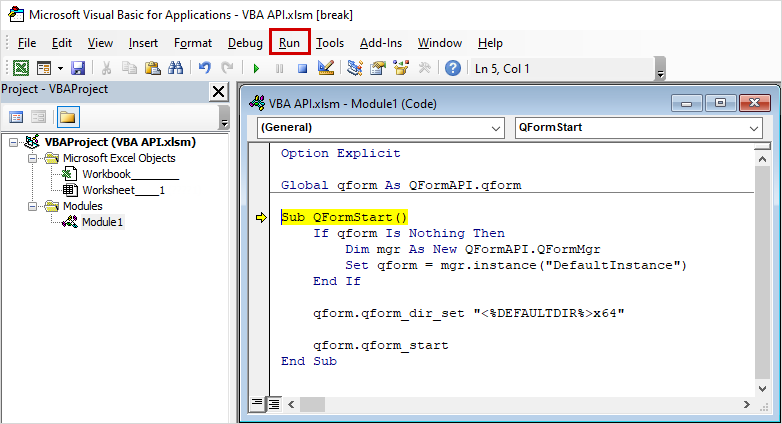
5. Specify the path to the executable file and start the functional block by clicking Run Sub on the toolbar or pressing F5. For debugging, it is convenient to use the F8 key to execute the code step by step:
|
Information |
As a result of executing the code, the specified version of QForm UK will be launched. |
|

6. The list of available objects in the library can be viewed in the Object Browser, which can be opened using the toolbar button or the F2 hotkey:
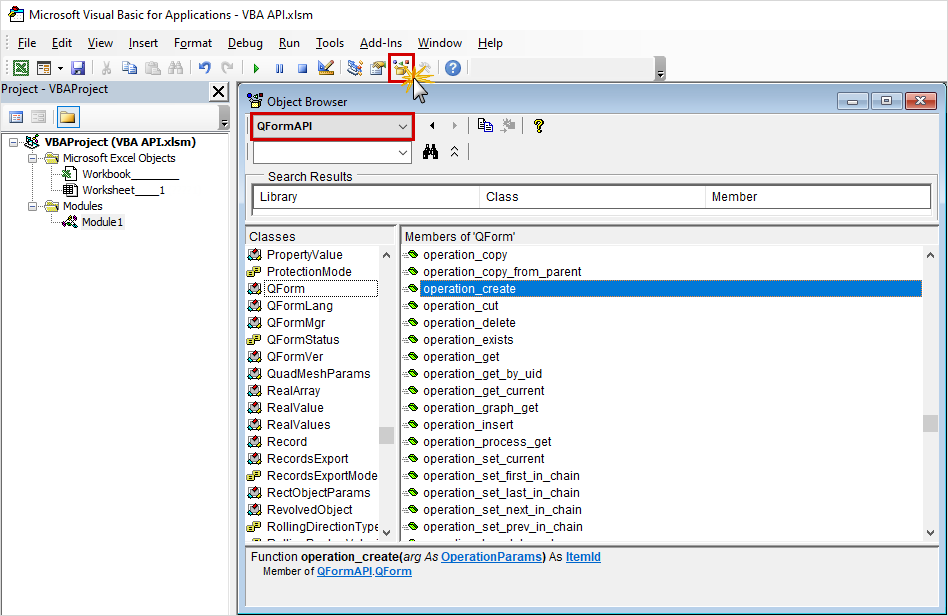
The functional block can also be copied from App Wizard by selecting the desired function and VBA as the programming language.
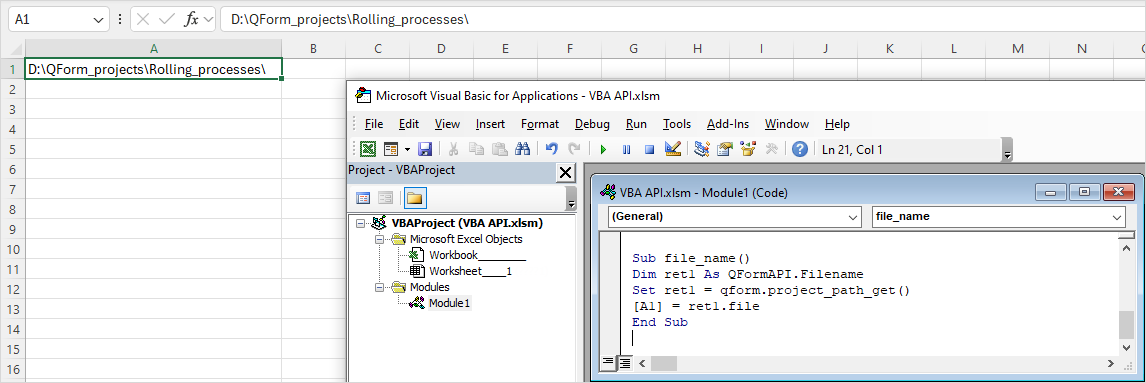
7. An important feature of VBA programming is the export of retrieved data into Excel worksheet cells. Add the function project_path_get() to retrieve the path of the current project in QForm UK:
1 2 3 4 5 6 7 8 9 10 11 12 13 14 15 16 17 18 19 20 |
|
Option Explicit
Global qform As QFormAPI.qform
Sub QFormStart() If qform Is Nothing Then Dim mgr As New QFormAPI.QFormMgr Set qform = mgr.instance("DefaultInstance") End If
qform.qform_dir_set " C:\QForm UK\12.0.1\ x64"
qform.qform_start End Sub
Sub file_name() Dim ret1 As QFormAPI.Filename Set ret1 = qform.project_path_get() [A1] = ret1.file End Sub |
Open the project in QForm UK and retrieve the path into cell A1 using the following VBA code:
|
Information |
Below is an example program for connecting to QForm UK. The example includes functions for starting, disconnecting, and reconnecting to a QForm UK session. For a more detailed study of the implementation of each action, you can open the VBA Editor in Excel (press Alt + F11) and review the code of the corresponding macros. The sample Sample_for_VBA_Excel can be found in the directory: C:\QForm UK\12.0.1\API\App\Excel\. |
|
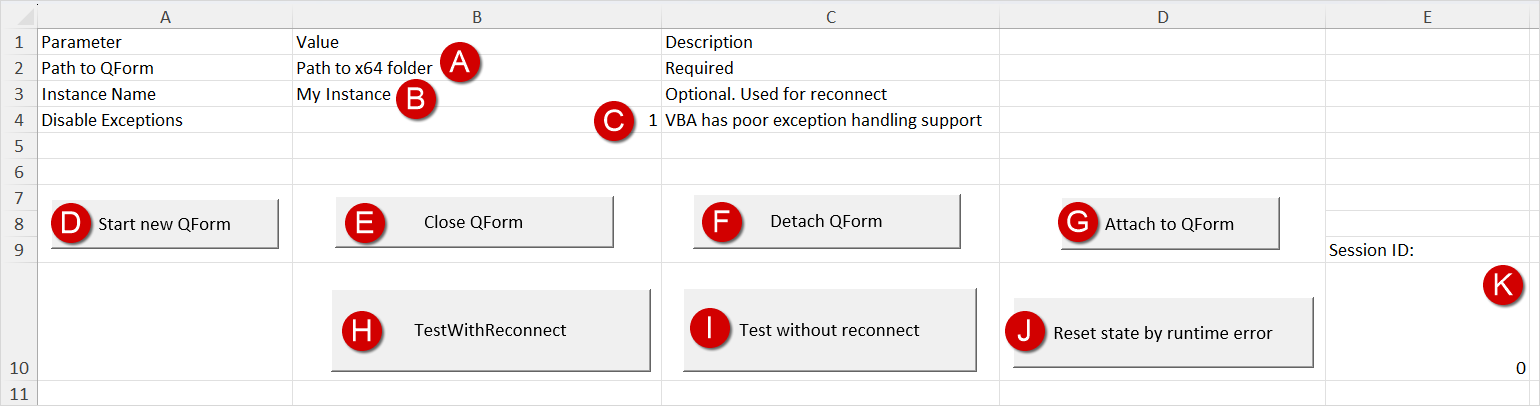
User program demonstrating the capabilities of starting, disconnecting, and connecting to a QForm UK session.
A |
Path to the x64 directory of the installed QForm UK program. By default C:\QForm UK\12.0.1\x64 . |
B |
Custom instance name for QForm UK. If multiple instances of QForm UK are running on the computer, the Instance Name parameter lets the program determine which QForm UK session to connect to. |
C |
Disabling exception handling via the QForm API. Enter 1 to disable exception handling, or 0 to enable it. |
D |
Starting a new QForm UK session according to the parameters specified in cells B2 and B3. If exceptions are disabled and startup fails, an error message is displayed. |
E |
Closing the running QForm UK process to which the current connection has been established. |
F |
Detaching Excel from the current QForm UK session, leaving QForm UK running in the background (if it was running). |
G |
Connecting to an already running QForm UK process by the specified Session ID (see point K). |
H |
Reconnecting to the current QForm UK session. If the connection is successful, a message with the QForm UK Process ID is displayed. |
I |
Retrieving the QForm UKProcess ID without re-establishing the connection (uses the current connection state). |
J |
Forcing a runtime error in the code and resetting the current QForm UK state in Excel. |
K |
Specifying the Session ID of the current QForm UK window. This ID is required for the Attachto QForm command. If you want Excel to attach to a running QForm UK window, specify the correct session number here. The Session ID is displayed in square brackets at the top-left corner of the QForm UK window. If no number is shown, the default Session ID is 0. |